
To create a form, first go to Forms in the main menu.
Create a new form by clicking the plus icon.
We will now go through each tab individually. You can see the tabs at the top of the form editor. See image below (the tabs change depending on the choices you make under Settings , more detailed information about this follows below).
1.1 Internal name
Internal name of the form that only you and your employees can see.
1.2 Applications at a time
One:
Each person can only register themselves.
Several:
Each person can register themselves or multiple people.
1.3 This form costs money
Check this box if a registration fee will be charged (note that another menu tab appears when you check this box, Price . We will go through this tab later).
1.4 Not-logged-in users can use this form
Check this box if you want non-members to be able to register for the event.
1.5 Not logged in users will receive account
If you check this box, people who are not members of yours will receive a login to Wondr (no subscription, just a login).
1.6 Use application groups
Check this box if the form should contain multiple choices for registration. An example could be that the customer can choose whether they want to register for Thursdays or Tuesdays. The course may run multiple times so they can choose which session they want to register for. Note that the Price tab changes to Groups, this is because each group now has its own price. The Reminder tab is also created, we will go through these tabs later.
1.7 Restrict the number of places
Check this box if the number of participants should be limited for the entire form. Two more choices will appear if this box is checked.
1.7.1 Max number of places
Enter the maximum number of participants who can register in total.
1.7.2 Handling Last-Minute Registrations and Payment Locks
When a form reaches its final available spot, the system employs a "first-to-checkout" logic to prevent overbooking. This ensures that the registration process remains fair and accurate in real-time.
How the Payment Lock Works
If multiple users are navigating the registration flow simultaneously and only one spot remains, the system will trigger a lock based on the following logic:
-
The Trigger: The first user to successfully reach the Payment Step effectively reserves that final spot.
-
The Block: Any other users attempting to proceed to the payment step at the same time will receive a notification stating that another applicant is currently in the payment process.
-
The Buffer: If the first user fails to complete their payment or abandons the session, the spot is released. Other users can then attempt to proceed to payment again.
Configuring the Reservation Time
You have full control over how long a spot is "held" while a user is in the checkout phase. To adjust this duration:
-
Navigate to Settings in the main menu.
-
Select Forms.
-
Scroll down.
-
Locate the setting: "How many minutes should form applicants be reserved in the cart?"
-
Enter your preferred duration (in minutes) and Save.
NOTE! A shorter duration (e.g., 10–15 minutes) is recommended to ensure spots are not tied up by inactive users, allowing other interested applicants a chance to register.
1.7.3 Number of places left before a warning is shown
For example, enter 2 here if you want the website to clearly state when there are only two places left.
1.8 Show number of places left
Check this box if you want those who register to be able to see how many places are left at the event (if you use groups, you will see how many places are left for each group).
1.9 Auto start language
If you want the form to be in English, select "English" from the drop-down list. If you want it to be in Swedish, you can skip this step.
1.10 After registering, show a product category for more selling
Here you have the option to have a product category displayed before the customer pays the form fee.
1.11 Accrual date
Date to accrue income to, leave blank to not accrue.
1.12 Accrual ending date
Spread accrual over a longer period (must be more than 1 month), otherwise leave blank.
1.13 Registration form
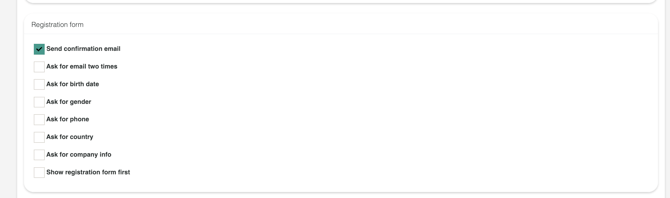
This option is only available if you have checked the option "This form costs money". Here you choose what information the form will require from the payer.
1.14 Login information
1.15 Viewing time
How long should the form be displayed? In other words, during what period should registration for the course be open? Check the box Limit the time this form is available for registration and then specify Valid from and Valid until .
If you choose not to check the box, the form will remain open for registration until you remove it from the website/Wondr.
1.16 Listing/form groups
Choose which grouping this course should be part of (see below for more information on how to create groupings)
1.16.1
You do not create groupings in the form, you must first go to: Settings > Forms > Groupings.
When you add a new grouping, choose a name and then check the box Show in menu for members, then this grouping will be available as a button on the members' Wondr wall and your members can easily book themselves into workshops and events directly through their profile and will not have to go through the website. Allow exchange and Allow transfer are two more advanced features and we recommend that you contact Wondr's support if you are interested in these.
Groupings can also be used for accounting purposes if you have many different types of courses, it is then possible to separate different courses using groupings.
2.2 Description
What is the course about? What is included in the course? Describe in as much detail as you wish!
2.3 Advanced settings
2.3.1 Let search engines index your form
Check this box to index this form on search sites such as Google.
2.3.2 Hide the presentation block
Check this box to hide all presentation texts and just let the form be the fields that need to be filled in.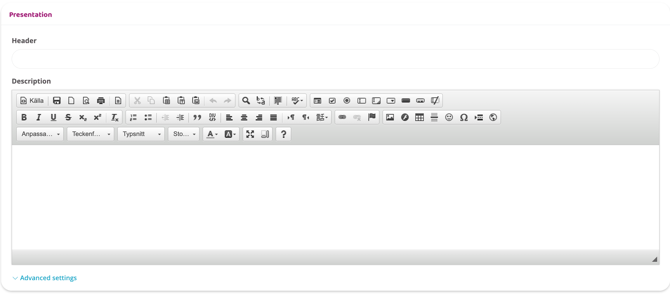
3. Confirmation email
This tab is only available if you have checked the Send confirmation email box under Registration form in the form's Settings.
3.1 Email subject
Subject line for the confirmation email. Leave blank for the default value (form name).
3.2 Explanation
A description of how to create a confirmation email.
The confirmation email is divided into three parts: Preface, Registration and Postface.
- Example of Before text - "Thank you for registering for our event! Below you will find the information you entered"
- Applicants - This displays the customer's entered information so they can review it to make sure everything is correct.
- Example of After text - "If you have any questions or if any of your information is incorrect, please contact us and we will help you"
3.3 Example email
Example of what the email will look like and where the text from the three parts will end up.
3.4 Password
If you have chosen to send the user's password along with the confirmation email, this line of text needs to be included in the email for the password to be included: $if(password)
You are now registered with us. You can log in with your email address and the following password: $(password)$endif(password).
3.5 Before text
Write the foreword here.
3.6 Efter text
Write the afterword here.
4.2 Applicants header
E.g. registered, participants, registered participants (the heading will be above the part where participants can fill in their details in the form).
4.3 Submit button text
Select button text for the Go Next button, e.g. Continue, Go Next, Next.
4.4 If multiple, button text?
Select button text for the Add button.
4.5 Footnote on receipt
Write the message that appears after your customers complete their purchase, e.g. Thank you for your purchase!
4.6 Script to run on the thank you page
If you want to use some form of analysis tool, such as Google Analytics, copy the script from that page and paste it here to get statistics for the form.
4.7 Thank you message on web
Write a text for the thank you page that participants end up on after completing a purchase.
4.8 Scripts to be run on the thank-you-page
Here you can add scripts for SEO and tracing.
5.1 Price incl. tax
Specify how much the course will cost.
5.2 Tax
Enter the VAT rate (Price excluding VAT is updated after saving).
6.1 Send reminder with SMS to applicant
Check this box to send a reminder in SMS format to registered participants. NOTE: Only works if there is a telephone field in the forms content.
6.2 Send reminder with SMS to payer
Check this box to send a reminder in SMS format to the payer (the payer can be a different person than the participant). NOTE: Only works if the payer must fill in a phone number.
6.3 Number of days before to send reminder
Enter how many days before the course you want to send the reminder.
6.4 SMS reminder
In this box, write the text you want to appear in the SMS reminder. If you do not write anything, the text in the box will be deleted, i.e. "Don't forget, "form name" (in this case Bootcamp), "Group name" (depending on which group they signed up for), "customer name" and "facility name". Welcome!"
NOTE!
Even if you only have one group, the 'Select group' chooser must be present under content if you have checked the 'Use notification groups ' box. Otherwise, the form will not work. See more information about this in the "Content" section.
Press the Add Group button.
You can then press the button again to add more groups. Below are instructions for setting up a group.
7.1 Name
Write the name of the group.
7.2 Price incl. VAT
Enter the price including VAT for this registration group.
7.3 VAT
Enter the VAT rate.
7.4 Number
Enter the maximum number of registrations for this group (how many participants).
7.5 Disabled
Check this box if the group should only be visible but people should not be able to sign up.
7.6 Hidden
Check this box to hide this group.
7.7 Date
The date of the course, used for example as a reminder.
7.8 Accrual date
Date to accrual all income, leave empty not
7.9 Accrual ending date
Spread out accrual income over longer period, must spread over more then 1 month, otherwise leave empty.
7.10 Give subscription to participants
If course participants are to automatically receive a time-limited subscription with you, please specify this here.
NOTE! If the participant is to receive a welcome email, it needs to be available as a chooser for email in Content, otherwise an email will be sent to the buyer.
7.11 Give subscription
Choose from the list of all your subscriptions which participants should receive. If there is an email field in the form, the subscription will be sent to that email, otherwise it will be sent to the buyer who may forward it to the correct participant.
7.11.1 Subscription to
Specify the date from which the subscription should begin.
7.11.2 Subscription from
Enter the date on which the subscription should end.
*If you want to delete a group, click the cross in the top right corner of the group's settings box.
7.12 Smart rule
Here you can create a smart rule that is only applicable to this application group.
8. Content
In this tab you create the form itself and decide witch information should be filled in when signing up. You must always have Content otherwise the form will not work. You must also always include "Select group" if you have checked the Use notification groups box for the form to work, see more information below.
Choose whether you want 1,2,3 or 4 columns. Depending on how many columns you choose, there will be that many fields for customers to fill in next to each other on a row. Each field can contain a "Chooser".
8.1.1 Chooser
Choose what each field type should prompt for. To understand what each "chooser" means (see "Meaning of Choosers" further down in the article).
8.1.2 Label
Write a descriptive word that explains what the customer should fill in the field with, e.g.
Example 1:
Field type - Mobile - Label - Phone number.
Example 2:
Field type - Single line text - Label - Food allergy?
8.1.3 Description
Extra text that becomes visible below the field.
8.1.4 Required field
Check this box if the field in question should be mandatory to fill in. Customers will then not be able to proceed to payment without filling in all mandatory fields.
8.2 The meaning of choosers
8.2.1 Single line text
This means that customers can write their own text in a single-line box, an example is allergies or other information you need to collect.
8.2.2 Email
Requests the customer's email.
8.2.3 Mobile
Asks for the customer's mobile number.
8.2.4 Social security number
Asks for the customer's social security number.
8.2.5 Multi-row text
This means that customers can write their own text in a multi-line box, an example of which could be if you want to collect information about the customer that requires a longer response.
8.2.6 Choose one (button)
If you have a question with different options, such as yes/no or male/female, you can add buttons where the customer can choose an option. Fill in the text in Choice and then add more with the Add button to create more options.
8.2.7 Choose multiple (buttons)
If you have a question where the customer should be able to choose multiple answer options, select this Chooser. Fill in the text in Choices and then add more with the Add button to create more options.
8.2.8 Choose one (drop down)
If you have a question with different options, such as yes/no or male/female, you can add a drop-down box where the customer can choose an option. Fill in the text in Choices and then add more with the Add button to create more options.
8.2.9 Choose applicant group
This Chooser must ALWAYS be present when using registration groups, even if you only have one registration group, this group must be selected by customers for the form to work correctly. Customers can choose here which of the groups you have created they want to participate in.
8.2.10 Upload file
Lets respondents attach files to their form submission. The maximum file size allowed is 32 MB per file.
Supported formats: jpg, jpeg, png, pdf, doc, docx, xls, xlsx, ppt, pptx, txt.
NOTE: You can upload a maximum of 2 files per form. If more than 2 files are attached, the registration cannot be completed.
If a respondent uploads a file in an unsupported format, they'll see this error message: "The file type is not supported. Please, try again."
TIP! If respondents run into upload issues, ask them to try a standard PDF or text file first, these are confirmed to work within the size and format limits.
8.2.11 Product sale
Select this option if you want customers to be able to purchase any of your products directly in the form. You can choose whether customers should be able to choose how many they want to buy, whether the box should be checked, the minimum number they can buy, and the maximum number they can buy.
*You can then continue in the same way and add more columns until all the information you need can be answered by the form. You can also click the cross in the right corner at any time to remove the field types in that column and redo. Review your form by first saving and then going back to Forms and clicking the eye icon among the icons to see what the form looks like.
When you are satisfied with the settings, click Save.
Related articles