
Intro
Once the form has been created, it will be listed with all other forms when you go to Forms from the menu. You will then be able to see how many participants have registered for each form in the column
Number of participants
There are four different icons on the right.
Person icon
Click this icon to get a list with detailed information about all registered participants. Here you can also edit information, credit the payment and remove people from the course. See below for detailed information.
Eye icon
Review the form to see how it will look.
Pen icon
Edit the form.
Trashbin icon
Delete the form.
Credit
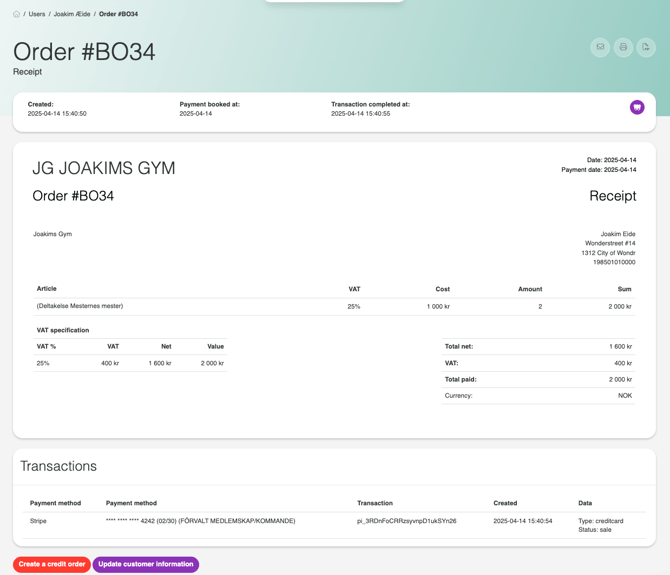
If a customer has cancelled their purchase and you need to credit the money, go to the Order column, find the correct customer and press the order number. You will now be taken to the order for the course, press the red button "Create a credit order" to credit the amount back to the customer.


Edit information
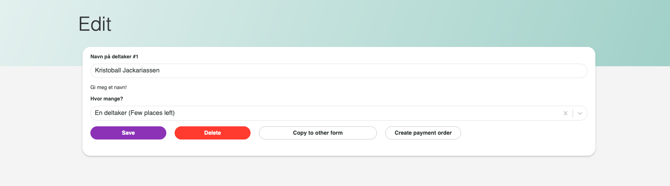
If you want to edit information or delete the customer, instead click on the customer's full name in the column next to Order, the name is listed in green text. When you click on the customer's name, you will be taken to Edit . Here you can edit the information the customer has entered. When you are finished with the changes, click Save.
Edit/delete registered participants
Press the person icon to the right of the selected form in the list of all forms.
You will now see a list of all the information you have received from everyone who registered via the form.
To delete the customer from the form, click the "Delete" button. The person will then be removed from the participant list but will not be credited automatically, you will have to do this manually.
NOTE: We recommend that you credit before removing the participant from the form!