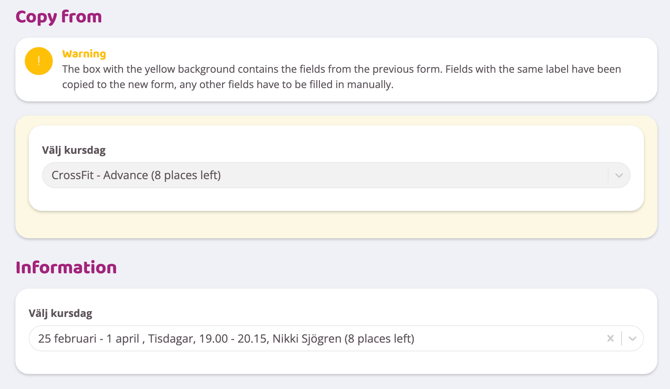
Once a participant has registered for a form, you can easily copy the participant's information to another form and thus register them for that course.
1. To copy participants between different forms, go to the participant list for the form the is registered for. This is done by clicking on the person icon in the form's participant list.
2. Press the information that is green on the participant's row. The following view will be visible:
3. Then press the "Copy to another form" button.
4. Select which form the participant should be copied to and then press continue.
5. The box with a yellow background contains the field from the previous form. Fields with the same label have been copied to the new form, all other fields need to be filled in manually. The fields that need to be filled in for the new form are below, this is new information that the new form requires and that is not specified in the first form. If there are matching fields (e.g. name, phone and email) that information will be copied over automatically.
When all information has been filled in, press 'Continue without payment', this is because you cannot take payment via the form as the customer's information is only transferred from one form to another. If payment is to be made, you need to create a manual order in the checkout.