
Intro
First go to the form via Forms in the main menu. Click on the eye icon for the form you want to publish on your website. Depending on whether your website is built via Wordpress or not, there are different approaches to embedding the form. This is because we have a plug-in for Wordpress.
Website via Wondr? If you have a website through us, you can contact support for further assistance.
Related article
WordPress
Just like when you post schedules or subscriptions for sale on your website, the form is placed in this code: [wondr url="/XXX/"]
Copy the form URL
NOTE! Do not include the sitename.wondr.se, but only everything after it, see example below:
Full URL
https://crm.wondr.se/w_application/applicants/form_view/5c8bbebd-ff38-457d-9b17-006d0a00028e
So don't include the strikethrough part of the URL, just everything after it. Then paste it into the code like the example below:
Example
[wondr url="/w_application/applicants/form_view/5c8bbebd-ff38-457d-9b17-006d0a00028e/"]
If you want all forms to be displayed on one page in a list view, use this link:
[wondr url="/w_application/applicants/public_applicant_forms/"]
Then it will look like below: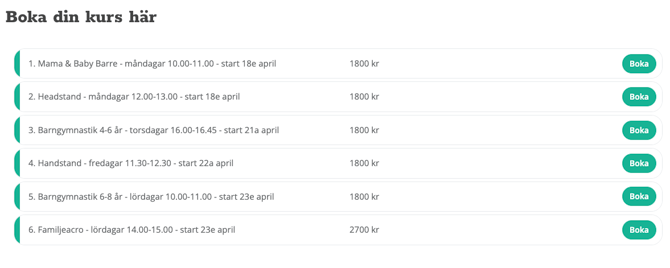
Not WordPress
If you don't have a website via Wordpress and are using the Wondrs plugin, you need to copy the entire form URL (the entire text in the browser's address bar, see the image below).
Then paste the URL (the text from the address bar) into the selected part of your website.
Related articles