
Table of contents:
1. Intro
2. Working with leads in the Marketing Hub
3. Working with leads in CRM
4. Related articles
Intro
CRM Go means that you can only see and manage the leads that come in via the Marketing Hub Go. You do not have access to create CRM profiles, tags, history or to-dos.
Leads can come into Wondr via the Marketing Hub, either from campaigns or the website.
What makes leads come in is the Lead to CRM button selection, so you have a button on your website/campaign that opens a contact form and the information they fill in then ends up in Wondr as a lead (read more about that function in the article Content blocks and the chapter "Buttons.
You can work with leads directly via the Marketing Hub or in CRM. Below we describe both approaches in two separate chapters.
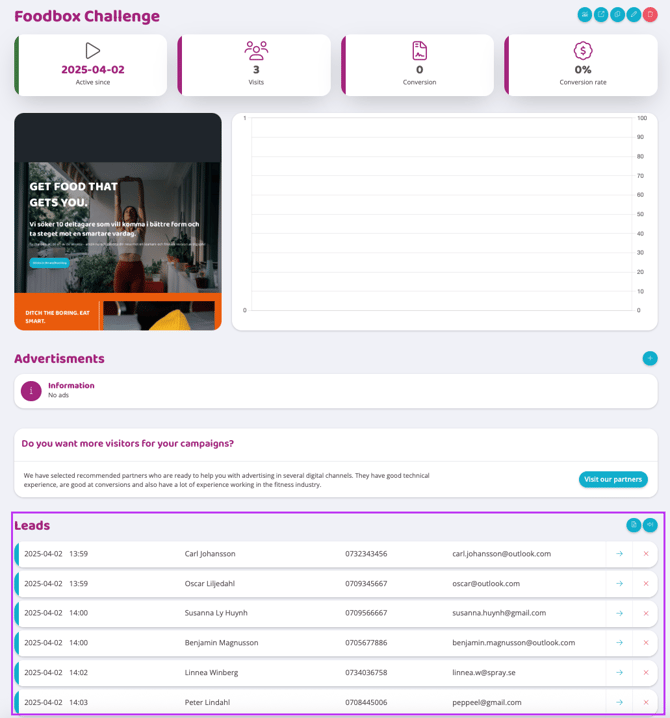
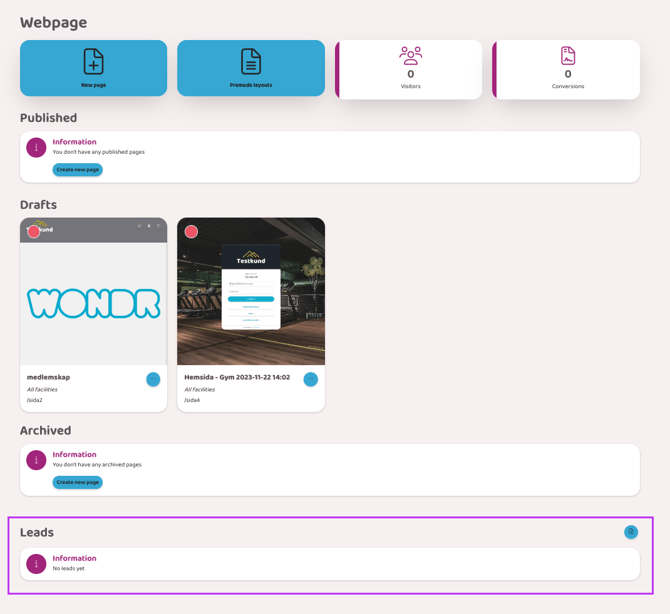
When a lead comes into CRM Go, you can see it directly in the campaign or on the website (depending on where the lead came in). Then you go to the bottom of the edit page for the campaign or to the bottom of the overview page if it is a website. Via campaigns you see leads per campaign and via the website you see leads for the entire website regardless of which subpage the lead came from.
See images below for examples of where to find the leads:
Campaigns (leads per campaign)
Homepage (leads for the entire website regardless of subpage)
In the Market Hub's lead list, you will see the basic information in the following order:
-
Date the lead came in
-
Time when the lead came in
-
Name
-
Phone number
-
Email address
TIP! Click anywhere on the lead's row to get more information. If you added custom fields to the contact form they filled out, that information will only be displayed when you click here. You will also see where the lead came in (which campaign/which page).
In addition to this info, there are some buttons, read more about them below:
Arrow - Click here to go to the lead's CRM profile.
The cross - Delete the lead from the list and CRM.
Download leads - Click the icon with a document to download and export the leads outside of Wondr.
Go to CRM - Shortcut button that leads to CRM if you would rather work with the leads there.
NOTE! You cannot send emails from the lead list in the Marketing Hub, you must then go to CRM. This is more like a summary and a place where you can quickly see if any leads have been received. Therefore, you only see the collected information and can delete the lead if necessary.
Working with leads in CRM
Go to CRM and select People then filter on Leads in the Status box.
At the top right, you can choose to send a message to all leads or if you have filtered in another way.
Click on the eye to access the profile and see all the information.
If this person wants to become a member, you can simply click on the plus icon on the profile to create a user profile.
Click the pencil icon if the information needs to be edited.
Click the trash can to delete the lead from CRM.
You do not have access to add "To Do" and "History" to the profile in CRM GO, but you can attach documents if needed.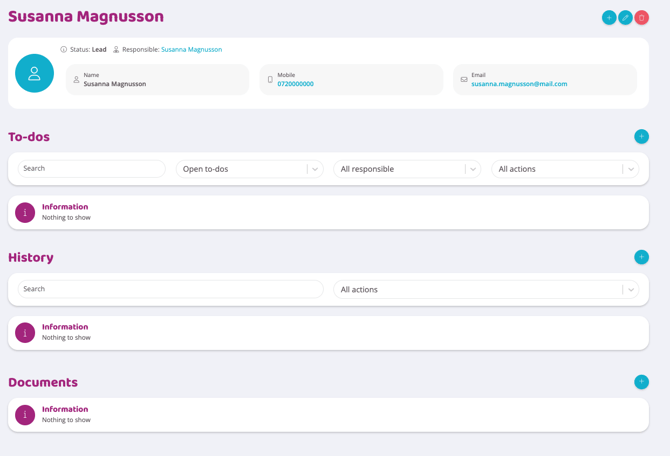
Related articles
Last edited: 2/5-2025