Table of contents:
1. Intro
2. What is a content block
3. Adding a content block
4. Activities
5. Background
6. Image
7. Code
8. Wizard
9. Form/Event
10. Buttons
11. The different actions of buttons
12. Columns
13. List
14. Register
15. Schedule
16. Separator
17. Slideshow
18. Socials
19. Staff
20. Text
21. Title
22. Video
23. Webshop
24. Related articles
Intro
You can add Content Blocks to build your web page and/or web campaigns in the Marketing Hub.
Go to MarketingHub > Campaigns or MarketingHub > Website to create or edit a page using content blocks.
What is a content block?
A content block is used to place content on your website or in your campaign. There are blocks for schema, text, titles, images, etc. Below we will go over what each block means.
Available content blocks
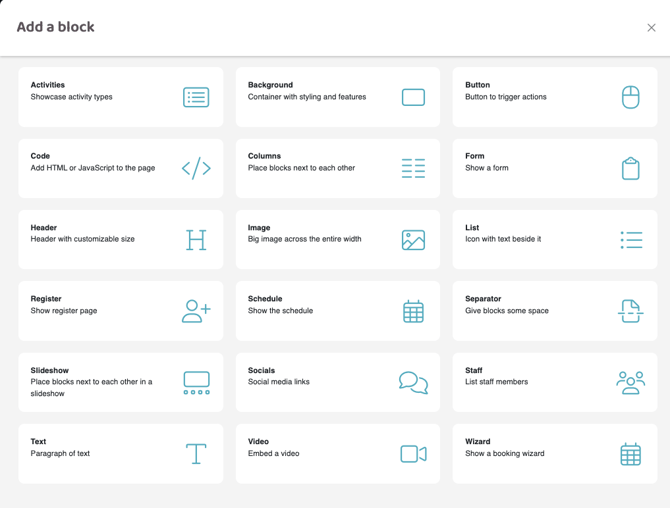
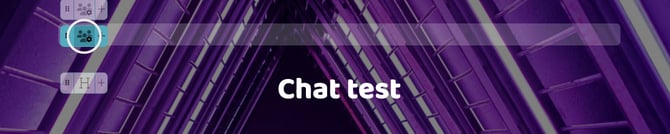
To edit the settings for any block added to your page, click the block icon button. You can find each block-specific setting described below.
Activities
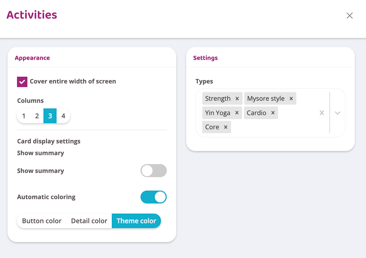
The activity block gives you the opportunity to display either all or parts of your activity offering in a stylish way with images, descriptions, USPs, etc. Visitors can also easily book the activity directly via the block. All settings for images, text, etc. are made on each individual activity type. The video below shows both how to add the block to the page and where to enter each activity's information.
Activity block settings
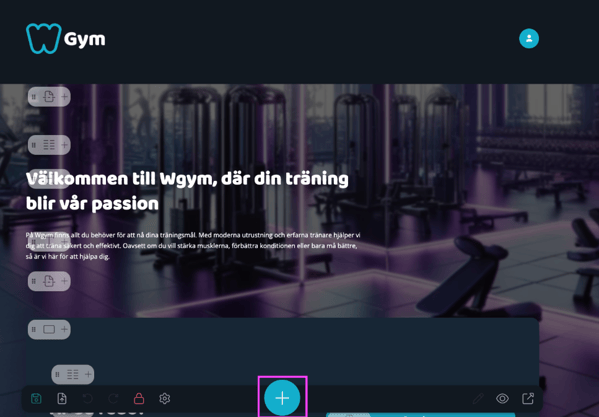
Click the pluss icon in the buttontool bar, Choose >Activities and then find the placement for it
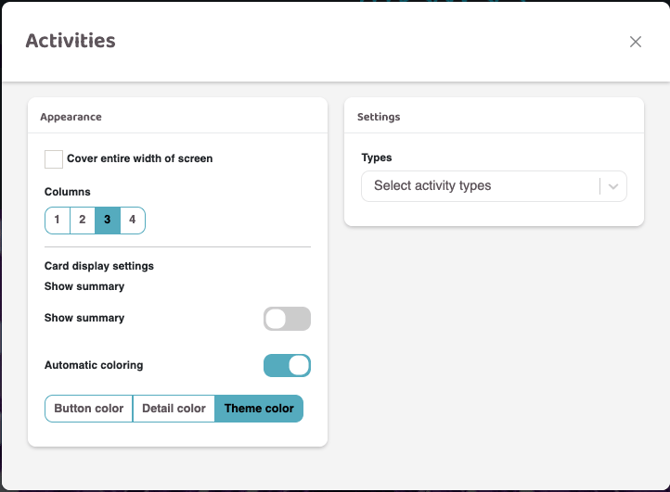
Cover entire width of screen
Check this box or the activities to cover the entire screen
Columns
Choose how many activities to display in width.
Show summary
Here the text is retrieved from the "Excerpt" box found in the activity settings. It is displayed in the overview before you click on the activity. When you click on the activity, the text is retrieved from the "Description" box from the activity settings.
Automatic coloring
Let the system choose the color of the elements or browse between the three different options from Branding. Uncheck this box to choose the background and text color completely freely.
Types
Check which activity types should be displayed.
Activity type settings
Description
Text that is displayed when clicking on a specific activity.
Excerpt
Text that is displayed in the overview before you click into the activity. When you click into the activity, the text from the "Description" box is retrieved from the activity's settings.
Thumbnail image
Image displayed on the page.
Video URL
If a video should be displayed instead of an image, paste the video URL here from Youtube or Vimeo.
USP
These texts will be included in a bulleted list on the page and should be short summary benefits of the activity.
Button text/Button URL
If there is to be a button associated with this activity, enter the button text and link here.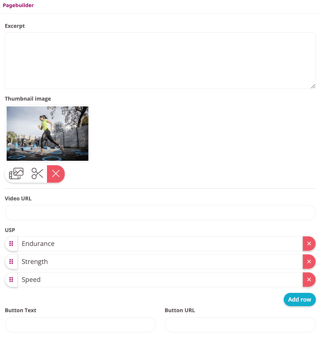
A background can be used both in full width to create a so-called content block or if you just want to create an image with text on the page. Both examples will be shown below.
Use branding
Leave this active if you want the branding settings to control the appearance of the background block, you can then choose between Button color, detail color and theme color from the branding. Deactivate this if you want to make your own settings for this specific background block
Background color
If you have turned off "Use branding", set the background block color here
Background image
If you want the background block to have an image instead of a color, select this. Click the image icon to select an image
Background image style
If the image should fill the entire background block and be centered, select the option "Fill and center", if the image should be repeated as many times as it will fit, select "Repeat" (Fill and center is always recommended!)
Background opacity
If a background image is used, its opacity can be controlled here.
Background video url
If a video should be played in this block as a background video, enter the link here.
NOTE! Also check the box "Cover the entire width of the screen" to make the video full width. If the video should only be on the page and as an auto-looping background, add a video block directly on the page instead.
Show background overlay
Check if you want to add a gradient to the background image/color. Recommended if you are using a background image to make any text easier to read.
Show border
Check if the background block should have a visible border in any color and thickness.
Cover entire width of the screen
Check if the background block should cover the entire width of the screen.
NOTE! The background block must be on its own for this to work. If it has been placed in another background block, the function is not available. If you do not see this option, you have placed the background in another background and it must be moved out for this function to be used.
Padding
Specify how far from the edge of the background all content should be placed
Rounded corners
Specify whether the background block should have rounded or square corners
Block ID
If a button should be linked to this background block, enter the Block ID here. More info about this can be found in the "Button" chapter in the videos for button 2 & 3.
Hidden
Check this box if the background block and its content should not be visible to visitors. It is only visible in editing mode. Can be used to hide content that is not yet ready for publication and can also be linked to a button so that it opens when clicked. See the chapter "Button" and "Button 2 - Scroll to a hidden block"
Don't close if another toggle is opened
If you use the "Scroll to a hidden block" or "Scroll to block" function, you choose here whether this background block should be closed again if another button with the same function is clicked or whether it should continue to be displayed once it has been opened.
Don't scroll to when it opens.
If you use the "Scroll to a hidden block" or "Scroll to block" function, you choose here whether the system should move the visitor to the block when the button is clicked or not. If the hidden content opens right at the button, you can often use this function, but if the hidden content is far down/up on the page, you should not use this function.
Create a full-width block
Watch this video to see how to place a background block and then set it to a full-width block that covers the entire screen. In the video, I first place the block, change the setting to a full-width block, and then add separators and a title. I also show you how to specify a background color or image, and how to enable an overlay/fading so that text is more visible if you use an image in the background block.
Create a background block for styled content
For example, say you want to create a page with a box with text in it, maybe the box should have an image or color. Then you first need to place a background block and specify a background image or color. After that, you place content as usual in the background block. See the videos below for examples and settings of different types of background blocks with both image, color and ruled.
The first video also gives an example of how you can use the column block to place several boxes in a row instead of having one large one.
Create a background block with an image and create several in a row
Create a background block with color or line
An image can be linked so that when you click on it, you are taken to where the link points. See the video below for an example of how an image is placed on the page and linked.
Settings
Aspect ratio desktop
Set the image size on wider screens such as computers
Aspect ratio mobile
Set the image size on mobile devices
Blur
Set whether the image should have a "blurred" effect
Rounded corners
A toggle for rounded or square corners. Through the four associated buttons you can choose which corners this setting should apply to, the default is that it applies to all corners
Link
Paste the link you want the image to send the user to (if the image is to link forward, that is)
Image, scissors and cross icons
- The image icon is used to access the image library to add/replace the image
- The scissors are used to crop the image.
- The cross is to delete the image and start over.
In the video below I add an image and make some settings, you can see how aspect ratio works and at the end I use a column block to reduce the image even further as it was very large. A good tip is that if any content is too large use a column block to easily control the size.
Code
The code block is used if you want to embed external content on your page. External content can be, for example, an Instagram feed, Google maps, a chatbot, etc.
These are functions that Wondr does not currently offer and can then be embedded via this block. So if you have an HTML code or iframe that you want to include on a Wondr page, use this block and paste your code string here.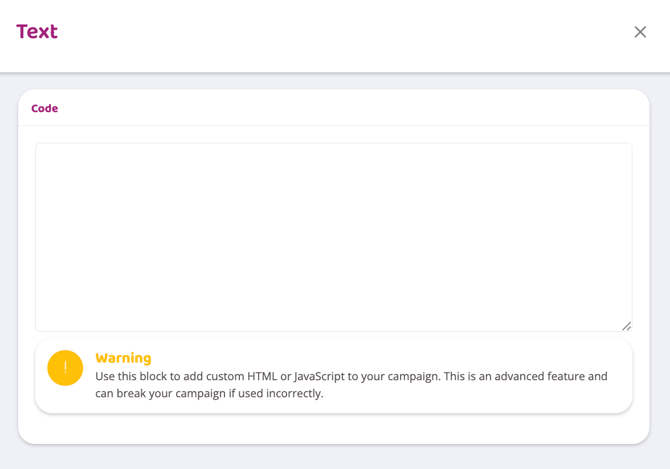
Wizard
This block embeds a booking wizard on your page. The booking wizard needs to be created in Wondr before you can add it here. Please read the article "Booking Wizard" if you want to know more about it or contact support .
Once the wizard is in place, you simply add this block and choose which feed to display. All settings for which activities are visible and how they are displayed are controlled via the wizard settings and not the page, it only reflects what you have set.
This block lets you embed forms on your page. The form needs to be created in Wondr before you can add it here. Please read the "Form" article if you want to know more about it or contact support .
Once the forms are in place, you simply add this block and choose to either display a specific form, a group of forms, or a list of all available forms to display.
In the video example below, we show you how to add the form block and some settings you can make. In particular, we show the difference between showing a single form or switching to a list and then either showing all forms or a specific group.
The groups are created via Settings - Forms and then you need to go into each individual form and select which group it is part of. There is information about this in the article suggestion below "Create a new form".
Buttons
Button is, as it sounds, a block that creates a button. However, there are quite a few settings for how a button can be styled and what it can do.
Add and style a button
Automatic coloring
Activate this function if the button color should be automatically controlled by your Branding. Then the color choices here in the button settings will not be able to be affected.
Button text
Specify what should be on the button
Button color
Set button color
Text color
Set the button text color
Size
Determine the button size
Position
Specify where the button should be placed, left, centered or right
Block button
If this function is not active, the button length is controlled by the length of the button text. This works fine if you only have one button. However, if you have used a column block to place several buttons in a row, it looks quite strange that they are of different lengths. If this function is activated, the button fills as much space as it can. Which means that if I have four buttons in a row, they will all be the same length so the columns control the width. How to set this up is shown in the video example below
Action
Control what the button does when someone clicks on it, all the actions are discussed below. Below you will see an image with six different buttons that represent the actions you can set. Below we will discuss all
The different actions of the button
Depending on which action you choose, you will get different options on the right in the "Actions and events" column. So first you choose what the button should do through "Action" and then you make the final settings linked to the selected action in "Actions and events".
Button 1 - Link to registration (Campaign)
If you have a specific subscription (or subscriptions) that is hidden behind a code, you can link directly to that subscription via this action. When the code is entered, you will be sent directly to the subscription(s) that have the code entered in their settings. Enter the subscription code on the right under "Action and events".
See the video below for an example (NOTE! In the video, the button is tested in logged in admin mode, which makes the menu visible, etc. This is not how it will look when a customer clicks the button).
Button 2 - Scroll to a hidden block (Open hidden content)
This action allows you to hide content on the page that this button opens. This means that visitors cannot see certain content until they click this button. Only background blocks can be hidden. So content that is to be hidden must always be placed in its own background block.
Hide the background block by checking the "Hidden" box and then the exact same Block ID must be entered in the background block and button settings.
In the video example below, I hide a background block and then I connect a button to it that opens the hidden content. As I said, it is the Block ID that connects the button to the background, in this example the Block ID is set to "hidden", but it can be anything, as long as they match!
Button 3 - Scroll to a block (Scroll to content)
This function is almost identical to the one above. The difference is that the block/content that the button should scroll to is not hidden. This button is good if you have a long page and want a button at the top that takes the visitor to a specific block on the page. But the block does not need to be hidden but would have been visible if the visitor had scrolled that far down, this button becomes more like a shortcut.
The difference from scrolling to a hidden block is that you don't hide the content by checking "Hidden", you just connect the button and the background block with the Block ID.
Button 4 - Link (Link to subpage)
A link is an action that sends the visitor on when they click on the button. The link can go to an internal subpage on your own page, e.g. you want to send them to the "Become a member" subpage when they click on the button. You do not need to type the entire URL when you link to an internal subpage, just the page name you have specified. You can easily find the page name in the overview of all pages (NOTE! The / character must be included for Wondr to understand that it is a link, you cannot just type the word, see video example below).
This is not a must, but when you link to internal subpages, check "Open in new tab", then the visitor stays in the same tab and it will be a nicer experience.
The video below shows such an example and, above all, where you can easily find the page name of the subpages and how they should be entered in "Actions & events".
Button 5 - Link (Link externally)
To link to an external page, simply paste in the full URL/link to the page you want the button to lead to. By external, we mean anything other than your own website. You might want to link to Instagram, Google Maps, a partner site, etc.
When linking externally, it can be a good idea to have the "Open in new tab" box checked so it is clear to visitors that they are leaving your website/campaign.
See the example video below for more info.
Button 6 - Add to lead and prospects (Contact Form)
This action will open a contact form when visitors click on the button. They will then be asked to fill in the following information as standard: First name, last name, email address and phone number, these four pieces of information are always included and do not require any settings, but you can also add your own fields if you want to get more information in addition to these four. The information will then end up as a lead for further processing.
Window header
Enter the form title
Description
Write a short summary text/description about the contact form
Submit button text
Enter the button text for the button the visitor clicks when they complete the form
Thank you message
After the visitor submits their information, they end up on a thank you page, where you can enter the text that should be displayed there.
Validate the default fields
If this box is checked, the four regular information fields (name, email and phone) are entered in the correct format.
Assign tags
If you have CRM Complete and have created tags in your CRM, you can specify here which tag(s) these leads should receive when they are sent to your CRM. Tags are not included in CRM Go
Send notification on submit
If one or more people should receive a notification when a lead comes in, this can be specified here. Check the box and then select which Wondr profiles should receive the notification. How the notification is sent is controlled by each person via their own profile.
Create to do
If you have CRM Complete and have tasks/to dos in your CRM, you can specify here which task these leads should end up under and whether they should be assigned to a specific person when they are sent to your CRM. Tasks/to dos are not included in CRM Go
Extra fields
Here you create your own information fields, e.g. if you want to add a free text box for "Message" or if they should state how they got in touch with you, etc. You specify the field's title and whether the following line should be one line or multiple lines (how much text can be entered).
See the video example below for more info and how the form will look when the visitor clicks the button.
For example, if you want to have three buttons in width, text on the left and an image on the right, two images in a row, etc., you must first place a column block that you then place other content blocks in. You can then easily control how many columns you want and how much space each column should take up (see video 2 for an example of this).
You can also use columns to minimize the size of an image or narrow down a block of text.
Collapse breakpoint
Choose at which screen width the column content should collapse (i.e. lay under each other instead of next to each other when the screen becomes too narrow). You can also choose not to collapse at all, this is recommended when you have e.g. images next to text or logos in a row, then it may look better that they never collapse so that it always stays in width regardless of the screen width
Make background blocks the same height
Check this box if you have colored background blocks in a row and want them to always be the same length regardless of the content. If this box is not checked, the size is controlled by the length of the content.
Count
Choose how many columns to be in width.
Seamless columns
Check this if you do not want spaces between columns.
Breakpoints
Drag the points and decide how wide the different columns should be.
Preview
Shows how the columns will be distributed depending on the selection you make in "Breakpoints".
The first video shows how to place buttons next to each other that should be the same size.
The second video shows how to place text and images next to each other that take up different amounts of space.
In the third video, the size of an image and the width of a text are adjusted using columns.
Video 1 - Buttons
Video 2 - Text and image
Video 3 - Customize size and width
List
List is a block that creates a bulleted list with one or two rows of icons in front of each item. It can be the same icon for the entire list or different icons for each item.
Icon
Set the default icon for the list. All new items you add will have this icon as the default, you can then change each individual row's icon by clicking on that icon and choosing a different one, then only that row will be affected
Icon size
Set the size of the icons
Color
Set the color of the icons
Icon background shape
Specify whether you want a colored background behind your icons or not and what shape they should have.
Invert colors
Button to change the background shape and icon color
Automatic coloring
Let branding control which colors and sizes are used for the icons, if you use this you cannot make the above settings. Uncheck it to be able to control the color and shape manually
Spacing
Specify how much space there should be between each line.
Show two text fields
Check this box if you want two text fields per line, it will then be like a heading and body text where you can control the size and color of each line.
Headings
Control text size and text color, if you have checked "Show two text fields" you can control both the first and second text
Click the plus sign to add as many rows as you want. Each row also has a link box where you can paste a URL/link if you want people to be able to click through to that row.
See the video example below for more information.
Register
Add this content block to embed subscriptions on your page. You can choose to display all subscriptions, a specific category, a specific promo code, or specific subscriptions.
Which subscriptions are available and displayed here are controlled by the subscription settings you have made, for a subscription to be available on the page, for example, the sales channel "New members" must be selected. You also need to have card payment or Swish Handel as a payment method in your Wondr, you cannot sell subscriptions on the website or a campaign via any other payment methods.
Subscription code
Choose to only show subscriptions linked to a specific promotional code
Subscription category
Choose to only display subscriptions that are in a specific subscription category
Subscription
Check the specific subscriptions you want to view.
See the sample video below for more information.
Which activities can be displayed here is controlled by the booking module and what content has been created there, the schedule block only reflects the settings found among booking types.
View /
Choose whether the schedule should be in list view or weekly view.
Activity types
Choose whether to display all or only a specific booking type.
Activity locations
Choose whether the schedule should only be preset to a specific location, then the visitor can change if they want to see a different location.
Try it
Specify whether only activities with the "Try it" function should be visible (useful if you want to have your own page that only shows the activities a non-member can try out with you).
Facilities
If you have multiple facilities, you can choose here to only show activities from a specific facility.
Show X days in the future
Choose whether you want to show a certain number of days/weeks or months ahead and how many.
Hide view switcher
Check if visitors should not be able to switch between list and week view.
Hide location form
Check if visitors should not be able to switch between different locations, then it is locked to the location you specified in "Activity locations" above.
Static activities
Check this to display all information about the activities including description, number of places, instructor, etc. If this is not checked, less information is displayed but the visitor can click on the activity to display all information.
Show only today
Check if only today's schedule should be displayed.
Separator
A separator is a simple but fairly basic block. It provides space/air on the page. So if you need to create space and get more space between or around other blocks, you add separators.
Gap
Specify how large a gap the separator should create.
Show line
If you want the separator to appear as a line (otherwise invisible) and then you can choose the line's color and styling.
Slideshow
Settings
This block creates a slideshow on the page. You can then make some settings for how the slideshow should work, whether it should scroll automatically, how many images are displayed, fading, etc.
TIP! When you place a slideshow in a full-width background block, you can also check the box "Children also cover entire width of screen" in the background settings. This will make all content you place in the background full-width, so the slideshow will span the entire screen without interruption. See video example below. for that setting.
Gap between images
Check if there should be a gap between the images.
Fade images
Check if the images at the edge should be blurred a little.
Fixed width
Leave this checked and all images will be the same size regardless of original size.
Rounded corners
Choose whether the images should have rounded or square corners.
Show navigation
Leave checked if the visitor should see navigation (how many images there are and which image we are on, they can also click to scroll themselves).
Autoplay slides
Check the box to have the slideshow change images automatically, you will then get another option for how often the images should change.
Show background overlay
Check if you want to add a color layer over the images. Choose between black, gray or white and the opacity of the color.
Max slides shown at a time
Determine how many images to display at once.
Image size
Determine the size of the images.
Heading size
If you write a title for the image, choose the size of the titles here.
Content placement
If you enter text for the images, choose its placement here.
Then click on the plus sign at the bottom of slides to add as many images as you wish.
Here the entire URL/link must be entered. You cannot write #instagramname but must copy the entire link in the address window when you are on the respective page. See the video below for an example of this.
Facebook
Fill in the correct link to your Facebook account to link there.
Instagram
Fill in the correct link to your Instagram account to link there.
Youtube
Fill in the correct link to your YouTube account to link there.
Vimeo
Fill in the correct link to your Vimeo account to link there.
LinkedIn
Fill in the correct link to your LinkedIn account to link there.
Do not space out buttons in parent elements
Reduce the distance between the icons by checking this box.
Size
Decide how big the icons should be
Text alignment
Decide where on the page the icons should appear
Direction
Decide whether the icons should be displayed horizontally or vertically
NOTE! There is a bug right now when pasting the Instagram link. The last "/" must be deleted for it to work. This is shown in the video below.
Staff
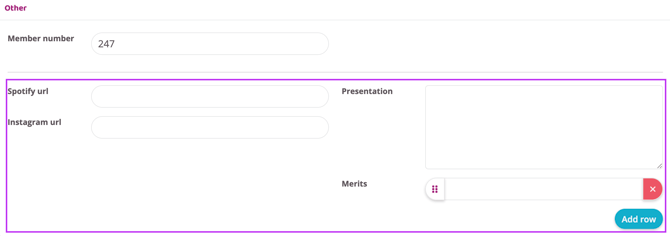
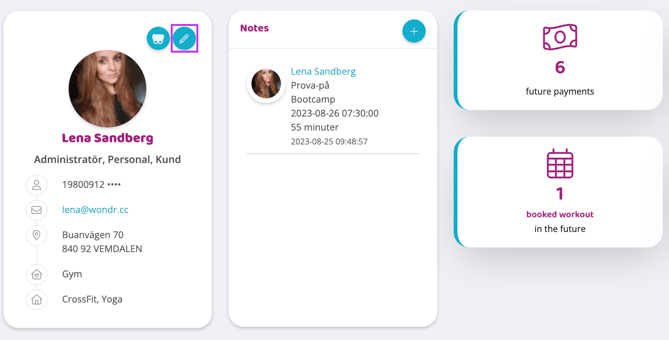
This block shows your facility staff. Pictures, descriptions, contact information, Instagram links, etc. You choose how much or how little information to include. All information is taken from what is posted on the staff's user profiles. In this block you only specify what information should be displayed and which people should be visible here.
If you want to change the image or information, go to the staff's user profiles and edit everything there and this block will automatically update.
The images below show where on a customer profile you change information and picture, you reach this view by going to the profile via "User" and clicking on the pencil in the box at the top left.
Layout
Choose whether the profiles should be displayed as a carousel or a grid. Depending on which layout you choose, you will get related setting options. For example, how many images should be visible on a row, whether the carousel should play automatically, etc. Then you have some specific choices for the two options.
Card display settings
Set the color for the information boxes. Also choose which information from the user profiles to display.
User
Choose which of your staff should be displayed here.
NOTE! Don't forget to click "Select" at the top after you have clicked on all of the staff to be displayed, if you close the box without clicking "Select" your choices will not be saved.
Title
Block for adding a title text to the page.
Text
Write the title text.
Automatic coloring
Check if the color should be taken from branding and controlled by the background color.
Text color
If you don't use "Automatic coloring", you can specify the text color yourself.
How important is your headline for Google (SEO)?
Specify whether this heading is H1, H2 or H3. In descending order of how important the heading is when Google reads your page. We recommend that you only have one H1 on your website, then it is quite free between H2 and H3. But think about what is important for your business and what many people search for in connection with it.
Text size
Choose how big the title should be.
Font weight
Controls how thick the text should be (not all fonts support all font weights so depending on what has been selected in branding this setting may sometimes have no effect).
Align
Specify where on the page the title should be placed.
Text decoration
Choose whether the text should be italic, underlined or strikethrough.
Remove margins
Activate if you wish to remove margins to surrounding content, good option if you for example wish to place two titel blocks on top of another.
This block embeds a video on the page.
It is not possible to upload a video directly into Wondr. The video must be linked and must then be uploaded to either Youtube or Vimeo.
We currently do not support videos uploaded via YouTube Shorts.
Link to video (Youtube/Vimeo)
Paste the video's YouTube/Vimeo link.
Autoplay
Choose whether it should start automatically.
Disable full screen mode
Check if the video should not be in full screen mode.
Hide controls
Hide video controls (mainly for Youtube).
Loop video
Check if the video should automatically restart when it has finished playing.
Rounded corners
Choose whether the video corners should be round or square.
Webshop
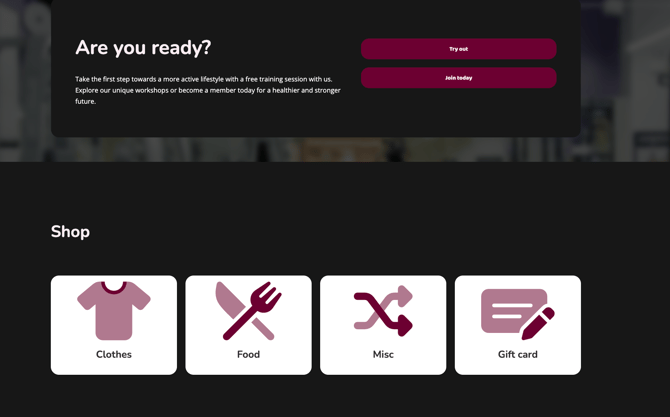
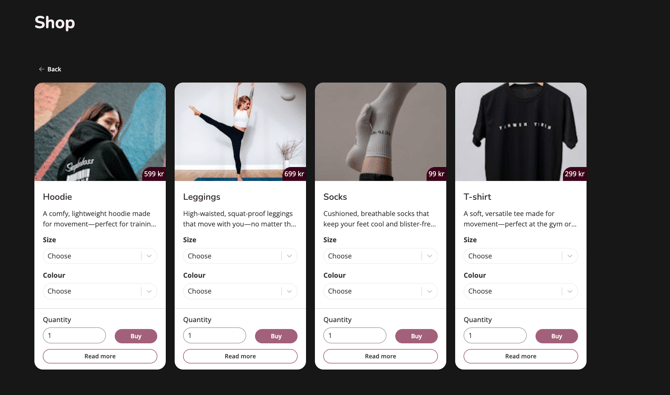
You can seamlessly integrate your online store into your website by utilizing the Webshop content block. This allows customers to browse and purchase products directly without leaving your site.
Note! Before adding this block, you must have an active shop configured in Wondr. Additionally, you must have at least one Product Category (or Parent Category) created and populated with products. To learn how to configure your store, see our guide on Webshop.
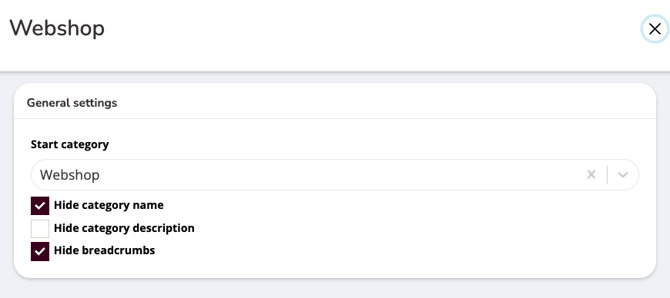
Settings
Select the specific product category or parent category to be displayed by default.
Enable this to remove the category title from the front-end display.
Hide category description
Enable this to hide any descriptive text associated with the chosen category.
Hide breadcrumbs
Hides the hierarchical navigation path. When active, only a Back button will appear when a user navigates into sub-categories.
Managing your shop
Note that all administrative tasks—such as updating Products, managing Categories, or configuring Payment/Delivery Methods—are handled within the Wondr core system and not through the website.
Changes made in the products/webshop function will reflect on your website automatically.