
Table of content:
1. Intro
2. Basic settings
3. Work in CRM
4. Adding people/company
5. Tips
Intro
This article describes how CRM works and how you can use it to facilitate sales processes and the daily operations of your business. This article describes the full CRM - CRM Complete which is included in our Hero and Pro packages.
For Base and Core packages you get access to CRM Go which is a light version of the tool where you can only handle leads. For more information read the article CRM Go.
Therefore, first go to Settings > CRM
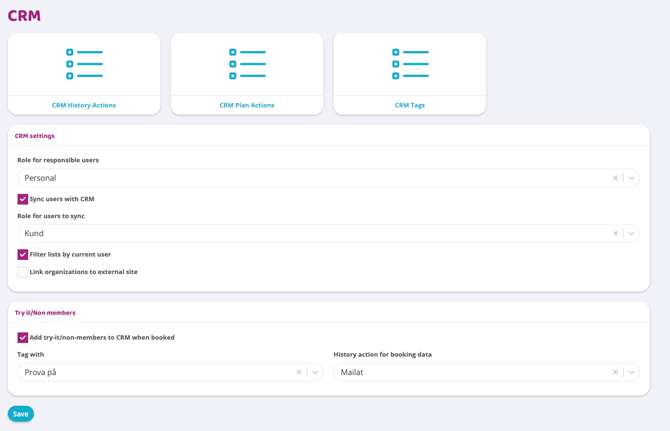
The basic settings for CRM need to be set, which is done in the CRM Settings box.
-
Role for responsible users
Here you select which role should be selected as the person in charge in CRM. If the role Staff is selected, all people who have the role Staff will be able to select as the person in charge in CRM. Select Administrator if instructors and reception staff should not have access to CRM. -
Sync users with CRM
Check this box if all users should be automatically linked with CRM (an email address is required for customers to be linked with CRM)
-
Role for users to sync
Select the role
User - Filter lists by current user
Let this be activated to always be pre-selected when working in the CRM. Otherwise you have to select a responsible user everytime you enter the CRM.
-
Link organizations to external site
The links your CRM to the online serviceAlla bolag. So, if a company profile in your CRM have a Swedish organization number and this function is activated, you can click on the organization number in the profile and then access Alla bolag.

*Note that tags and history must first be created before they can be selected in settings, which is described in the next step.
-
Add try-it/non-members to CRM when booked
Check this box if non-members who book a "try-it activity" should be added to CRM as Prospects, from there it is then easy to make them members
-
Tag with
For example, Try it (with this tag you can easily filter out all "try it" users)
-
History event to use for booking data
Here you select which history should be displayed when a "non-member" is added to CRM, an example of a history event could be Activity. This way it is always indicated which try-it session they have been to.
Tags
To be able to add tags to CRM, you first need to create them, which is done via this icon under Settings > CRM > Tags.
Press the plus icon in the right corner to create a new tag which can be, for example: different types of training such as PT or Yoga, you decide for yourself which tags you want to have in your CRM. You also choose whether the tag should apply to Company or Person (private customer).
To do
Then create different To-dos. Examples of these could be: Visit customer, call customer, clean gym, delete customer profile. If something new comes up, you can always add more To-dos.
Go to Settings > CRM > To-do.
Add new ones by tapping the plus icon in the right corner.
History
The last step is to create different choices for "History". Here, different options can be, for example: activity, attempted pass, called customer, done, no answer, etc.
Go to Settings > CRM > History.
Add new ones by tapping the plus icon in the right corner
Work in CRM
Now all settings are done and you can start working in CRM. CRM is accessed via the menu, by clicking on CRM .
There are then three submenus, To-do, Company and People. The To-do submenu is used to create activities that need to be carried out. When a new activity is added, the following window appears: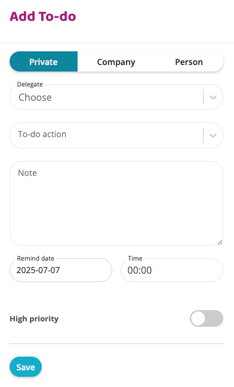
Type
If it is something you are going to do yourself, choose the type Private, if it is something that is going to be done in connection with a customer, choose either Company or Person.
Select which person/company this information applies to
Should this activity be assigned to another member of staff? Then select this person here to assign the activity to that person.
What to do? Select from your created activities
Custom text if more information needs to be added
Select the date you would like a reminder for this activity
Choose a time when you would like a reminder for this activity
Check to give this task a high priority which is visible in the list of CRM tasks
The activity will now appear in the menu under CRM > To-do. Depending on when you set the reminder date, the activity will have a different color:
The date of the activity has passed
The activity should be carried out today
The activity should be carried out in the future
To the right of each activity are four icons:
Click this icon and this task will always be at the top of your list regardless of the reminder date.
Edit the task (assign to another person, edit the note, or change the reminder date).
Check off the task and remove it from CRM. You can enter a history and set a note for follow-up. You can also "Check off and create new" if you want to remove this task but create a new follow-up.
Adding a company
Select CRM Company from the submenus in CRM.
Then tap the plus sign in the right corner.
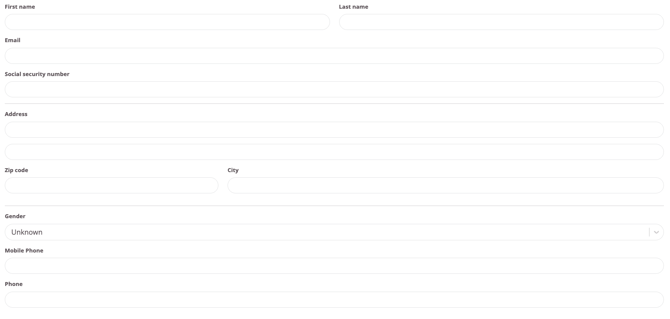
Start by filling in the company information such as company name, organization number, etc.
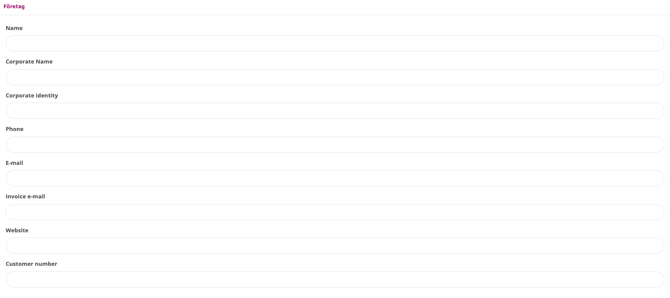
Then fill in the billing address and delivery/visiting address.

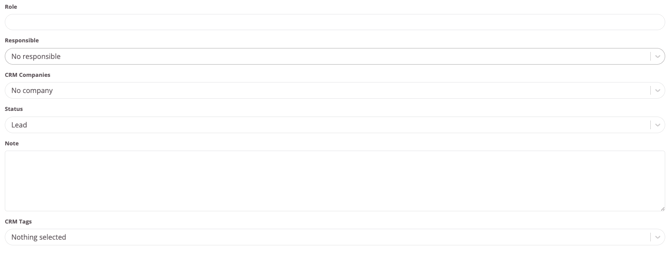
You can specify a person responsible for the company, a note, status, and tags.
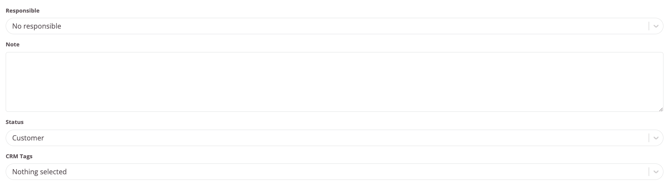
You can create a person who is your contact person at this company
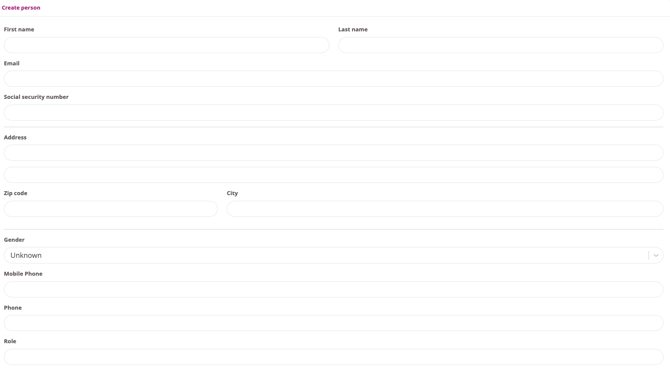
No fields are required, you decide how much or little information you want to enter. When you are satisfied, press Save .
Tip
- Once all customers are entered, you can then filter between Responsible, Status and Tags
- When you have an activity that is either overdue or needs to be handled, a notification in the form of a number will appear next to CRM in the menu. The number depends on how many To-Do's you need to handle.
- You can send a message to either all customers in the Companies and People lists or filter on a specific tag to create a message to all people with the same tag. Filter first and then tap the green letter icon in the right corner
Last updated: 2/5-2025