
Table of contents:
Example 1
All booking types that require a slightly more advanced booking system can be booked via a booking wizard.
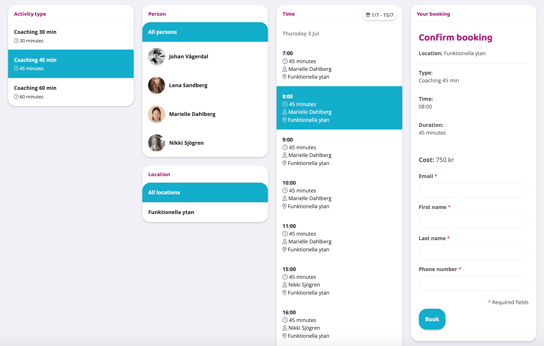
Your facility offers different types of massages or personal training performed by different instructors. When a customer makes a booking, the choices they make should reflect the next available options. For example, the booking wizard might look like this:
The customer chooses the type of activity they want to book. Then they can choose from the people responsible for that type of activity (or all available ones), in the next step the customer chooses the time they want to book.
See the image below for an example of what a wizard might look like.
Create a booking wizard
Create a booking flow by first going to Settings > Booking > Wizards.
Create a new one by clicking the plus sign in the upper right corner. The following settings are avaliable:
Name
Enter a name, it will appear at the top of the booking page
Description
Enter a description in free text (optional)
Button text
Enter text for the button used to access the booking
Ordering
Specify the order in which the wizard should be located if there are several
Filter by user
Control whether the customer should be able to filter between different managers
Filter by location
Control whether the customer should be able to filter between different locations
Show user
Shows who is responsible for the booking
Show location
Shows the location of the reservation
Show parent type (if sub type)
Decide if the parent type name should be visible in the flow instead of its sub types
Chooseable types
Specify which different activities can be booked via the flow
NOTE: These types must first be created as individual booking types for them to be selectable here.
Chooseable locations
Specify whether all booking types from a location in the schedule should be visible.
Show future activities in wizards for X days. This field overrides the global setting (current at 14 days). Set to 0 to use global setting.
If this particular wizard should show activities further or shorter into the future than the standard pre-set put a number here. Otherwise leave it to let it follow the global settings.
Then click Create.
Create booking type
Go to Settings > Booking > Types
Create the floating booking type that should be bookable.
Read more in the article "Floating booking types" for instructions on how to create a floating booking type.
Each activity that is to be selectable also needs to be created and placed as selectable subtypes on the activity that is added to the flow.
Then add the floating booking type to the flow under Selectable types and all subtypes will be selectable at the times listed in the schedule (read the Add booking type to the schedule section to see how to add the activity to the schedule).
Assign responsible users
Since only certain people should be able to hold an activity in the flow, this needs to be set on the booking type.
Go to Settings > Booking > Types
Scroll down to the "All responsible users can do this activity type" settings box. There are two options here.
Option 1
Check "All responsible users can do this activity type" if all people with the role "Staff" should be eligible to be responsible for this booking type.
Option 2
Should only one or a few specially selected people be responsible for this booking type?
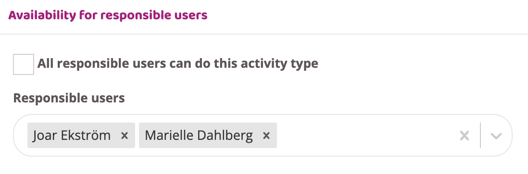
Then enter those people in the "Responsible users" box. In the example below, only Joar Ekström and Marielle Dahlberg will be responsible for the booking type.
Add booking type to schedule
To create the wizard, the floating booking type that should be selectable needs to be added to the schedule.
NOTE: It needs to be added once for each responsible user between the times that should be bookable.
To ensure that this activity is not visible in the schedule for users but only in the wizard itself, there are two options.
Option 1
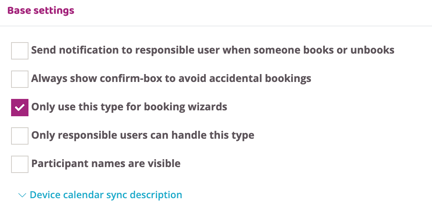
Check the box "Only use this type for booking wizards" in the booking type settings.
Option 2
Create a hidden location and put the booking types in that location so it is only visible in the feed and not in the regular schedule.
Go to Settings > Booking > Locations.
Add a new one by tapping the plus sign in the upper right corner.
Make all other settings and check the Hidden from users box.
To add the activity to the schedule, go to Schedule > Weekly Schedule.
Click on the day the activity should be posted.
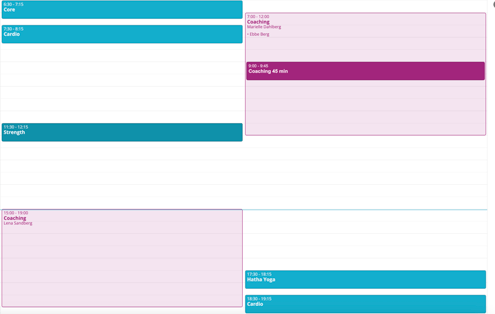
Select the type that was created for the flow. Select the time between which the activity should be bookable for users, for example between 08:00-18:00 as in the image below.
NOTE: This should be done once per responsible user.
The image below shows what it should look like if two responsible users are responsible at different times and are available for booking in the wizard.
Not bookable during breaks
If a person in charge should not be bookable during their lunch or break, for example between 12:00 and 13:00, there is a setting for that.
-
Go to the booking type used in the flow and check the box "Block times where responsible user has other activities"
-
Then create another pass type, for example "Break" or "Unbookable time"
-
Add the activity to the schedule with the right person responsible and between the right times
-
Then the times that the activity "break/unbookable time" is in the schedule will not be bookable in the wizard
Example 2
The example below shows step-by-step how to create a type of wizard.
The booking wizard should apply to coaching and offer different types with different responsible users for performing the coaching.
1. Create your own booking type for each type of coaching that should be bookable in the wizard.
In this example, there are three: Coaching 30 min, Coaching 45 min and Coaching 60 min.
Below are the settings that need to be made for the three activity types. Other settings that are not listed here do not need to be set for these booking types.
Set
- Name
- Length in minutes
- Number of seats
- Number of reserve seats
- Leave the "Visible and bookable by users" box checked.
- Check the box "Non-subscriber (e.g. try it)" IF people who have never trained with you before should be able to book this activity.
- Check the box "Allow multiple bookings from one none member on this type" IF the box in the previous point was checked and the pass can be booked by non-members
- Cost (whether it will cost anything to book this activity for either non-members, members or any of them)
- Availability for responsible users (either all instructors or uncheck that box to bring up a selection for individual instructors)
Then create the booking type and follow these steps for each booking type that should be bookable in the wizard.
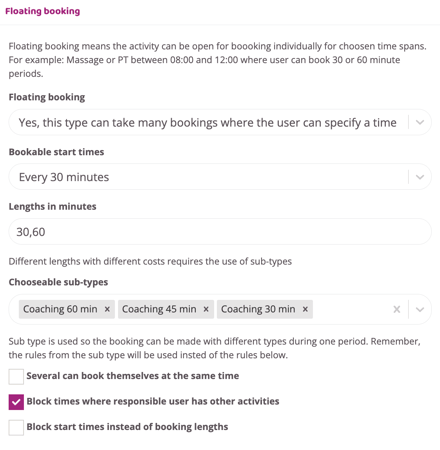
2. Create another booking type. This booking type is called Personal training only and is a floating booking time.
Set
- Name
- Check the box "Only use this type for booking wizards"
- Leave the "Visible and bookable by users" box checked.
- Check the box "Non-subscribers (e.g. try it)"
- Check the box "Allow multiple bookings from one none member on this type" IF the box in the previous point was checked and the pass can be booked by non-members
- Enable floating booking times
- Choose start times
- Enter the three previous booking types in the "Choosable subtypes" box
- Check the box "Block times when the responsible user has other activities"
- See image below for floating booking type settings for "Personal training"
3. Create the booking wizard
- Go to Settings > Booking > Wizards
- Tap the plus sign in the upper right corner to create a new one
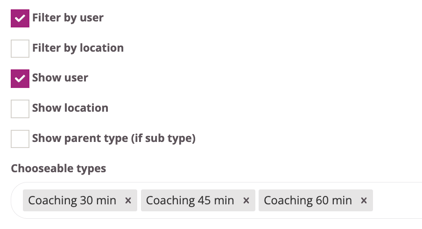
- Enter all settings (Scroll up to the "Create a booking wizard" section to see what all the settings mean). The most important thing is that the booking type "Coaching" is entered under "Choosable types", see below for examples
Then create the wizard
4. Add available times for all responsible users in the schedule
- Go to Schedule
- Add the booking type "COaching" to all the times that should be bookable in the wizard.
- Do this once for each responsible user who will have selectable times in the schedule.
- In this example, two people are eligible for coaching. Then the schedule should look like below
5. Review the booking wizard so that everything looks right and publish it on the website
To see what it looks like and also publish it on the website, use the link for the wizard.
- Go to Settings > Booking > Wizards
- Edit the wizard to be reviewed or published
- Copy the entire link into your browser's address bar.
- Change the link and replace the word "edit" with "book"
- Paste the link in a new tab to see the feed.

Last updated: 1/7-2025