
Intro
Wondr has an integration with Zoom. This means that live-streamed classes can be posted in Wondr and the connection link is automatically sent to all registered participants. It is also possible to join the class in Zoom directly via the schedule in Wondr.
NOTE: Zoom is an integration that must be activated by us at Wondr if it is not already in your system.
For pricing regarding Zoom integration, contact Wondr support.
Enable the integration
Please contact support first to activate the integration.
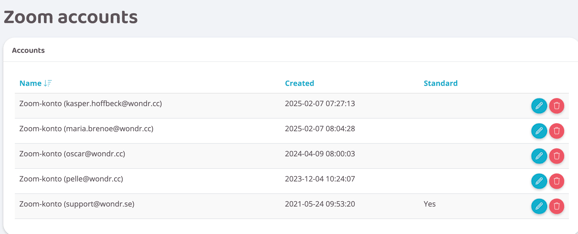
1. Go to Settings > Booking > Zoom Accounts.
2. Click the plus sign to connect Wondr with a Zoom account.
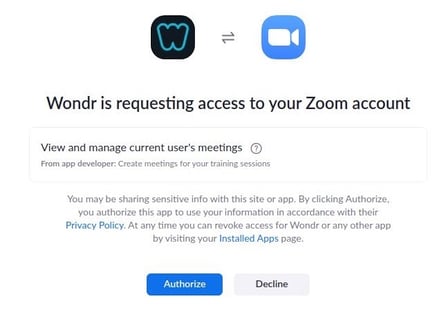
3. Enter your login details and authorize Wondr to access Zoom (see images below).
4. If the account is not set as default, click on the pencil to edit and check the box "Make default"
Link multiple Zoom accounts
If you want to connect multiple Zoom accounts to Wondr, you will need to log out of Zoom each time you add a new account to Wondr.
Then follow the steps from Activating the Zoom integration for each account, but make sure to log out of Zoom each time. Otherwise, the first account that was connected will be connected again.
Then go to Settings > Booking
Scroll down through the booking rules to the section about Zoom.
Create Zoom meeting X hours before start
Enter how many hours before the session starts that the Zoom meeting should be created
Send Zoom link X minutes before start
Enter how many minutes before the start the Zoom link should be sent out via email to all registered participants.
Create a Zoom activity
1. Go to Settings > Booking > Types.
2. Each booking type now has a setting for Zoom.
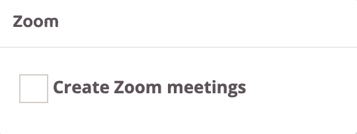
3. Click in the Create Zoom Meeting box.
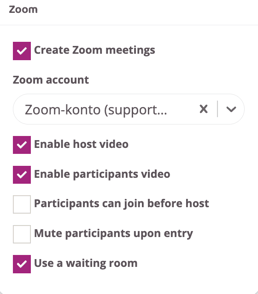
Below box becomes available
Zoom account
Leave the Default Zoom account as is or switch to another linked Zoom account that is not set as default.
Enable host video
Click this box if the instructor's camera should automatically be activated upon connection.
Enable participants video
Click this box if the booked camera should be automatically activated upon connection.
Participants can join before the host
Click this box if those booked in should be able to join the meeting before the instructor.
Mute participants upon entry
Click this box if you want all scheduled guests' microphones to be automatically muted.
Use waiting room
Activate a waiting room for the session where those booked wait for the instructor to "let them in".
Last edited: 5/9-2025