
Create template
To create a template, go to Schedule > Templates . Tap the plus icon on the left to create a day template.
Enter a name for the template, in this case the template will be named "Monday".
Check the box on the left to add an activity, only then can the row be edited.
Location
Choose a location/room for the activity.
Responsible
Choose an instructor.
Type
Select the type of activity.
Time
Choose how the day the activity starts.
Length
Choose how long the activity is.
Bookable by users
Specify whether the activity should be bookable by members or not.
Try it
Choose whether non-members should be able to try this pass.
Places
Choose how many participants the class has.
Reserves
Choose how many reserves.
Note
Write a note if the activity should have someone.
Copy down
Copy all settings to the line below so you don't have to start from scratch if the next activity is similar to this one.
Build the template with all the activities that should be included that day and then scroll to the bottom and press Save.
The day template is now in the Day Template list and from here it can be applied to the schedule. To the right of each template are four icons:
The checkmark
Apply the template to the schedule. Select the date the template should be applied to, select the date, and press Apply. The template will only apply to that day and not in the future.
NOTE: Passes added via template are edited in the schedule and not via the template. Changing the template and applying it again will result in it being added twice to the schedule and will not change activities already added.
The pen
Edit the template.
Document
Copy the template.
Wastebasket
Delete the template
Once several daily templates have been created, for example one for each day of the week, it is possible to create a weekly template.
Apply template
Click the plus icon in the top right corner.
For each day of the week there is a drop-down list where all day templates are available to choose from. Enter the correct day template for each day of the week. If Monday-Wednesday look identical, the template for Monday can be entered for all days of the week as in the example below.
No template has been entered for Saturday and Sunday as there are no activities during the weekend.
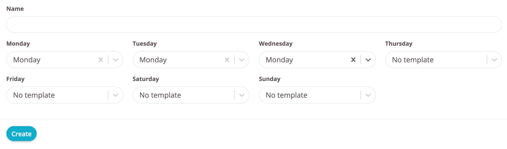
Press "Create" when all days (that should have a template) are set correctly.
The weekly template is now in the "Weekly Templates" list and from here it can be applied to the schedule. To the right of each template are three icons:
The checkmark
Apply the template to the schedule. Select the date the template should be applied to, select the date, and press Apply. The template will only apply to that day and not in the future.
NOTE: Passes added via template are edited in the schedule and not via the template. Changing the template and applying it again will result in it being added twice to the schedule and will not change activities already added.
The pen
Edit the template.
Wastebasket
Delete the template.
Last edited: 10/7-2025