
Table of contents:
1. Intro
2. Basic roles
3. Edit existing role
4. Create new role
5. Example
Intro
Roles control what Permissions each user has in the system.
Depending on the role you have on your profile, you can access and perform different tasks in Wondr. Roles are added to each user profile, but you can also change the permissions included in each role and create new custom roles based on your own needs.
This article guides you on how to change existing roles and create new ones.
Note: To be able to edit roles, you need to have the highest role permission in the system Facility admin. Read more about this role in the next chapter.
Basic roles
The four roles below are included in Wondr's default settings. You can create new roles and rename existing roles if you want them to be called something else. Here's a summary of what each role permission does.
Note: Basic roles cannot be deleted.
Facility Administrator
The highest permission in the system and the only role that can edit role permissions . This role is assigned at startup by us at Wondr.
The Facility Administrator is also the only role that can see the License and Billing page (for Wondr licensing and payment). The role is typically assigned to the Corporate Signatory, Contract Signatory, Site Manager, or similar. The Facility Administrator can also grant other roles permission to edit roles.
Are you missing a Facilities Administrator at your facility?
Submit company details and signatories to: economy@wondr.cc
Administrator
A very high level of access. The administrator can, among other things:
-
Create new booking types
-
Create new subscription types
-
Change branding
-
Create new terms and conditions and agreements
-
Create and edit content in the Marketing Hub
The administrator can see the role settings, but cannot edit them or create new ones.
Staff
A basic privilege in the system. Often assigned to reception staff and instructors.
With the staff role you can, among other things:
-
create new customer profiles
-
sell subscriptions
-
manage the schedule (e.g. change instructor)
Everyone with the role of Staff will also be eligible as instructors in the schedule. This means that everyone who is to be eligible as an instructor must have the role of Staff on their profile. If a person is to have both administrator privileges and hold activities, they need to have both Administrator and Staff on their profile.
Customer
All members at your facility. They only have permission to view their Dashboard and use the features available there.
Edit existing role
Warning: Be extra careful when changing or creating roles. If a role is given too broad permissions , users may gain access to features and settings they shouldn't be able to see or change. If you are unsure which permissions should be active, we recommend that you contact our support before saving the changes.
To change a role's permissions, go to Settings > Roles.
Note: Only users with the Facility Administrator role can make these changes.
If you are an Administrator, you can only view the roles. The Facility Administrator can also give other roles permission to edit roles.
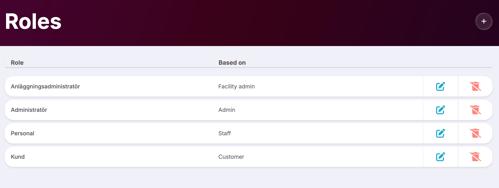
As long as no special roles have been created, the view looks like this:
Information
In the list you will see:
Role
The name of the role.
Based on
The base roles will always have the same name here. If you create a new role, you can base it on a base role.
The pen and the trash can
Click the pencil to edit the role's settings and permissions.
Click the trash can to delete the role.
Edit a role
-
Click the
pencil iconfor the role you want to change. -
A side panel opens where you can change the role's permissions.
-
Each heading in the list corresponds to a part of the system. Click on a heading to view and change permissions for that part.
-
-
Permissions marked in green are active for the role
-
Permissions marked in red are not active for the role
-
4. There is also a description for each permission that explains what it means.
5. Enable or disable the permissions you want to change.
6. Click Update Role at the bottom of the panel to save.
Note: It can take up to an hour for changes to roles to take effect. If users with the affected role are logged in when the change goes through, it may be a good idea for them to log out and back in to Wondr.
Create new role
Warning: Be extra careful when changing or creating roles. If a role is given too broad permissions , users may gain access to features and settings they shouldn't be able to see or change. If you are unsure which permissions should be active, we recommend that you contact our support before saving the changes.
To create a new role, go to Settings > Roles
Note: Only users with the Facility Administrator role can create new roles or edit existing ones.
Create a new role
-
Click on the plus sign at the top right.
-
In the panel that opens, enter:
-
-
Role name
-
What existing role the new role should be based on
-
If you base the new role on an existing role, all permissions from that role are automatically copied. You can then enable or disable the permissions that will differentiate the new role from the base role.
Change permissions for the role
Each heading in the list corresponds to a part of the system. Click on a heading to view and change permissions for that part.
-
Permissions marked in green are active for the role
-
Permissions marked in red are not active for the role
There is also a description for each permission that explains what it means.
Save the role
When you are satisfied, click Create role.
The new role will now be selectable on user profiles and can be assigned to affected people.
Example
Say you want to invite an external person to Wondr, for example someone who will work on your website. You don't want to give the person administrator privileges, but the Staff role doesn't have permission to edit in the Marketing Hub.
In this situation, it is easiest to create a new role with exactly the permissions the person needs.
Example: Create the role “Website Manager”
-
Go to
Settings > Roles -
Click the
plus signto create a new role -
Name the role, for example,
Website Manager -
Choose that the role should be based on the
Customerrole -
Find the
Marketing Hubin the list and enable the relevant permissions . -
If the person also needs access to
Analytics(for tracking), enable those permissions as well -
Click
Create role
Assign the role to the user
-
Create a user profile for the person (or open the profile if it already exists)
-
Add the role
Website Manager
Results
Now the person has the same permissions as a regular customer, but can also go into the settings and access the Marketing Hub (and possibly Analytics , if enabled in the role).
Tip: Always create new roles based on the closest role
Last edited: 31/1-2026