
Intro
The Document Bank makes it possible to upload documents to Wondr that all customers have access to via their Dashboard. This module is included in our Pro and Hero packages.
For example, the Document Bank can be used to offer customers home training by linking to videos, either via Youtube or Vimeo. It is also possible to rename the Document bank so that it can have any name.
NOTE! It is not possible to upload a video directly into Wondr, it must first be published on Youtube or Vimeo and then linked into Wondr.
Create a category
The Document Bank is administered via Dashboard.
-
Go to
Dashboard > Document bank
In order to upload content to the Document Bank, there must first be categories for the content. -
Click the plus sign in the top right corner. Enter the relevant settings for the category.
Title
Enter the category name.
Text
Please write a description of what this category contains.
Featured
Check if you want this category to always appear first and at the top of your document bank.
Icon
Select icon for this category
Image
Choose an image as a banner for this category.
Order priority
Enter a number from 0-100 that determines the order in which this category is placed (do this on each category you create to determine their order).
Order documents by
Specify how documents uploaded in this category should be sorted.
Show serachbar
Activate this function to activate a search function in this category where customers can search for content.
Restrict access
Check this box if only certain subscriptions should have access to this category. Then select in the box that appears which subscriptions should have access.
Then create multiple categories if necessary.
Upload a file
To upload a file, edit the category in which the file should be placed. You do this by clicking on the category.
NOTE: Do not click on the editing pencil (then you will edit the category itself) but click on the category icon/image.
-
Click the plus sign in the right corner.
-
Select
TypeDocument, Youtube video or Vimeo video. For more info on the different types, keep reading.
Upload a document
SelectDocuments.
Select the type of document to upload.
Wondr supports uploading the following formats:jpg, jpeg, pdf, png, doc, docx, xls, xlsx, ppt, pptx, txt
The following view becomes visible: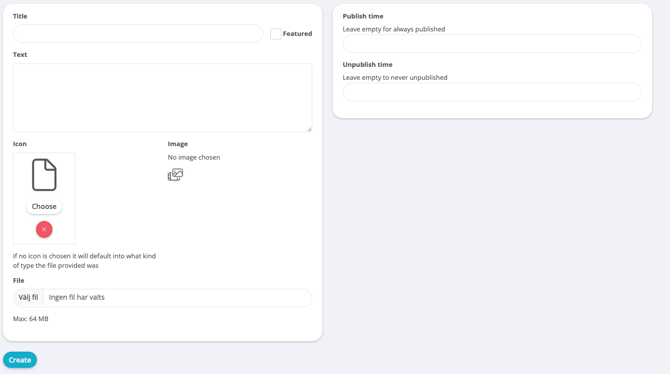
Title (MUST BE SPECIFIED)
The name of the document.
Text
Description in free text.
Featured
Check if you want this document to always appear first and at the top of its category.
Icon/image
Choose an icon or cover image for the document
File
Click Upload file and select the correct file from your computer.
Publish time
Enter a time for the document to be published. Leave blank to publish immediately.
Unpublish time
Enter the time when the document should be unpublished. Leave blank to keep the document visible until you manually delete it.
Upload the file by pressing Create
Link a video from Youtube
Select YouTube movie.
Title (MUST BE SPECIFIED)
The name of the video.
Text
Description in free text.
Featured
Check if you want this video to always appear first and at the top of the category.
Icon/image
Select an icon or cover image for the video.
Youtube link
Paste the link from Youtube for the video to be uploaded.
NOTE: When the link is retrieved from Youtube , do not click Share under the video, instead use the link in the browser's address bar.
Publish time
Enter a time for the video to be published. Leave blank to publish immediately.
Unpublish time
Enter a time for the video to be unpublished. Leave blank to keep the document visible until you manually delete it.
Upload the video by clicking Create.
Link a video via Vimeo
Vimeo Movie.Title (MUST BE SPECIFIED)
The name of the video.
Text
Description in free text.
Featured
Check if you want this video to always appear first and at the top of the category.
Icon/image
Select an icon or cover image for the video.
Vimeo link
Paste the link from Vimeo for the video to be uploaded.
Publish time
Enter a time for the video to be published. Leave blank to publish immediately.
Unpublish time
Enter a time for the video to be unpublished. Leave blank to keep the document visible until you manually delete it.
Upload the video by clicking Create
Last updated: 5/6-2025