
Table of contents:
Find the right activities
The mass edit feature is useful when the schedule extends far into the future and a change needs to be made to many shifts at once. However, it can also be used to "copy" the schedule and extend it.
To bulk edit, go to Schedule > Mass Editing
Below is the mass editing mode:

Here you can filter the desired passes for mass editing. The search can be very specific depending on which fields are filled in. Below is an explanation of what each search field means.
Place
Search for all activities located in a specific room/location.
Type
Search for a specific type of activity.
Responsible
Search for all activities a specific instructor is holding.
From date
Search for all activities from a specific date.
To date
Search for all activities up to a certain date.
From time
Search for all activities that start at a specific time.
To time
Search for all activities that end at a specific time.
Weekdays
Search for all activities taking place on a specific day of the week.
Places
Search for how many bookable spots the activity has.
Places tryit
Search for how many spots can be booked by non-members.
Reserves
Search for how many reserves the activity has.
Search
When all search criteria are entered, press Search.
It is possible to search in multiple fields at the same time.
A list of matching activities now appears.
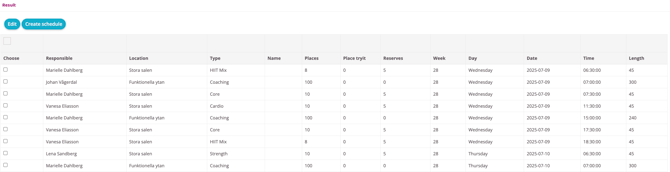
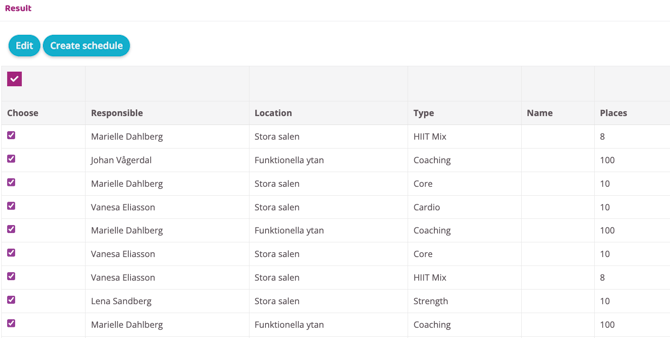
Once the correct activities have been checked, choose to either edit them or create a schedule based on them.
Option 1 - Edit
Check the box for the settings you want to change for the selected activities. Below is an explanation of what each selection means.
1. Details
Edit location
Change which room/location the activity takes place in.
Edit activity type
Change the type of activity.
Edit responsible
Change instructor/person in charge.
2. Spots
Edit number of spots
Change the number of bookable spots.
Edit number of spots try it
Change the number of bookable spots for non-members.
Edit number of reserve spots
Change how many reserve spots are available.
3. Description
Edit short notice about activity
Change the activity's descriptive text.
4. Permissions
Edit bookable by users
Change whether the activity can be booked or not.
Edit try-it
Change whether try on should be active for this activity
Edit to change if cost is enabled
Change whether the activity should cost money to book or not. Here the cost can only be turned off/on. To control/change the cost itself, go to the activity's basic settings (Settings > Booking > Types).
Edit automatic cancel with low participants
Change whether the activity should be canceled if there are too few participants. Here the function can only be turned off/activated. Basic settings are made on the booking type.
5. Time
Edit time
Change the activity start time.
Edit activity length (in minutes)
Change the activity duration.
When all changes are made, scroll down and press "Update". The schedule will then be updated with the selected changes.
To delete all selected sessions, press the "Delete selected activities button".
Option 2 - Create Schedule
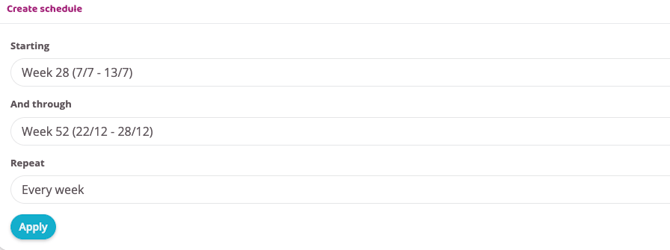
Instead of clicking Edit click "Create schedule" after choosing activities in the first step. Then enter details in fields below.
Starting
Enter the date the new schedule should start.
And through
Specify the date the new schedule should extend to (we do not recommend posting the schedule more than a year in advance as a longer schedule means worse loading times.
Repeat
Choose whether the schedule should be the same every week, every other week, or some other weekly interval. Useful if the schedule differs between even and odd weeks, for example. If the schedule should be the same every week, nothing needs to be changed here.
Click "Apply" to publish the new schedule.
Last updated: 9/7-2025