
Table of contents
- Summary
- Open the button list
- Add an extra button
- Choose who sees the button
- Change the button order
- Edit or delete a button
- Translate buttons to other languages
- Validation / Testing
- Troubleshooting & known issues
Summary
- You manage all Wondr-wall buttons in
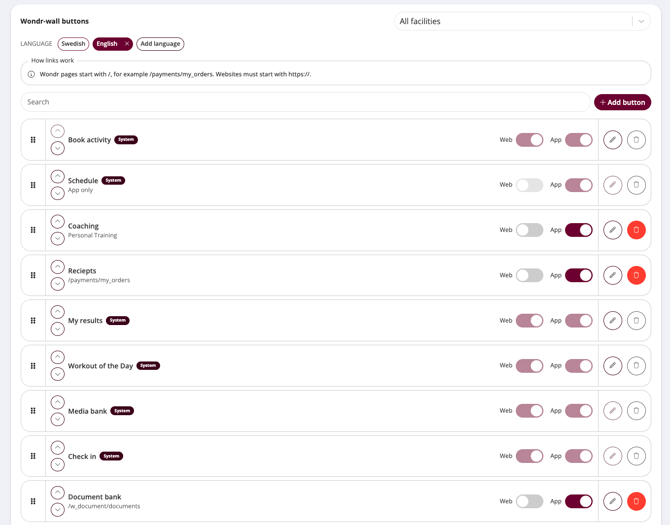
Settings > Wondr-wall, in the section Wondr-wall buttons. - The list shows every button on the wall: system buttons (such as Book activity, Schedule, Check in, Documents, My results and WOD), smart rule shortcuts and your own extra buttons.
- You can add extra buttons that link to a booking wizard, a Wondr page or a website.
- The order of the list is the order members see on Wondr-wall, both on the web and in the app.
- You can show each extra button to everyone, or only to users with specific roles or membership labels.
- System buttons are marked System. They come from other settings in Wondr, so you can move them in the list but not delete or edit them.
NOTE: To change these settings, you need to be registered as an administrator or facility admin in Wondr.
Open the button list
- Go to
Settings > Wondr-wall. - Scroll to Wondr-wall buttons. Each row is one button on the wall.
- If you have multiple facilities, choose a facility in the list at the top right, or keep All facilities to set up the same buttons everywhere.
Each row shows the button name, where it links, and whether it is shown on Web, in the App, or both. Use Search to find a button quickly in a long list.
TIP! The box How links work above the list is a quick reminder of how to write Wondr page paths and website addresses.
Add an extra button
- Click + Add button.
- Fill in the fields below.
- Click Done.
- Click Save at the bottom of the page. A message at the top of the page confirms that the settings have been saved.
Button label
The text on the button. Keep it short so it fits on the wall, for example "Book PT" or "Price list".
Type
Choose what the button opens:
- Booking wizard
choose one of your booking wizards in the list. - Page in Wondr
enter the path to the page in the field
Starts with /
for example/payments/my_orders. - Website
enter the full address in the Website field. It must start withhttps://.
Open in new tab
Turn on to open the link in a new browser tab, so the member keeps Wondr-wall open. Recommended for external websites.
Web / App
Use the toggles on the row to show the button on Wondr-wall in the browser (Web), in the Wondr app, or both.
TIP! Not sure which path to use for a page in Wondr? Open the page yourself while logged in and copy everything in the address bar after the domain.
Read the article: Booking Wizard.
Choose who sees the button
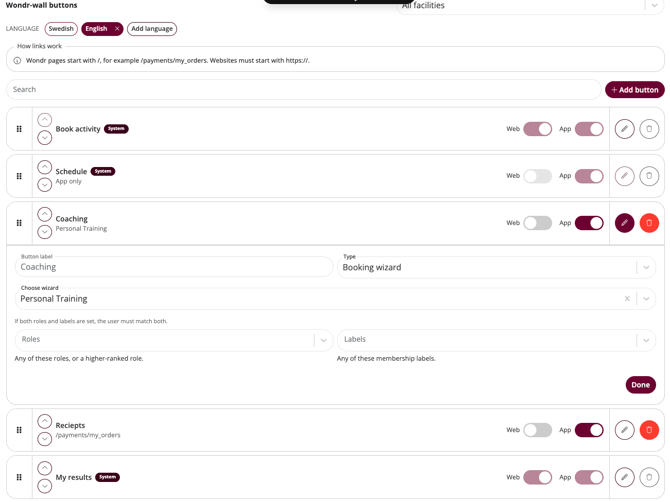
If you leave Roles and Labels empty, the button is shown to everyone. Use them if the button is only meant for some users.
- Click the pencil icon on the extra button you want to limit.
- Choose one or more roles, labels, or both.
- Click Done, then Save.
Roles
Show the button to users with any of the selected roles, or a higher-ranked role. Choose Staff to create buttons that only your staff see, for example a link to internal routines.
Labels
Show the button to members with any of the selected membership labels. Useful for buttons like "Book PT" that only apply to certain memberships.
NOTE: If you set both roles and labels, the user must match both to see the button.
Read the articles: Labels for memberships and booking types and Roles.
Change the button order
- Drag a row by the handle on its left side to a new position. You can also click the up and down arrows on the row to move it one step at a time.
- Repeat for other rows as needed.
- Click Save.
The order in the list is the order on Wondr-wall. It applies to all buttons, including system buttons and smart rule shortcuts, and is the same on the web and in the app.
Edit or delete a button
Edit
- Click the pencil icon on the row. The fields open below the row.
- Make your changes and click Done.
- Click Save.
Delete
- Click the red trash icon on the row of the extra button.
- Click Save.
NOTE: No changes in the list are saved until you click Save at the bottom of the page. This includes deleted buttons: a button disappears from the list right away, but stays on Wondr-wall if you leave the page without saving.
Translate buttons to other languages
All languages share the same buttons, order, links and visibility settings. What you set per language is the Button label of your extra buttons, so members see the text in the language they use Wondr in.
- Click Add language and choose a language. It is added next to LANGUAGE above the list.
- Click the new language to select it. The selected language is highlighted.
- Click the pencil icon on an extra button and enter the translated text in Button label.
- Click Done, and repeat for the other extra buttons.
- Click Save.
To remove a language, click the x next to its name, then click Save.
TIP! Set up all buttons, links and roles in your main language first. Then add the other languages and only translate the labels.
Validation / Testing
- Open Wondr-wall in a browser and check that the buttons appear in the same order as in the list.
- Open the Wondr app and check the same thing. Buttons with only Web turned on should not show in the app, and the other way around.
- Click each new button and check that it opens the right booking wizard, page or website, in a new tab if you turned that on.
- If you have limited a button, log in as a test user who matches the roles and labels, and one who does not. Only the first should see the button.
Troubleshooting & known issues
- The button does not show on the wall: Check that Web or App is turned on, that you clicked Save, that you set it up for the right facility, and that the user matches the roles and labels you chose.
- I get an error when I save a website: The address must start with
https://. Addresses starting withhttp://orwww.are not accepted. - The link to a page in Wondr does not work: The path must start with
/and must not include the domain. Use/payments/my_orders, not the full address. - I cannot delete a system button: This is expected. System buttons come from other settings in Wondr and can only be moved in this list.
Related articles
Last updated: 29/09-2026