
Table of contents
- Summary
- Requirements
- Create a label
- Manage labels in one place
- Filter your lists by label
- Use a label in a smart rule condition
- Filter a report by label
- Validation / testing
- Troubleshooting & known issues
Summary
A label is a name you attach to a group of membership types or booking types, so you can select the whole group in one click instead of picking each type by hand. For example, if you run three yoga products, a membership, a drop-in class, and a 10-pack, you can put all three under a “Yoga” label.
The point is to stop repeating yourself. If you regularly pick the same 15–20 types when you build a report or set up a smart rule, labels save you from selecting them one by one every time. They also keep things up to date automatically: once a report or a smart rule condition filters by a label instead of by hand-picked types, adding a new type to that label is enough, you don’t need to go back and update every report or rule it should belong to.
Requirements
- Labels are a selection shortcut. If you normally pick the same 20 membership types in a report, give them one label and pick that instead.
- Labels apply to membership types and booking types only.
- Labels are internal, members never see them.
- If a booking type has sub-types (for example a treatment category with several durations), labeling the parent type also covers bookings on its sub-types in filters and smart rule conditions. You don't need to label each sub-type separately, that's the point of grouping them.
- A membership type or booking type can carry more than one label at once. Smart rule conditions are the exception: a label condition only lets you pick a single label at a time, because of how the filtering is built.
- Smart rules themselves aren't labeled. A rule shows up under a label only because one of its conditions references that label.
- Labels never change what a report calculates. Filtering by a label returns exactly the same numbers as selecting the same membership types or booking types by hand.
- You need the Labels - Admin permission to manage labels and use them in smart rules and reports. Facility admins and admins have this by default. Staff don't have it by default, but it can be granted to them like any other permission.
- Labels can be used as conditions on 8 smart rule triggers, and as filters on 17 reports.
- Label names can be up to 64 characters.
NOTE: Label filters aren't available for the reports: Subscribers Conversions, Booking TopList, and Booking TryIt. Each of these reports already has its own multiselect, so label support is on hold pending feedback.
Label renaming isn't supported yet. If a label's name no longer fits, delete it and create a new one instead.
Create a label
- Go to
Settings > Labels. - Under New label, click into the Search or create a label field and type the name you want.
- Press Enter to create it (or click the matching option in the dropdown, both work). The label is created right away and appears in the list below, there's no separate save step.
TIP! If a label with a similar name already exists, it shows up in the same dropdown so you can pick it instead of accidentally creating a duplicate.
You don't have to set up a label in Settings > Labels first. You can also create one directly from a membership type (Settings > Membership Types), a booking type (Settings > Booking > Types), or a smart rule condition: find the Labels field there, type a name, and select it the same way.
Note: When you create a label from a membership type or booking type, you need to save that membership type or booking type for the label to be saved. Creating a label from Settings > Labels or from a smart rule condition saves it immediately, you don't need to save the smart rule itself for the label to exist.
Manage labels in one place
From Settings > Labels, you can also:
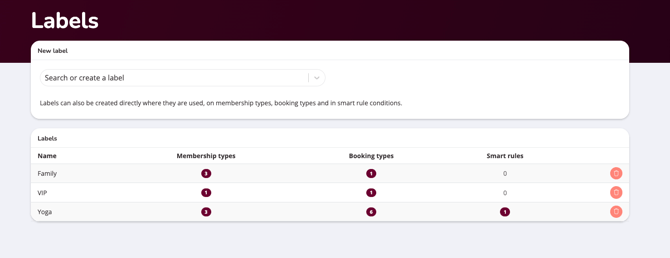
- See every label, along with how many membership types, booking types, and smart rules currently use it.
- Click a usage count (for example the number under Membership types) to see exactly which membership types, booking types, or smart rules use that label, and open one directly from the list.
- Delete a label once it's no longer in use to keep the list clean. A label that's still attached to any membership type, booking type, or smart rule can't be deleted.
Filter your lists by label
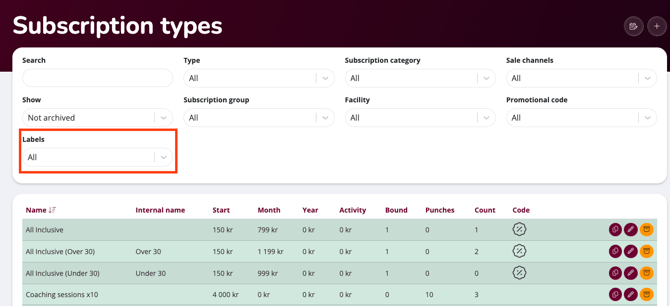
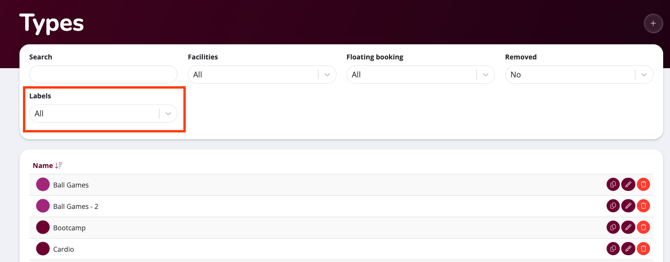
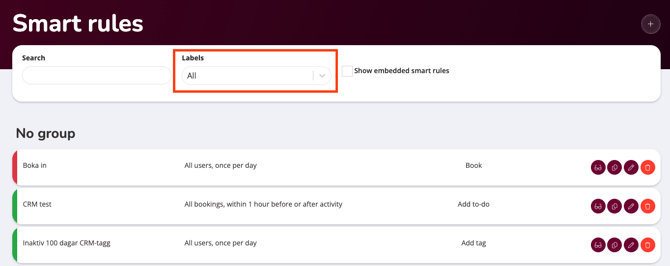
- Go to the membership type list, the booking type list, or the smart rule list.
- Use the label filter to narrow the list down to a group instead of scrolling through everything.
The label filter doesn't show up at all until your facility has at least one label. Create one first if you don't see the option (the same applies to report filters).
Use a label in a smart rule condition
- Go to
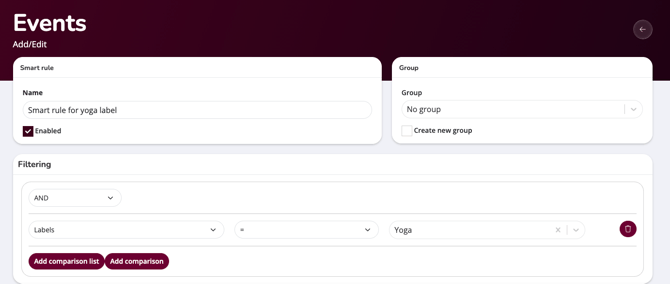
Settings > Smart Rulesand open the rule you want to edit, or create a new one. - Add a condition and choose the label-based option on a supported trigger.
- Pick the label instead of selecting membership types or booking types one by one. If you add a new type to that label later, the rule picks it up automatically.
Filter a report by label
- Go to
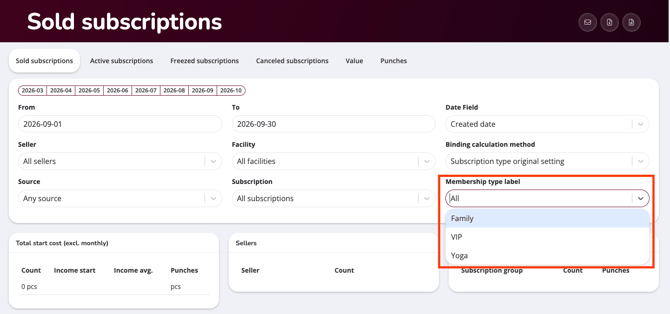
Reportsand open one of the 17 supported reports. - Use the label filter instead of selecting individual membership types or booking types.
If you don't see a label filter on a report, check whether it's one of the three reports listed above that don't support labels yet.
Validation / testing
- Open
Settings > Labelsand confirm the usage counts match what you expect for each label. - To confirm a label doesn't change your numbers, run a report once with individual membership types or booking types selected, then run it again using the label that covers the same types. The results should be identical.
- In a smart rule, confirm a label-based condition is working by adding a new membership type or booking type to that label, then checking that the rule now applies to it too.
Note: Usage counts only include active membership types and booking types, deleted or archived ones aren't counted. A label can show 0 uses, and be deletable, even though an archived type still carries it.
Troubleshooting & known issues
- Label filter missing on a report
Only 17 reports support label filters so far. Subscribers Conversions, Booking TopList, and Booking TryIt aren't included yet. - Can't rename a label
Not supported. Delete the label and create a new one with the name you want. - Smart rule not behaving as expected after adding a label
Remember that smart rules aren't labeled directly, check that the rule's condition still references the label, and that the label still includes the membership types or booking types you expect. - A label shows 0 uses but something still seems tagged with it
Usage counts don't include archived or deleted membership types and booking types. An archived type can still carry the label even though the count reads 0 and the label can be deleted.
When you create a label from a membership type, booking type, or smart rule condition, you need to save that membership type, booking type, or smart rule for the label to be saved.
Last updated: 1/09-2026