
Table of Contents
- Requirements
- How a seat is assigned
- Open the Facility admin page
- Request a seat
- Approve or reject a request
- Withdraw your request
- Release your seat or hand it over
- Validation / Testing
- Troubleshooting & known issues
Requirements
The facility admin role is for the people who are ultimately responsible for the facility in Wondr, such as the owner or the facility manager.
- Each facility has two facility admin seats.
- To request a seat, your highest role must be Administrator.
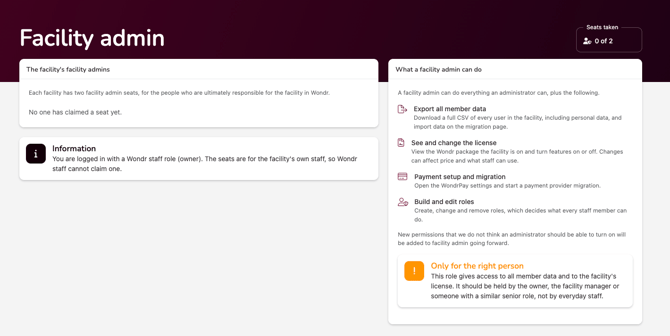
- A facility admin can do everything an administrator can, plus:
- Export all member data: download a full CSV of every user in the facility, including personal data, and import data on the migration page.
- See and change the license: view the Wondr package the facility is on and turn features on or off. Changes can affect the price and what staff can use.
- Payment setup and migration: open the WondrPay settings and start a payment provider migration.
- Build and edit roles: create, change and remove roles, which decides what every staff member can do.
- New permissions that an administrator should not be able to turn on will be added to facility admin going forward.
- Two facility admins cannot edit each other's user profiles.
- Wondr staff cannot take a seat. The seats are for your facility's own staff.
- You find the page under
Settings > Permissions > Facility admin.
NOTE: This role gives access to all member data and to the facility's license. Give it to the owner, the facility manager or someone with a similar senior role, not to everyday staff.
How a seat is assigned
A seat is never taken directly. You send a request, and the request holds the seat until someone approves or rejects it. Who decides depends on which seat you ask for.
| First seat No facility admin exists yet, so Wondr support approves or rejects the request. |
Second seat One facility admin already exists, so that facility admin approves or rejects the request. |
A request can end in one of these ways:
- Approved: you become facility admin and hold the seat.
- Rejected: the seat is free again. You can send a new request.
- Withdrawn: you took the request back yourself, and the seat is free again.
A facility admin can later release their seat, which frees it for someone else.
Open the Facility admin page
- Go to
Settings > Permissions > Facility admin. - Check Seats taken at the top right. It shows how many of the two seats are in use. A request that is waiting for approval counts as a taken seat.
What you see depends on how many seats are taken:
- Seats free: the list of facility admins and pending requests, the request form, and a description of what a facility admin can do.
- Both seats taken: only the list of facility admins and pending requests
Request a seat
- Choose your title: Owner, Facility manager or Other senior role.
- Tick the three statements to confirm that:
- you hold a senior role at the facility
- you are responsible for handling exported member data
- you understand that license changes can affect the price
- Send the request and confirm.
Your request now shows Waiting for approval, together with a note on who needs to approve it. An email goes out automatically to the approver: Wondr support for the first seat, or the current facility admin for the second seat.
NOTE: For the first seat, Wondr support may call you to confirm that you are the right person before approving.
When the request is decided, you get an email with the outcome. If it is approved, your new access is active the next time you load a page.
Approve or reject a request
SKIP this part if you are not a facility admin.
When someone requests the second seat, you get an email saying who is asking, with which title, and what the role gives access to.
- Go to
Settings > Permissions > Facility admin. - Find the pending request in the list.
- Click Approve or Reject and confirm.
TIP! Only approve if you are sure this colleague should have access to all member data and the license. If you are unsure, reject the request and talk to the person first. They can send a new request.
You cannot approve or reject your own request. If you do not respond, Wondr support can step in and decide instead.
Withdraw your request
If you change your mind before the request is decided:
- Go to
Settings > Permissions > Facility admin. - Click Withdraw on your request and confirm.
The seat is free again right away. No email is sent.
Release your seat or hand it over
If someone else should hold your seat, for example when a new facility manager starts:
- Go to
Settings > Permissions > Facility admin. - Release your own seat and confirm.
- Ask the new person to send a request for the free seat.
NOTE: You can only release your seat if you keep another role at Administrator rank or above. Otherwise you would lock yourself out, so the page asks you to contact Wondr support instead.
To remove another facility admin, contact Wondr support.
Validation / Testing
- Seats taken shows the correct number, for example 1 of 2.
- Your name is listed as a facility admin on the page.
- You received an email saying the request was approved.
- After reloading the page, you can open the facility admin features, such as the migration page and the role settings.
Troubleshooting & known issues
- I cannot see the Facility admin page: Only administrators and facility admins can open the page. The access cannot be added to other staff roles.
- I cannot send a request: Check that your highest role is Administrator, that you do not already have a request waiting, and that there is a free seat. A pending request counts as a taken seat.
- The wrong person holds a seat: Ask the current facility admin to release it on the page, then the right person can request it. If that is not possible, contact Wondr support.
- My request was rejected: Talk to your facility admin, or contact Wondr support if you think it is wrong.
- The facility admin does not respond to my request: Contact Wondr support. Support can approve or reject any pending request.
- The approval is refused: The person who sent the request must still be active and still hold the Administrator role. If they no longer do, reject the request instead.
- I cannot release my seat: You need another role at Administrator rank or above. Contact Wondr support to have the role removed.
Last updated: 29/09-2026