
Table of contents:
1. Introduction
2. Start using inventory balance
3. Adjust inventory
4. Reduce balance (e.g. in case of theft)
5. Related articles
Introduction
Inventory Balance is included in our Pro and Hero packages.
Click here to read more about our packages and prices
To start using inventory balance, you first need to create one or more locations that the balance can be linked to. For example, if you have two facilities and both have their own shop, you need to create a balance location for each facility. If you only have one facility, you still need to create an inventory location to be able to use inventory balance.
To do this, go to Settings > Products > Inventory balanceand select the Inventory Locationstab.
- Click the plus sign in the top right or the
Generate inventory locations for all remaining locationsbutton. - Enter name.
- Select which facility it should be connected to.
- Click create.
Depending on whether you already have products created previously or not, you either need to go through all products and activate inventory balance on the products that will be stocked.
Alternatively, you can now start creating your products and activate inventory balance on those that will be stocked in that process. Read more about how to create products in the chapter "Related articles"
Activate inventory balance on existing products
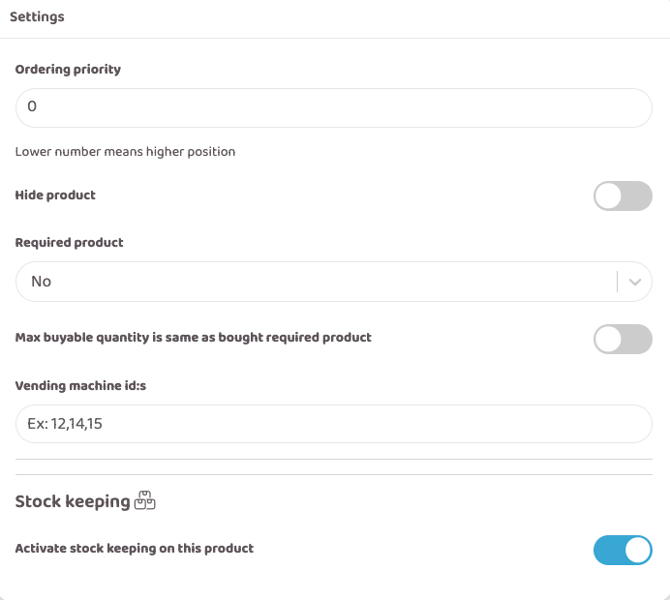
Go to Settings > Products > Products and edit the products to be stocked.
In edit mode, scroll down a bit to the Settings box and enable inventory by clicking the Activate stock keeping on this product button. Then update the product.
Adjust inventory
Adjust layers
Once inventory balance is enabled on all products and you have created your inventory locations, it is time to top up the balance for the first time. You will then repeat this procedure every time you receive new items.
Go to Settings > Products > Inventory Balanceand select the Adjust Inventory tab, then click the plus sign on the right to top up the balance.
- Enter a name so you know where the goods come from or if you use any special internal terminology.
- Today's date is automatically entered and will then appear in the history so you know when items have been replenished. You can change it manually here if you need to.
- Click
Create. - You will now be taken to a view that shows all products linked to inventory balances, divided into their respective attributes. You will see which category and location the product is linked to, as well as the current balance. You can filter by product name, category, and inventory location.
- In the rightmost column
Change, enter how much you want to top up your balance with. You can click the plus sign or enter a number. Repeat this for each individual product and product attribute that you want to top up. - When you are finished, click the green check mark above the table.
Draft
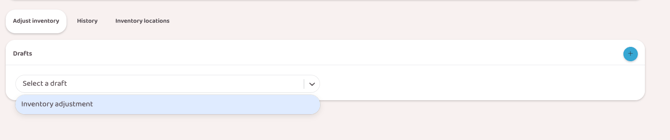
If you have started an adjustment but have not finished it by clicking on the green check mark, it will be saved as a draft. You can then resume your work at any time by selecting the draft you last worked on, everything will be saved automatically so you can continue where you left off.
Because of this feature, it is a good idea to give all started refills a unique name, both for drafts but also in statistics so you can easily distinguish them.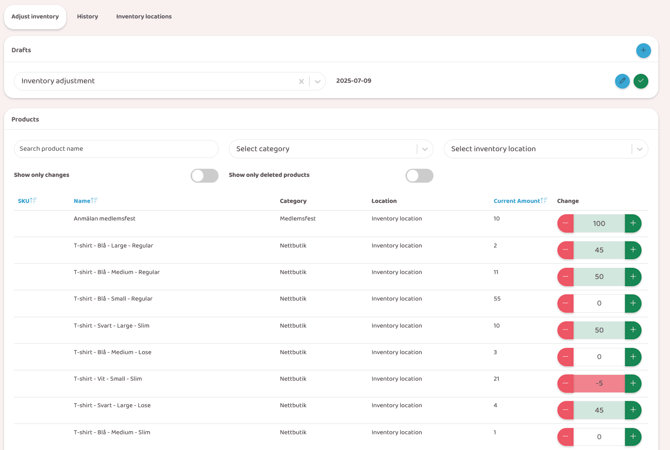
History
Here you can easily go back and review previous stock balance replenishments.
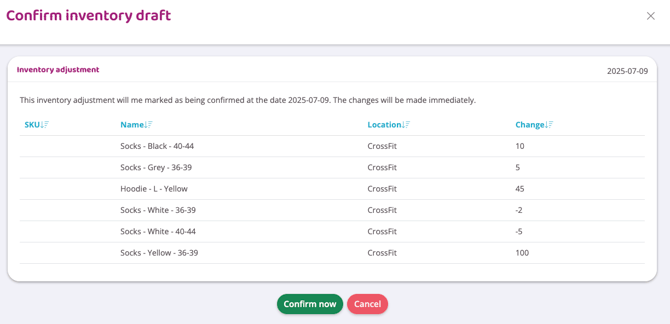
Go to Settings > Products > Inventory balanceand select the Historytab, then click the eye for the file you want to review.
You will then see a table showing which products were replenished and how much.
Show/hide balance from customer
If you have a webshop where customers can shop themselves, the stock balance is automatically displayed in the default mode. If you don't want to show exactly how many products you have in stock, go to Settings > Products and look under Product Settings .
Check the box Hide exact stock inventory amount for products in webshop view and instead specify at what quantity the product should warn of low balance by entering a number in the box, Set the product amount limit for showing the "few in stock" warning in the webshop view. This means that if you, for example, enter 5, it will only say "In stock" on the product towards the customer, when the balance reaches 5 or fewer it will say "Low in stock".
This is a universal setting that applies to all products where stock balance is enabled. It cannot be set differently for different products, but either the exact balance is displayed or it only shows "In stock/Low in stock".
Reports
Stock balance
In this report you can see the current balance of all products and product attributes, when the balance was last changed and which stock location the product belongs to.
Inventory transactions
In this report you will see a complete history of all balance changes that have occurred recently. You can choose exactly which time span you want to examine by filtering at the top of the report, and whether you only want to look at a specific product or stock location.
Go to Settings > Products > Inventory balanceand select the Adjust inventory tab, then click the plus sign on the right to create a new draft.
Enter a name so you know why you are removing items manually, e.g. in this case "Theft".
Today's date is automatically entered and will then appear in the history so you know when items have been replenished. You can change it manually here if you need to.
Click Create.
You will now be taken to a view that shows all products linked to inventory balances, divided into their respective attributes. You will see which category and location the product is linked to, as well as the current balance. You can filter by product name, category, and Inventory location.
In the rightmost column Adjust you enter how much you want to reduce the balance by, so if 2 products have disappeared you enter -2 on that product's row. You can click the minus sign or enter a number. Repeat this for each individual product and product attribute that is to be reduced in quantity.
When you are finished, click the green check mark above the table to save.
Related articles
Last updated: 4/6-2025