
Table of contents:
1. Intro
2. Step by step guide
3. Product with variations
4. Attributes
5. Related articles
Intro
This article describes both how to create products that are sold at the checkout and in an online shop.
For more info on how to create a webshop click here.
Product with variations
If the product should have variations such as different sizes, colors or flavours active this toggle. If it is a single product with no variations just proceed.
Single product
Information
SKU
Internal article number can be entered here but it's not required.
Name
Name of the product.
Short description
Enter a short description for the product (if you have one, otherwise this box can be left blank).
Long description
Enter a long description for the product (if you have one, otherwise this box can be left blank).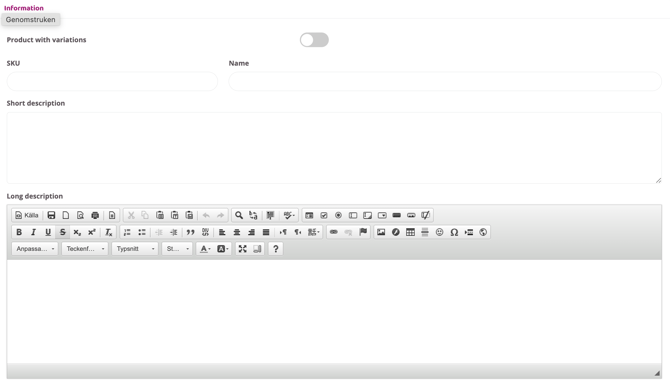
Price edit
Price
The price of the product.
Tax
Enter the correct tax/VAT for the product.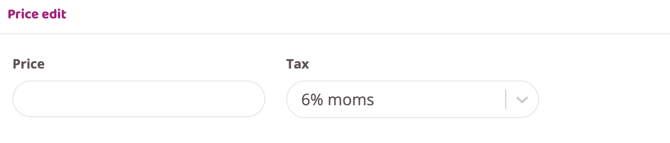
Value card
Value card
If this product is going to be a value card activate this feature and then some additional choices will become visable.
Name of card
Enter the name of the value card.
Can only be used on one VAT
Activate this option if you wish to lock this value card to a single VAT, the option will become visable in the price settings above under Tax.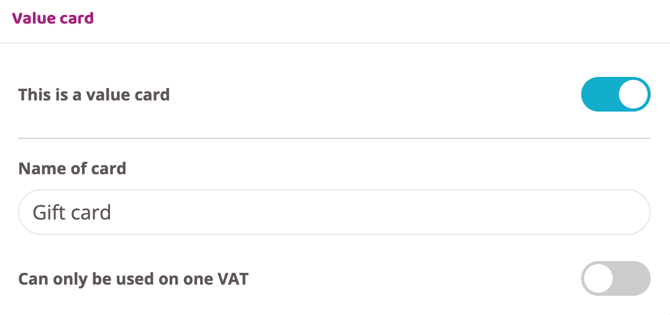
Ordering priority
In what order should the products be placed? Enter this product's place in the order. Lower number means higher position, so 1 is displayed before 2.
Hide product
Activate this option if you wish to hide the product from customers without having to fully delete it. When you are ready to start selling it again just deactivate this action and save the product and it will reappear.
Required product
Here you can add a feature that the customers have to purchase a different product before being able to purchase this one.
Max buyable quantity is same as bought required product
Activate this feature if they should not be able to buy more of this product than the number of required products they buy.
Vending machine id:s
If you have a vending machine that is to be connected the ID is pasted here.
Stock keeping
Activate stock keeping for this product here. Read more about this function Here.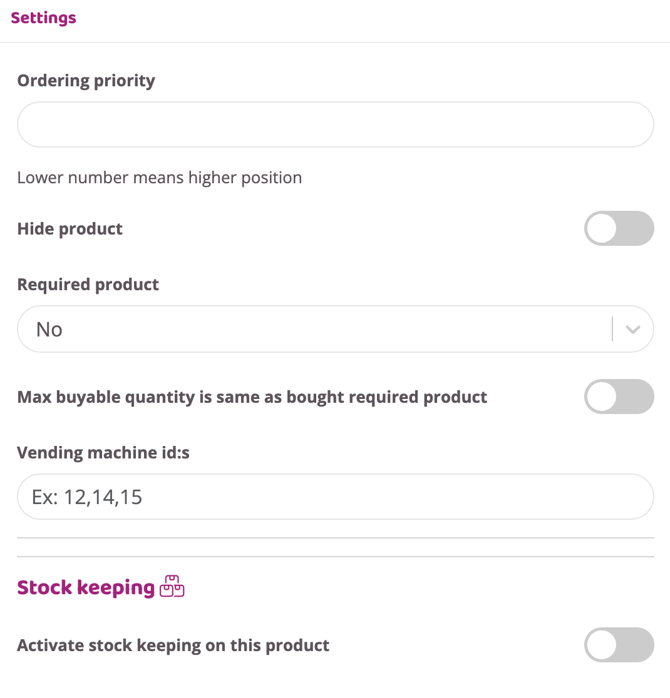
Product Images
Upload an image for the product.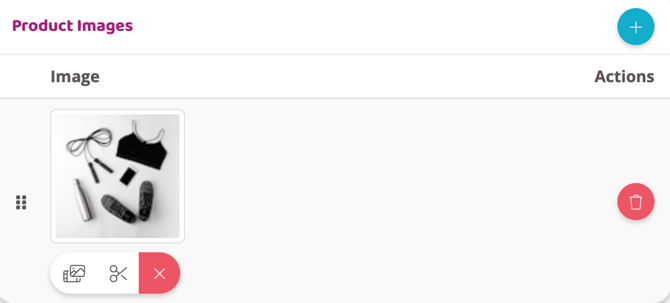
Product with variations
NOTE! Before creating a product with variations you need to create the variations themselves or as we call them "Attributes". If you have already created your attributes continue reading otherwise first go to the chapter "Attributes" and follow those steps and return here later.
If the product is to have multivariations, activate it at the top by clicking the Product with variations button.
In this article we only describe how to create multivariations, if you want a walkthrough of all other fields and a product's basic settings, read the previous chapter for "Single product" all fields are described there.
Create a multivariate product:
-
Click on the plus sign in the top right corner under
Products. -
Click the
Product with variationsbutton to activate the multivariate feature. -
Make all settings for names, descriptions, categories, etc.
-
At the bottom of the page under
Product Variations, click the plus sign to attach attributes to this product. -
Choose which attribute(s) this product should have, e.g. size and color (you can have a maximum of three attributes per product).
-
Then choose which attribute values should be selectable for this product, a hoodie may not be available in blue, for example, but only in black and white, while a T-shirt is available in all colors, then you only choose the values that apply to this product (this can of course be corrected later if it changes).
-
Enter SKU (article number), price and VAT. If it is to be different for different attributes, this can be skipped here and set in the next step.
-
Review the summary at the bottom to make sure all attributes are correct. You can choose to uncheck specific ones if you don't want to create them now. This can also be done later.
-
Click on
Create variations
After the variations are created, you can enter the SKU, price and VAT on each row. If you want them all to be the same, you can simply enter the correct value on the top row and then click "Fill" and the value will be copied to all rows.
You can also specify a custom image for each attribute that will then be displayed in the webshop. Scroll up a bit to Product Images and click the plus sign to add one or more images. Then select the image and which attribute variation it should be linked to.
Everything we have gone through above is exemplified in the video below, please watch it for clear examples.
Attributes
Attributes are what define the variations of a product. An attribute can be, for example, size, color, flavor, etc. If a shirt in the webshop is to be available in different colors and sizes, or a shake in different flavors, these attributes need to be created and then added to the product. Read on to see how to create attributes and connect them to your products.
TIP! Even if you forget to create attributes before you start adding products, it's great to create them in connection with the product. There is a plus sign there so you can access the same function as we describe below.
Go to Settings > Products > Product Attributes and click the plus sign in the right corner to create a new attribute.
NOTE! You only need to create the attribute once, if you have an attribute for size, this can be applied to all products and you choose which ones to link to which product. If more sizes are added later, you can easily edit the attribute and add them.
Create attributes:
- Click on the plus sign at the top right.
- Enter a name for the attribute, e.g. taste or size.
- Specify the order in which the attributes should be found on each product, i.e. what should be selected first, etc.
- Click the plus sign next to
Product Attribute Itemsto add variations, such as small, medium, large or vanilla and chocolate. - Click create.
Edit attributes:
- Click the pencil on the attribute to be edited.
- Click the plus sign next to
Product Attribute Itemsto add more. - You can easily change the order by dragging and dropping them if you click and hold your mouse over the dots on the left of each item row.
- Click save when you have made your changes.
The video below shows an example of how to create and edit an attribute.