Table of contents:
Introduction
Note: To create an activity, you need to be registered as an administrator in Wondr.
To create an activity type, go to Settings > Booking > Types .
Once you are among the types, click Add (the plus sign in the upper right corner) to create a new booking type.
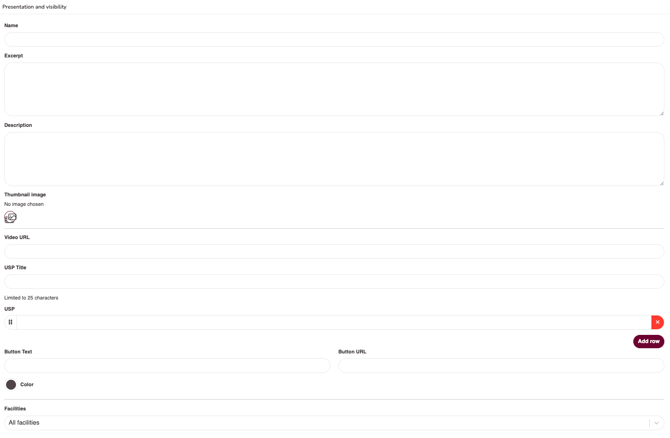
Presentation and visibility
Name
Enter the name of the activity.
Excerpt
Enter a short summary of the activity. This will function as an introduction.
Description
Provide a detailed description of the activity. This will function as the main body text.
Thumbnail image
Select which image should be displayed for this activity in the schedule.
Video URL
Paste a YouTube or Vimeo link if a video should be shown instead of the thumbnail image. (If the activity is displayed on the website via an Activity Block, both the video and the image will be shown, but only one of them will be shown in the schedule.)
USP Title
Heading above the bullet list of USPs (Unique Selling Points).
USP
Short benefits of this activity shown in bullet points. Click the Add row button to add multiple USPs.
Button text
If a button should be displayed in the activity card, enter the button text and link here.
Color
Choose the color that the session should have in the schedule.
Facilities
If you have multiple facilities in Wondr, you can specify here whether members should be able to choose a home facility when purchasing a membership, or if a specific facility should automatically be assigned to the member.
Settings:
Base settings
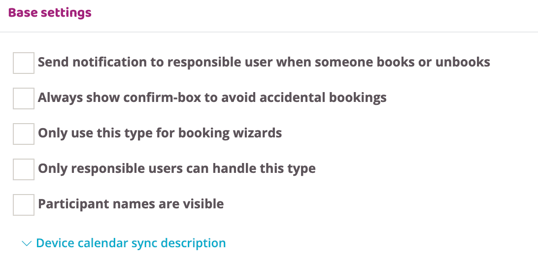
Send notification to responsible user when someone books or unbooks
Check the box if the instructor in charge should receive a notification when someone books or cancels the session. They can set how they receive the notification under "Notifications" on their own profile.
Always have the member confirm booking of this type
Check the box to always require the customer to confirm their booking. This feature is highly recommended as it prevents anyone from accidentally booking into the activity.
Only use this type for booking wizards
Check this box if the activity should be visible in a booking wizard for customers.
If it should appear in your regular group training schedule, this box should NOT be checked.
Only responsible people can handle this type
Check this box if only the specified instructor should be able to edit the session in the schedule. This also applies to canceling participants and canceling the session. The restriction does not affect people with the administrator role but restricts other instructors from changing each other's activities.
Participant names are visible
If public participant names are enabled, they will be enabled for this specific activity here. Participants who have approved their names to be visible will then be able to see each other's names in the participant list.
Description for calendar sync
Enter a description for the activity that will appear in the booked person's calendar if the "Calendar Sync" feature is used.
Cost
For a more detailed description of this feature, read the article: Booking type with cost.
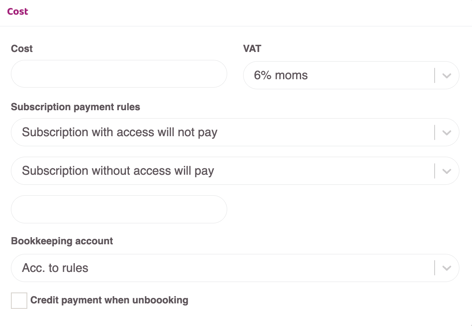
Cost
Please indicate how much it costs to book this activity as standard.
VAT
Enter the VAT rate for the cost.
Subscription payment rules
Subscription with access will not pay/will pay:
This drop-down list offers a choice of whether customers with a subscription that provides access (booking rights) to the booking type should pay for the activity or not.
Membership without access must pay/cannot book:
This drop-down list offers a choice of whether customers without a subscription that provides access (booking rights) to the booking type should pay for the activity or whether they should not be able to book at all.
Bookkeeping account
If there is a cost here you choose how that sum should be registered in your bookkeeping.
Credit payment when unboooking
Check this box if customers should be credited when they cancel.
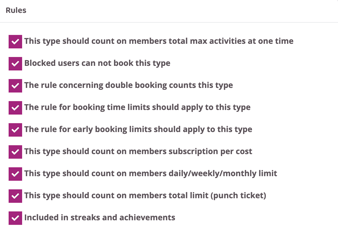
There are several boxes, all of which are checked by default. This means that the activity follows all the rules set elsewhere in the system.
This only needs to be changed if the activity is to be some kind of exception!
This type should count on members total max activities at one time
Uncheck this box if this activity should not be counted towards the maximum number of sessions members are allowed to have booked at the same time.
The setting for how many activities a member can have booked at the same time is set under Settings > Booking > Types, then edit a bookingtype.
The settings that are referred to next are found under the "Rules" tab within the bookingtype you are editting/creating.
Blocked users can not book this type
Uncheck this box if blocked customers should be able to book this activity.
The rule concerning double booking counts this type
Uncheck this box if this activity should be able to be booked even though the member has another activity booked at the same time.
The rule for booking time limits should apply to this type
Uncheck this box if there are subscriptions with time restrictions but who should be able to book the activity even outside the time limit.
The rule for early booking limits should apply to this type
Uncheck this box if this activity should not be included in the rule governing early booking, meaning that different subscriptions may book different numbers of days before the start of the session.
This type should count on members subscription per cost
Uncheck this box if customers with a subscription that issues a pass fee will not pay for this pass. They will then be able to book the activity without the system issuing a pass fee.
This type should count on members daily/weekly/monthly limit
Uncheck this box if there are subscriptions with restrictions on how many activities they can book per day/week/month but who should be able to book the activity without it counting towards the maximum limit.
This type should count on members total limit (punch card)
Uncheck this box if a punch should not be deducted from punch card members when booking this activity.
Included in streaks and achievements
Uncheck this box if the activity should not be counted in streaks and achievements.
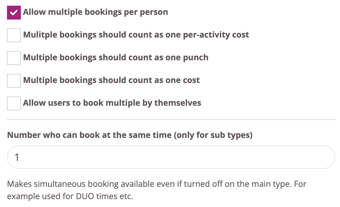
Allow multiple bookings per person
Check this box if the participants should be able to book more than one person at a time on this activity. When activated you get some additional choices for how this should work:
- Multiple bookings should count as one per-activity cost: Check this box if only one activity cost should be deducted no matter how many participants are booked.
- Multiple bookings should count as one punch: Check this box if all booked participants should count as one punch if the activity is booked using a punch card.
- Multiple bookings should count as one cost: Check this box if only one subscription related cost should be deducted no matter how many participants are booked.
- Allow users to book multiple by themselves: Check this box to edit how many extra participants can be booked.
- Each user can book X places (only appears if the above box is checked): Enter how many spots one participant can book.
- Number who can book at the same time (only for sub types): Check this box to make simultaneous booking available even if turned off on the main type. For example used for DUO times etc.
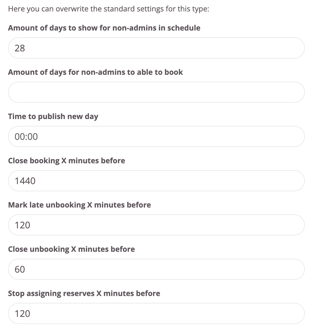
Here you can change the standard settings for when this particular activity should be bookable and visable in the schedule.
Amount of days to show for non-admins in schedule
Change how many days in advance this activity appears in the schedule.
Amount of days for non-admins to able to book
Change how many days in advance this activity can be booked in the schedule.
Time to publish new day
Change the time of day this activity is published in the schedule.
Close booking X minutes before
Change how long before the session start the booking closes for this activity.
Mark late unbooking X minutes before
Change how far before the session start a booking changes status to "Late cancellation" for this activity.
Close unbooking X minutes before
Change how far before the session start the cancellation closes for this activity.
Stop assigning reserves X minutes before
Change how far before the session start time reserve slots are assigned for this activity.
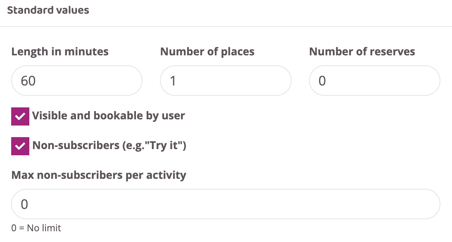
Standard values
NOTE: To change the default values for an activity that is already in the schedule, you need to edit the posted activity in the schedule. Changes here will only take effect for what is added from now on and will NOT affect what is already in the schedule.
TIP! If multiple classes should be covered by the same exception, it’s easier to create a “Time Rule”. There you can set up specific rules and choose exactly which activities they apply to. If there’s an existing rule affecting this activity, the time rule will override what is set here.
Length in minutes
Enter the duration of the activity.
Number of places
Please indicate how many participant spots are available.
Number of reserves
Enter how many reserve spots the activity has.
Visible and bookable by user
Must be checked for customers to be able to see the activity in the schedule and book it. If the box is not checked, only staff can see and book participants for this activity.
Non-members (e.g. "Try it")
Check this box if non-subscribers should be able to book this activity, either as a free trial or through a cost set in the next settings box.
Max non-subscribers per activity
Limit how many non-subscribers that can book a spot on this activity. 0=unlimited and is the standard value so there is no limit if you don't set one.
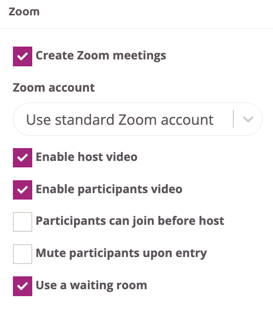
Zoom
Create Zoom meetings
Check this box if the activity will be broadcast live via Zoom. To use this integration, the Zoom add-on must be included in the license and the basic settings must be made.
Zoom account
It is possible to have multiple Zoom accounts connected to Wondr and if so, select which account to send to here. Accounts are connected via Zoom's basic settings.
Enable host video
Check this box if the video should automatically start for the host.
Enable participant video
Check this box if the video should automatically start for participants.
Participants can join before the host
Check this box if participants should be able to join themselves. If this box is not checked, participants will be allowed to join when the host lets them into the meeting.
Mute participants upon entry
Check this box if all participants should be muted when they join. They can turn on their mic themselves via Zoom, but it is not activated from the start.
Use waiting room
Check this box if participants who join before the host should end up in the Zoom waiting room until the host lets them into the meeting.
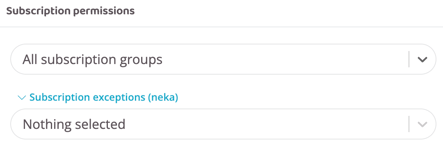
Subscription permissions
This controls which subscriptions will have access to book the activity. Skip this part if it is not relevant for the booking type and all customers should be able to book it regardless of subscription.
All subscription groups
Basic setting that gives all people with an active subscription access to book the activity.
Only specific subscriptions
Select this option if only specific subscriptions should be able to book this activity. Specify which subscriptions should have access in the box "Subscriptions" that appears below when you choose this option.
Only specific subscription groups
If there are different subscription groups in the system, specify here which groups should have access. In this case, all subscriptions in the group are included under the access.
NOTE! Subscription groups do not exist from the start but are created by support in consultation with you. A subscription group is very useful if, for example, there are several different PT subscriptions that should only be able to book PT and regular subscriptions that should book group training.
Instead of having to go into each activity and specify all the subscriptions that should have access, you can easily group them and then only specify which subscription group or groups should have booking access to this activity.
Only specific subscription groups + extra subscriptions
Choose this option if one or more groups and one or more specific subscriptions outside the group should have access to book.
Subscription exception (deny)
Can be used to advantage if there are only a few subscriptions that should not have the right to book this activity. In that case, the default setting "All subscription groups" can be left and then only the subscriptions that should not be allowed to book are specified here.
TIP! Either "Subscription Access" or "Deny Access to subscription" is used. Are only a few subscriptions to be allowed access? Then use "Subscription Access". Are only a few to be denied? Then use "Deny Access to subscription". Subscription in only one of them needs to be specified. So use the one where the least number of subscriptions need to be specified.
Floating booking
To learn more about this feature, read the article: Floating booking time.
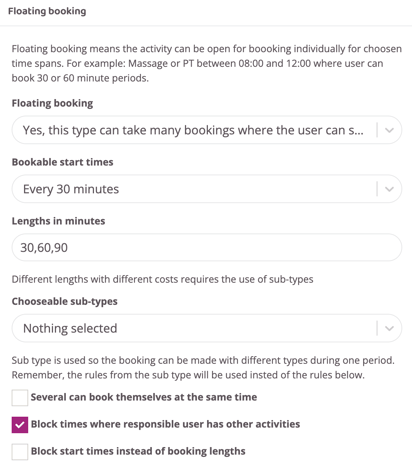
Floating booking times is a feature where the customers can book themselves into the session between certain times. An example would be massage or PT that is open for booking between 08.00-12.00. During the time interval, it is possible to regulate how long the sessions should be and how often the sessions can be booked.
Skip this part if it is not relevant for the booking type!
If the session is to be added to the schedule as a floating booking time, the following fields need to be filled in:
Floating booking
Select "Yes, this type can take many bookings where the user can specify a time" in this field
Bookable start times
Specify how often the session should be booked. This can be anything from every minute to every 60 minutes.
Lengths in minutes
Specify different length options for the pass. If multiple time intervals are specified, the person booking can choose how long they want to book. To specify different time options, write like this: 30,60,90, etc.
Chooseable sub-types
All other booking types are found here. Choose the ones that should be available as subtypes when booking the current activity with a floating booking time. This means that there will be a choice when booking which activity to book. An example is if the activity with a floating booking time is massage. Then each selectable subtype can be different types of massage. Then the person can also choose which type of massage they want to book.
Several can book themselves at the same time
Check this box if more than one person should be able to book the same time slot. For example, if the activity is PT Duo and two people should be able to book at the same time. If the box is not checked, one person per time slot applies.
Block times where responsible user has other activities
Let's say a PT sets aside a large block for PT throughout the day from 8:00 AM to 4:00 PM. But from 12:00 PM to 1:00 PM they have lunch and from 10:00 AM to 11:00 AM they have a group training session. If this box is checked, the schedule will recognize the PT's other activities in the schedule and automatically block times for PT so that they cannot be double booked.
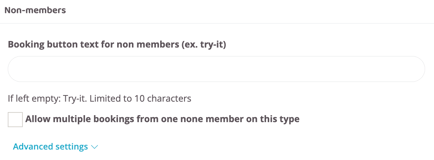
Non-members
Booking button text for non members (ex. try-it)
Enter any text for the booking button that will be visible to non-members when they book an activity. If left blank, it will say "Try it". There is a 10 character limit here since it's a button and can't be to long.
Allow multiple bookings from one non-member on this type
If this box is checked, non-members can book into the session multiple times. Good for treatments, for example, when you want the customer to be able to book multiple times without restriction. In Wondr, trial training is restricted to once per email address.
Advanced settings
Users:
Standard setting that means that the non-member who makes a booking receives an inactive customer profile in the system that can easily be activated by staff if the person wants to become a member.
Person (CRM):
If the CRM add-on module is used, the person can end up here as a lead instead of receiving an inactive customer profile.
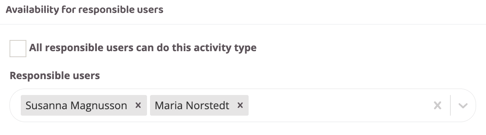
All responsible users can do this activity type
If the box remains checked, all added instructors will be available for selection in the booking flow. If it is unchecked, you can manually specify who or which instructors should be visible and available for this activity in the booking flow.
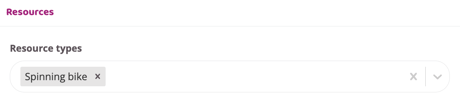
A function that is only used if you have extra elements to book when booking the activity. For example, it should be possible to book spinning bike no. 12 or yoga mat no. 1.
The resources are created under Settings>Booking>Resources, then it is specified here which resources should be available for selection when booking. If spinning bike no. 5 is broken, for example, it can easily be removed from here.
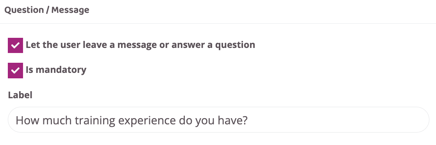
Question / Message
Let the user leave a message or answer a question
Check this box if the person purchasing the subscription should be able to fill in extra information when purchasing. For example, if it is a PT subscription, there may be a question about current health or any injuries so that information is entered from the beginning.
Is mandatory
Check this box if the question should be mandatory.
Label
The headline/title of the message.
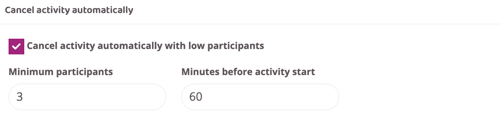
Cancel activity automatically
Cancel activity automatically with low participants
Check this box if the activity should be automatically canceled if there are too few participants.
Minimum participants
Enter the minimum number of participants. If there are fewer people booked than the number specified here, the activity will be automatically cancelled and those who were booked will be cancelled and will receive an email/push notification.
Minutes before the activity starts
Specify how far in advance of the activity start the activity should be canceled if the number of participants is too low.