
Introduction
Time rules are used to determine booking rules in your schedule, such as how far in advance members can book and cancel.
The first thing you see on the page is "Standard values" Here you set the general booking rules that apply to all activities in the schedule.
If you then want special exceptions such as longer cancellation time for morning classes, special rules for weekend classes, longer cancellation time for special events, etc., you can create special rules a little further down the page.
Default values
Standard values are the general booking rules that apply to all activities added to the schedule. These values can then be overwritten either on an individual booking type if the exception should only apply to that activity or you can create rules to include a larger number of activities in the same rule.
Close booking X minutes before
Specify how long before the activity starts the booking closes.
Close unbooking X minutes before
Specify how long before the activity starts the cancellation period closes.
Mark late unbooking X minutes before
Specify how long before the activity starts a booking changes status to "Late cancellation".
Stop assigning reserves X minutes before
Specify how long before the activity starts that reserve seats will be allocated.
Amount of days to show for non-admins in schedule
Specify how many days in advance activities are visible in the schedule for customers.
Amount of days for non-admins to able to book
Specify how many days in advance customers can book activities.
Time to publish new day
Specify the time of day when activities are published in the schedule.
Hold booking X minutes before canceling
Specify how many minutes a seat is reserved when a customer must pay to book. If payment is not made before the reservation time expires, the seat is released for booking again.
Rules
If certain activities should have different booking rules than those you specified in "Standard values", you can create special rules here.
Click the plus sign on the right to create a new rule.
Time rule
Name
Enter the name of the rule (internal text)
Description
Describe the rule and what it means (internal text)
Priority
Specify the priority this rule should have if there are multiple rules that affect the same activities. The lower the number, the higher the priority.
Connections
Here you choose filtering for the rules based on what should be included (or excluded). So you only make choices here based on what the rule should affect.
Types
All types - Select which activities should be included in this rule
Locations
All locations - Select which locations should be included in this rule
Facilities
All facilities - Select which of your facilities (if you have more than one) should be included in this rule
Exclude these activity types/locations/facilities - You can also choose to exclude certain activities/locations/facilities from the rule if it is easier to work that way. These options will light up when you have made a selection in the list above.
Settings
Here you specify the settings for the rule, e.g. whether the activities/locations/facilities should have a longer cancellation period than specified in the default values or whether the booking should close closer to the activity start. So only change the settings that the rule should affect.
Close booking X minutes before
Specify how long before the activity start the booking closes for the activities included in the rule.
Close unbooking X minutes before
Specify how far before the activity start the cancellation closes for the activities included in the rule.
Mark late unbooking X minutes before
Specify how long before the activity start time a booking changes status to "Late cancellation" for the activities included in the rule.
Stop assigning reservations X minutes before
Specify how far before the activity start time, reserve slots will be allocated for the activities included in the rule.
Cancel activity automatically
The setting "Cancel activity automatically with low participants" must be active (this is activated on each individual activity type). If the rule should override these settings, specify it here.
Minimum participants
If it should be overwritten, enter a number here.
Minutes before activity start
If it should be overwritten, enter a number here.
Segments
Once you have chosen what the rule should do and apply to in the settings above, it is time to determine when the rule should apply. You do this by clicking the "Add segment" button on the right.
Then choose from which time in the first time frame and until which time in the second time frame.
You can also specify whether the rule should only apply to specific days in the "All days" box.
Examples
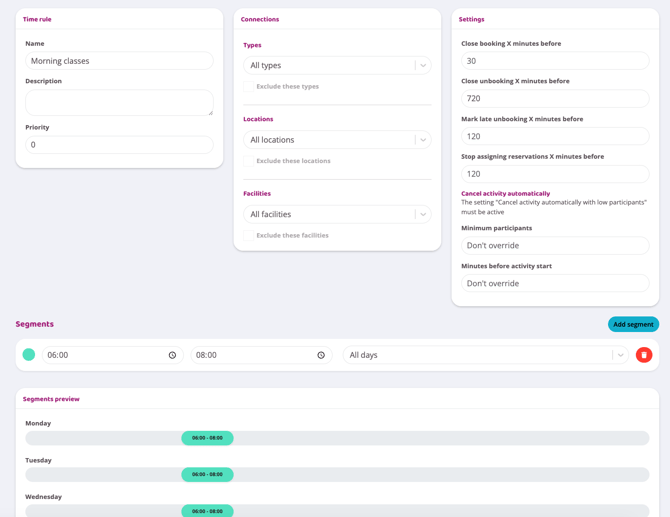
Example 1: Longer cancellation period for morning activities
The default cancellation time is 2 hours before the activity starts. But you have morning activities that start at 6:00 AM and these need a longer cancellation time, so cancellations need to be made the night before.
Do this:
-
Create a rule
-
Enter name and description
-
Increase the number of minutes for the "Close unbooking X minutes before" option. For example, if you want 12 hours for morning activities, enter 720 in the box.
-
Add a segment and enter 06:00 in the first box and 08:00 in the second box. Leave all days as they are.
-
Click "Create"
We have now created a rule that means that all activities that take place between 6:00 AM and 8:00 AM must be canceled 12 hours in advance instead of 2. See the image below for what the rule should look like:
Example 2: Stop allocating reserves earlier for carrot classes
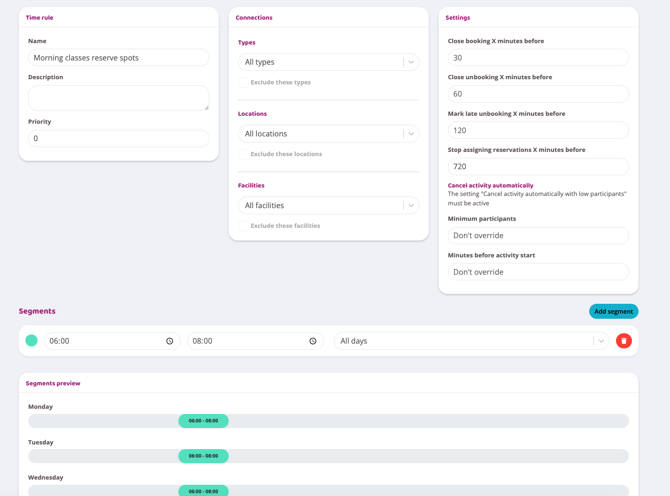
It may not matter that they can cancel morning classes close to the deadline, but it becomes problematic that reserve spots are assigned at 4:00 in the morning when people are sleeping and don't have time to see it. So now we want to create a rule that stops reserve spots from being assigned even if participants can cancel.
Do this:
-
Create a rule
-
Enter name and description
-
Increase the number of minutes for the "Stop assigning reservations X minutes before" option. For example, if you want 12 hours for morning activities, enter 720 in the box.
-
Add a segment and enter 06:00 in the first box and 08:00 in the second box. Leave all days as they are.
-
Click "Create"
Now this rule ensures that even if participants cancel close to a morning activity, no one on the reserve list will get a place during the night. See the image below for what the rule should look like:
Example 3: Spinning classes on weekends should be bookable up until the start of the activity
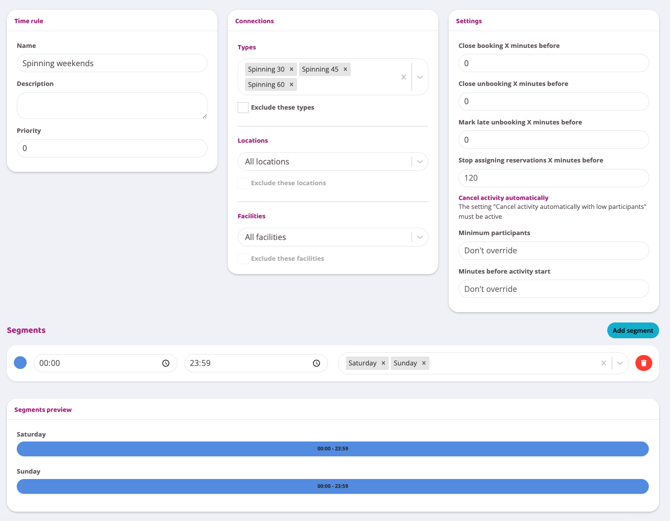
You know that spinning on weekends is a very popular activity and you want to make it possible to both cancel and book them until the activity starts.
Do this:
-
Create a rule
-
Enter name and description
-
Specify which activities should be included in the rule in the "Activity types" box.
-
Enter 0 in the boxes "Close booking X minutes before" and "Close unbooking X minutes before" to allow participants to book and cancel up until the activity starts. Also enter 0 in the box "Mark late unbooking X minutes before" if you use that system so that no one gets a penalty for late cancellation. We kept "Stop assigning reservations X minutes before" at 120 minutes so that no one who is not on site and does not have time to get there will be assigned a place, but then the places that are canceled within 120 minutes of the start can only be booked on site.
-
Add a segment and select Saturday and Sunday in the "All days" box. You don't need to change the times.
-
Click "Create"
Now this rule ensures that the selected spinning classes on Saturdays and Sundays can be booked and cancelled up until the start but still stops allocating reserve places 120 minutes before so that no one who doesn't have time to get there gets a place. This is of course completely up to you how you want to set it up. See the image below for what the rule should look like:
Last edited: 26/11-2025