
- Introduction
- Existing members
- Non-members
- Example
- How long should the spot be reserved for?
- Booking flow for the customer
- Work manually
- Cancel participants manually
Introduction
This article describes how to create a booking type in the schedule that people (both members and non-members) need to pay for directly in the schedule. This means they don't need to buy a subscription, but can buy individual activities through the schedule. It is possible to have different costs for different people and they can also be automatically credited when canceling.
NOTE! To be able to use this function, one of the payment methods Card Payment or Swish Handel is required.
First create the activity type with all other settings. You can read more about how to create an activity type here.
Existing members
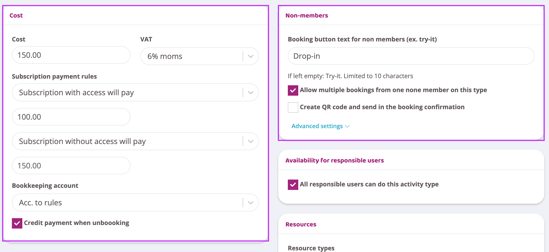
For the booking type to have a cost when booking, find the "Cost" panel.
Cost
Enter the default price for the booking type
VAT
Enter VAT
Subscription payment rules
This drop-down list offers a choice of whether members with a subscription that provides access (booking rights) to the booking type should pay for the activity or not.
If members with access are to pay, select the option "Subscription with access will pay". Then enter the amount in the box below the drop-down list. If the amount is to be the same as the standard cost, nothing needs to be entered.
If members with access should not pay anything, select the option "Subscription with access will not pay" in the drop-down list. They can then book this activity at no extra cost.
Subscription without access must pay/cannot book
This drop-down list offers a choice of whether members without a membership that provides access (booking rights) to the booking type should pay for the activity or whether they should not be able to book at all.
If subscriptions without access are to be able to book for a fee, select the option "Subscriptions without access will pay". Then enter the amount in the box below the drop-down list. If the amount is to be the same as the standard cost, nothing needs to be entered.
If subscriptions without access should not be able to book, then select the option "Subscriptions without access cannot book".
Bookkeeping account
Choose which account should be used for bookkeeping, leave untouched if you have previously set up rules in Bookkeeping for this.
Credit payment when unboooking
Choice of whether or not the person should be credited upon cancellation.
Non-members
In order for people without a subscription to be able to purchase a single activity via the schedule, it needs to be activated.
-
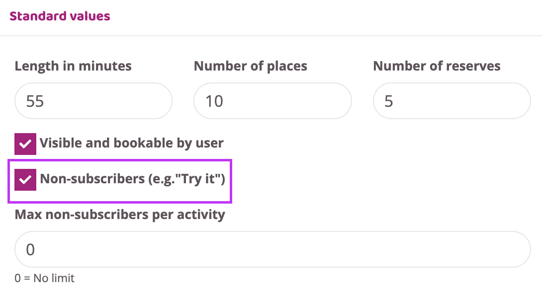
Check the box "non-members (e.g. try it out)" in the "Defaults" settings box.
-
Enter "Cost" in the "Cost" settings box. This is the amount that non-members will have to pay to book the activity.
-
On the right is a settings box for "Non-members".
-
Enter button text for the button that non-members click on in the schedule to book the activity.
-
If non-members should be able to book this activity more than once, check the box "Allow multiple bookings from one none member on this type". If the box is not checked, non-members can only book the activity once.
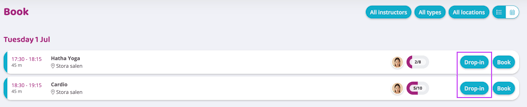
See image below for an example of how the buttons look in the diagram.
Example
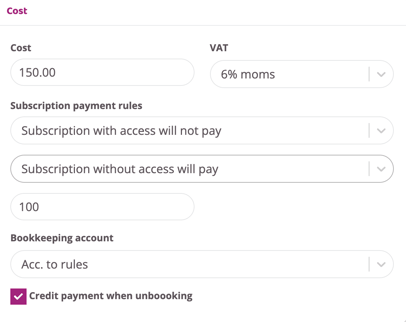
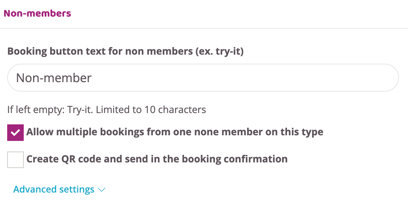
The image below shows an example of how this function can be used.
Based on the example, the function will work like this:
- Both members and non-members can book the activity
- Non-members pay 150 SEK
- Members with a membership that provides access do not need to pay for the activity
- Members who do not have a membership with access pay 100 SEK
- All people will be credited upon cancellation
- Non-members can book multiple times and the button text in the schedule is "Non-member"
How long should the spot be reserved for?
Once a person has booked the spot, it will be reserved for a certain period of time and during this time payment needs to be made, otherwise the spot will be released and the booking needs to be made again.
You choose how long the space should be reserved.
Go to Settings > Booking > Time Rules and find the setting "Hold booking X minutes before canceling". Specify how long a customer has to complete their booking before the spot is released here.
Booking flow for the customer
Below is a description of what it looks like when a customer books a activity with a cost.
-
The customer presses book in the schedule (the flow looks the same for members and non-members)
-
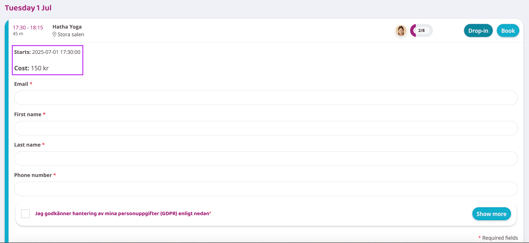
There will be a text where the cost is stated and they can choose whether they want to continue.
-
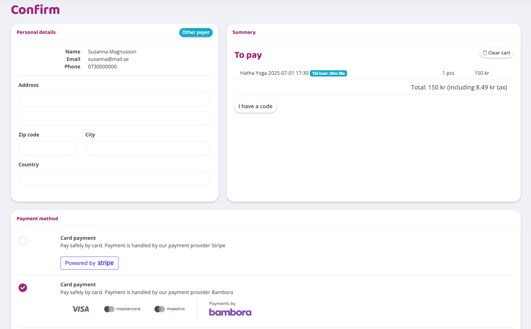
The customer can confirm and review their booking. In the summary there is a clock that ticks down where they see how long they have to complete the booking. They can also choose a payment method, so if you also have Swish handel it will be included as a payment option.
-
When they press complete, they are sent to your chosen payment processor for card payment or Swish.
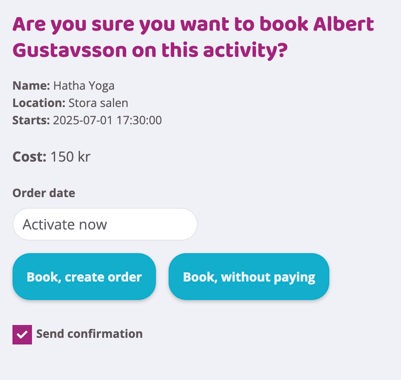
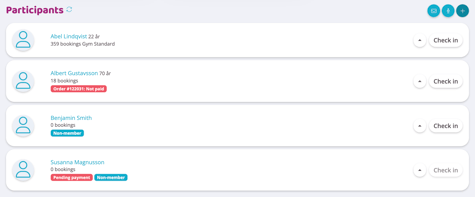
In the participant list, staff can clearly see the status of all payments for participants. You can click on the order number to go directly to the order.
Cancel participants manually
When a participant is manually cancelled, there are now two choices for staff.
Remove and reimburse
Which means that the participant is cancelled and is credited with the full amount they have paid for the activity.
Remove
The participant is cancelled but not refunded.
Last updated: 1/7-2025