
Header
Intro
The header is found at the top of a page and contains the navigation menu, logo and extra buttons. It is easy to edit and all changes are automatically reflected on all subpages where the header is activated (yes, it is possible to have different headers on different pages if you have different brands on your website or do not want to show the header on a certain page, we will go through this a little further down).
For campaigns the standard header is simplified and does not contain any navigation or extra buttons since it's a single landing page. This article therefor describes the settings for webiste header and footer.
Logo & design
To open the header editor, click on the button at the very top left of the homepage "Edit header".
The following settings are found there:
Logo
Choose a logo for both the header and footer.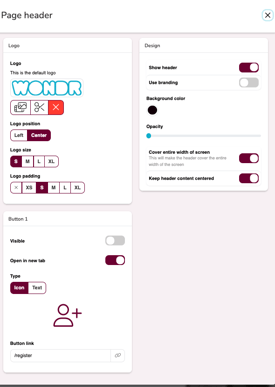
Logo placement
Choose whether the logo should be left-aligned or centered.
Logo size
Specify the logo size.
Logo padding
Specify how much space/air there should be around the logo.
Show header
Tick in and out to show and hide the header.
Use branding
Check if the system should choose the header color based on your branding settings. Uncheck if you want to control the background color yourself.
Opacity
Specify how high the opacity of the header should be
Always show menu as a button
Check this box if the menu should always be indented behind a button. This happens automatically if the screen width becomes too narrow, but if this box is checked, it will always be indented regardless of the screen width.
Cover the entire width of the screen
Leave this box checked and the header will cover the entire screen, unchecking it will affect the content margin.
Rounded corners
Check this box if the header should have rounded corners.
Keep header content centered
Check if the header content should not be centered but should be offset towards the edge.
Menu items
This is where the menu options are set. Click the plus sign to add a menu item, then you can either click the link icon to select a subpage to link to. The subpage's page name is automatically filled in, but you can easily edit it if you want something different in the menu.
If you want to link externally, do not click the link button, but simply paste the link you want to send the visitor to when they click.
Then you can easily change the order via the arrows and click on the cross to delete an item. See the videos below for examples of how to link to an existing subpage and externally.
Link to subpage
Link externally
Button 1 & button 2
Here you can create two buttons in the header.
Visible
Enable or disable the button to be visible
Type
Choose whether the button should be an icon or text. Then select the icon or type text depending on the selection you made.
Button link
Enter an external link or click on the link icon to link directly to a subpage just like above in "Menu items", see above videos if you need help
Advanced settings Choose header
Specify which header should be displayed on this page (if you have more than one). To create more headers, enter a new name in the "Save as new header" box, then you need to save and reload the page. Then go back to the advanced settings and select the new header you created. Now you can make changes to it that do not affect other pages with a different header.
Logo link
The logo is automatically linked to the home page. You only need to do something here if you want the logo to link to something other than the home page. If you want it to link to something else, change this to external link or subpage.
Footer
The footer settings are located at the bottom left of the homepage. However, the content for the footer is retrieved via Settings-Facility information. See the video below for how it looks and where to add information for the footer.

Location settings
If you have multiple facilities, you can choose which facility information should be included in the footer on this page.
Logo placement
Choose whether the logo should be left-aligned or centered.
Column Alignment
Choose whether the columns should be left-aligned or centered
Show footer
Check here to activate the footer
Cover the entire width of the screen
Leave this box checked and the footer will cover the entire screen, unchecking it will affect the content margin.
Use brand colors
Leave this checked and the background color will be taken from the branding settings.
Use branding
Check if the system should choose the header color based on your branding settings. Uncheck if you want to control the background color yourself.
Background color
If you have turned off branding, you can choose the footer background color here.
Extra title
You can manually add a column with your own links and here you choose the title for that column, you see an example of this in the video below
Description
You can manually add a column with your own links and here you choose a description for that column, you see an example of this in the video below.
Links
If you have chosen to have an extra column, enter titles and links here, see the video below for examples.
Last edited: 4/3-2025