
Table of contents:
1. Intro
2. Invoicing via Fortnox
3. Invoicing via Power Office
4. Invoicing via Wondr's own invoice module
5. Related articles
Intro
Wondr supports two types of invoicing. Either Wondr's own invoice module is used or the integration via Fortnox (Sweden) or Power Office (Norway) is used. Wondr's own invoice module is included in all packages, while Fortnox and Power Office costs extra for the integration + any monthly fees from them. This article will describe how to work with invoices via Wondr. To add a customer as an invoice recipient (both for companies and private individuals), read the article below.
Invoicing via Fortnox
If you use Fortnox billing service, we can connect it with your Wondr. If you are interested in this, please contact support.
1. Enter the customer as the invoice recipient in Wondr and make invoice the default payment method.
2. Wondr automatically creates payments for the current subscription on the specified payment date. When this happens, all payment information is sent to Fortnox and the invoice is created there.
3. You send the invoice yourself from Fortnox.
4. When the customer pays the Fortnox invoice, it will also be registered as paid in Wondr, you do not need to do anything yourself in this step.
Invoice crediting should always be done in Wondr!
If the invoice is to be credited on the same day as the original invoice was created, you need to go to the order to be credited and click Update status and ensure that an invoice number has been created, and that it is posted in Fortnox.
Cancel invoice
NOTE! If an invoice is to be cancelled, it must first be cancelled in Fortnox and then it will end up under Failed payments in Wondr and you can handle it against another payment method or credit it and then no credit invoice will be created in Fortnox.
1. Enter the customer as the invoice recipient in Wondr and make invoice the default payment method
2. Wondr automatically creates payments for the current membership on the specified payment date. When this happens, all payment information is sent to Power Office and the invoice is created there.
3. You send the invoice yourself from Power Office
4. When the customer pays the invoice, it will also be registered as paid in Wondr, you do not need to do anything yourself in this step.
When an order from Wondr arrives in Power Office, it is IMPORTANT to never use the function under Drafts called Merge!
Invoice crediting should always be done in Wondr!
If the invoice is to be credited on the same day as the original invoice was created, you need to go to the order to be credited and click Update status and ensure that an invoice number has been created, and that it is posted in Fortnox.
Cancel invoice
NOTE! If an invoice is to be cancelled, it must first be cancelled in Power Office and then it will end up under Failed payments in Wondr and you can handle it against another payment method or credit it and then no credit invoice will be created in Power Office.
Below is a description of how you work with invoices via Wondr's invoice module.
1. Enter the customer as the invoice recipient in Wondr and make invoice the default payment method.
2. Wondr automatically creates payments for the current subscription on the specified payment date. When this happens, an invoice is created that you need to manage in the admin menu under the Invoices tab.
3. When there are invoices that need to be handled, it will be indicated with a number in the admin menu in the Invoices tab.
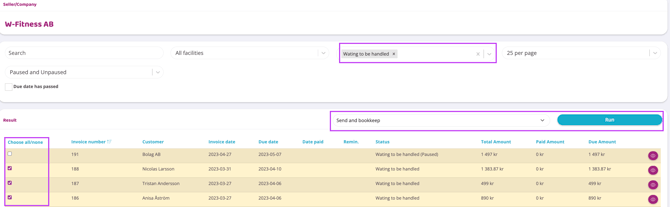
4. Go to the "Invoices" tab. You will then see all invoices with different statuses. It will look like below:


The different colors indicate the current status of each invoice.
Green
The invoice is paid.
Yellow
The invoice is waiting to be processed and therefore needs to be sent.
RED
The invoice is sent but not paid and overdue.
Blue
The invoice is cancelled.
Gray
The invoice has been sent and is awaiting payment.
5. Click the eye icon on the right to manage a single invoice.
Or filter all invoices with a certain status for bulk management. This is done at the top of the "All invoices" drop-down list.
Select all invoices to be processed.
6. There are a number of different choices for how the invoice should be handled. Select action from the Select action drop-down list.
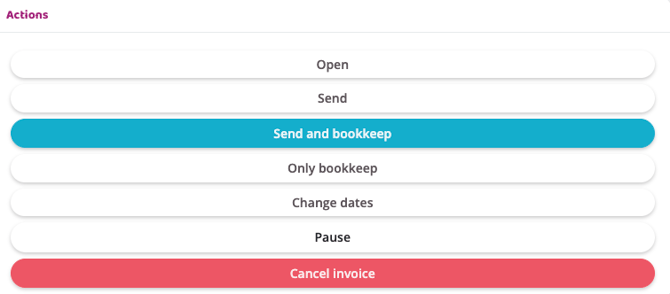
7. Here is an explanation for the different options
Open
Click here if you want to preview the invoice. If you want to send it by mail, you can click here to print it.
Send
Email the invoice to the customer without posting it.
Send and bookkeep
This is the recommended option that you should click if the invoice should be handled as an exception. If you click here, it will be sent to the customer via email and posted.
Only bookkeep
Only bookkeep the invoice without sending it to the customer
Change date
Enter a new invoice date or new due date
Cancel invoice
This option cancels the invoice and it cannot be recreated.
Pause
Pause the invoice
Unpause
Unpause the invoice
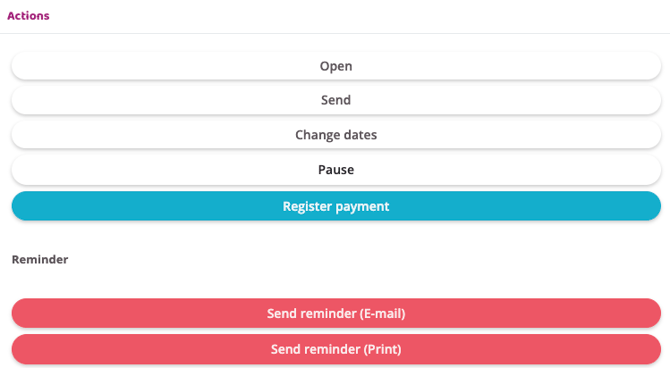
8. Once the invoices have been processed, they will change status. If you select the 'Send and bookkeep' option, the following options will be available the next time the invoice is processed
Open
Click here if you want to preview the invoice. If you want to send it by mail, you can click here to print it.
Send
Send the invoice via email to the customer again if for some reason they have not received it.
Change dates
Change the date for when the invoice expires
Pause
Pause the invoice so even if the expiration date is reached it will not change status
Register payment
When a customer has paid their invoice, you must go in and mark the invoice as paid. This is not something that happens automatically. When you see that the money has been credited to your bank account, you go into the invoice and select this option to mark the invoice as paid.
When you click this button, you can then choose which payment method the invoice was paid with and what date it was paid.
Send reminder (Email)
Send a reminder via email to the customer.
Send reminder (Print)
Print a reminder invoice as a PDF and send it by mail to the customer.
History
You can always see previous documents for the invoice via Documents which you see on the far right. It looks like the image below.