
Table of content:
1. Private
2. Company
3. Related articles
Intro
NOTE: This article only shows how to add invoice as a payment method for a customer or company. If you want to know how to manage an already created invoice or have other questions about invoicing, read the article 'Invoicing'.
In order to invoice a customer or company, there must be a user profile with all contact information entered in Wondr. Then you need to add the payment method Invoice receiver to the profile. This article will describe how to add the payment method invoice recipient for customers and companies.
Private person
1. Go to the user profile via Users in the admin menu and tap the eye icon on the right to enter the profile.
2. Scroll down to Payment methods. Press the plus sign on the right.
3. Select the Invoice receiver option.
4. The following view will then be visible:
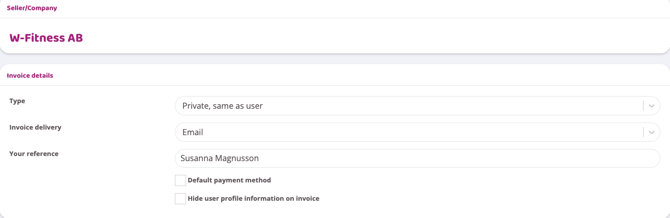
NOTE! If the invoice is to be sent to the person who owns the user profile with the exact contact information found on the profile, you do not need to change Type. If any additional or other information is to be entered, press Type and change to Private person. You may then fill in all the information that is to apply to the invoice.
5. Then choose how the invoice should be delivered. Either via email or that it is always printed and sent by post. Both options are selectable at a later stage so a tip is to always select Email. Should the invoice need to be printed and sent by post, this can be done from the invoice module.
6. Enter the invoice reference. The customer's name is already entered, change only if necessary.
7. If the customer wants all subscription withdrawals invoiced, the box at the bottom must also be checked (Default payment method). If this box is not checked, no invoice will be generated on the payment day for the subscription. It is possible to create an invoice without making it the default payment method. In such cases, it is possible to choose which withdrawals will be invoiced, but as mentioned, this will not happen automatically.
8. Press Create to complete.
9. Under Payment method on the customer's profile, invoice is now the payment method. The check box must be checked next to the text For upcoming payments and subscriptions if all subscription withdrawals are to be created as an invoice. See image below:
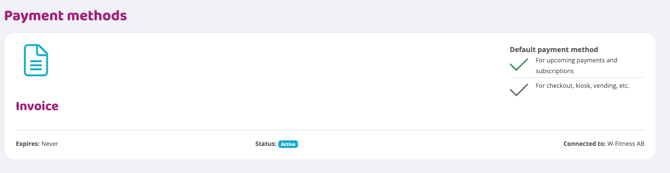
If it looks like the image above, an invoice will be automatically created for each subscription payment. The invoice will either be created in Wondr's own invoice module or in Fortnox depending on which service you use.
To find out how to then manage and send the invoice after it has been created, read the article Invoices, you find the link at the bottom of this page.
Company invoice
1. If the company does not already have its own user profile, a profile needs to be created for the company. This is done by going to Users in the admin menu and pressing the plus icon in the top right corner.
If there is a contact person at the company in question, you can enter that person's information or enter the company's information.
2. Once the profile is created, go to the profile via the eye icon.
3. Scroll down in the profile to Payment method. Press the plus sign on the right.
4. Select the Invoice recipient option.
5. The following view will then be visible:
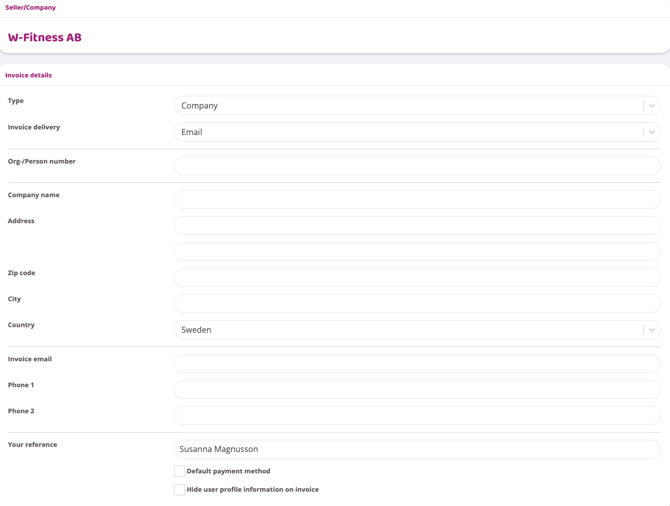
6. Change Type to Company. Then fill in all company details.
7. Enter an invoice reference.
8. If the customer wants all subscription withdrawals invoiced, the box at the bottom must also be checked (Default payment method). If this box is not checked, no invoice will be generated on the payment day for the subscription. It is also possible to create an invoice without making it the default payment method. In such cases, the withdrawals to be invoiced are selected, but as mentioned, this will not happen automatically.
9. Press Create to complete.
10. Under Payment Methods on the user profile, there is now an invoice. The green check mark must be checked next to the text For upcoming payments and subscriptions if all subscription withdrawals are to be created as an invoice. See image below:
Now an invoice will now be automatically created for each payment date. The invoice will either be created in the invoice module or in Fortnox, depending on which service you use. To find out how to then handle and send the invoice after it has been created, read the article Invoices.
Related articles
Last edited: 18/2-2026