
Table of contents:
1. Intro
2. Sell gift cards without a webshop
3. Online store
4. Using the Gift card
5. Accounting
6. Related articles
Intro
Wondr supports digital gift cards that can be purchased via the website or by staff on site. Gift cards can be used to pay for both products and subscription purchases. This article describes how gift cards are created, sold, and used.
NOTE: Please note that gift cards can ONLY be used on subscriptions that are paid in a lump sum and not on subscriptions with a running monthly fee. The gift card can either be sold on site by staff, via the users' profile page on Wondr-wall or for unknown customers via the website.
To be able to sell gift cards online, the Webshop module is required!
If you do not have this module, please contact the support for help.
NOTE! If you do not have the Pott Accounts function, contact Wondr support and we will activate it so you can create the gift cards.
-
Go to the customer's profile.
-
Click the Pott Accounts button.
-
Click the plus sign in the top right.
-
Click on Value Card.
-
The following view becomes visible.
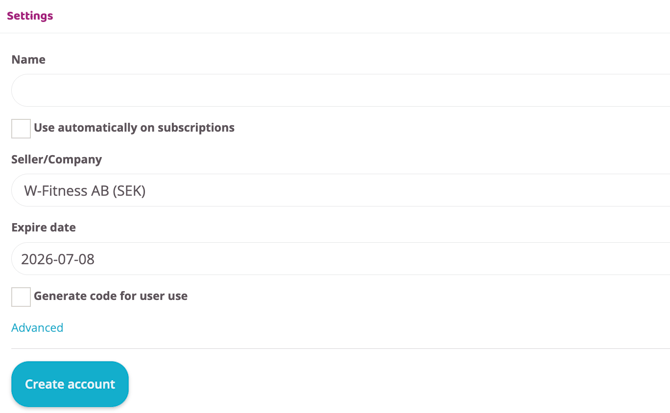
Name
Write, for example, Gift Card.
Use automatically on subscriptions
Check the box if the gift card should be used to pay for a subscription.
Seller/Company
Name of the person who sold the gift card.
Expire date
Enter the last date of validity for the gift card.
Generate code for user use
Check the box to generate a code that the customer can give to someone else.
6. The gift card has now been created and will look like the image below:

7. The code must be issued to the customer if they are to be able to use the code and give it as a gift. You are responsible for ensuring that the customer receives their usage code, it is not sent out automatically when you create a gift card in this way.
8. Click the shopping cart icon to load the gift card with money.
9. In the Price incl. VAT box, enter the amount that the card should be loaded with.

10. Scroll down and click the Update Total button
11. Click Pay Now
12. Select payment method and complete payment
Create product
Go to Settings > Products > Products and add a new product.
Create a regular product if the gift card can only be loaded with a certain amount.
For example, Gift card 1000 SEK. It is therefore not possible to choose any other amounts, only the specified amount.
If customers are to be able to choose between different amounts that they want to load the gift card with, you first need to create an attribute for "Sum".
Go to Settings > Products > Product Attribute and create a new one (this only has to be done once so if you already have an attribute for sum skip this step).
Name the attribute and create a attribute variation for each sum that is to be an available option for the gift card. See the image below for an example of what the attribute items can look like: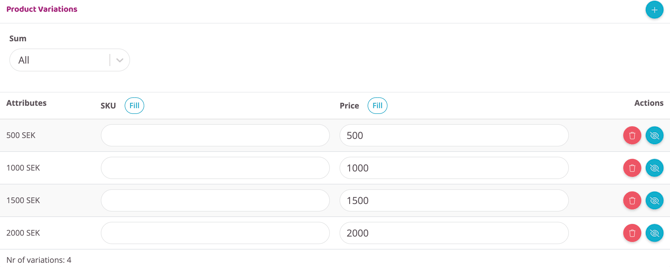
After the attribute has been cerated just activate the Product with variations option and add the attributes under Product Variations.
NOTE: In this article we only talk about gift card specifik settings. For information about all settings read the article: Create a product for sale at the checkout or online store.
For the product to be a gift card, the This is a gift card checkbox needs to be checked.
NOTE! If the box below is not available, you need to contact support. Then a function is missing that needs to be activated.
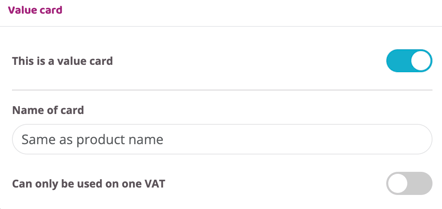
Check the box if the gift card should only be valid for a specific VAT rate. Do not check the box if the gift card should be valid for all VAT rates.
VAT: If the box This is a gift card is checked, this product will automatically have a VAT rate of 0% regardless of whether there are boxes that show a different VAT rate. If the box Can only be used on one VAT rate is checked, you need to enter the VAT manually.
Then click the Create Product button to save.
Posting in the webshop
The gift card is then posted like any other product in your webshop. You may want to create your own category for the gift card or have it listed among all your other products. When a customer purchases the gift card, they will receive an email with a redemption code that can then be entered at checkout.
When the customer purchased the gift card, they received an email with a redemption code. To redeem the code, they select any subscription or product on your website (or in the app if they are an existing customer) where the gift card is valid. NOTE! The gift card cannot be used on subscriptions with monthly payments. Only direct payments such as punch cards or annual passes.
1. Choose which subscription or product to purchase and proceed
NOTE! If at the bottom under subscriptions there is a box I have a code DO NOT fill in the code there. Instead, select subscription and continue. The code for the gift card is entered directly at checkout.
2. In the Summary field there is a button I have a code, click the button
3. Enter the usage code
4. Click Send
5. If the amount covers part of the purchase, the remaining amount will need to be paid by bank card or Swish, which is selected in the Payment method field. Click on Complete to proceed to payment of the remaining amount.
If the amount covers the entire purchase, click Complete at the bottom of the page to complete the purchase.
Step-by-step guide for how customers use their gift card via reception staff:
-
Go to the customer's profile or create one if there isn't one.
-
Scroll to the bottom and add the subscription the customer wishes to purchase.
-
Once the subscription is added, go to
Ordersand edit the order created for the subscription. -
Click the pencil icon to edit.
-
Enter the customer's gift card redemption code in the Promotional Code box and click Go.
-
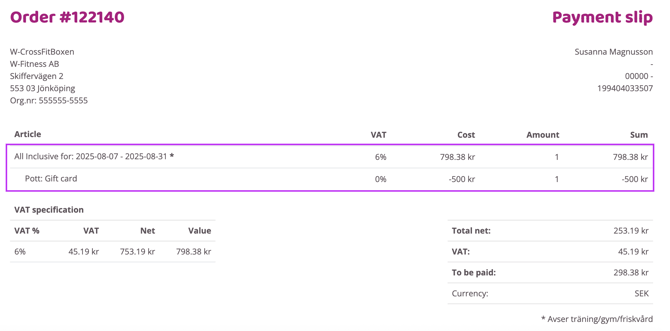
The amount for the gift card has now been applied to the order. It should then look like the following image:
-
Choose a payment method for the remaining amount or complete if the order covers the entire amount.
Email which account the gift cards should be posted to (we recommend 2421) to support@wondr.se .
Related article
Last edited: 18/2-2026