
- Requirements
- How it works
- Create the parent subscription
- Create the youth subscription
- Send instructions to the parent
- Get notified when a youth signs up
- Link the youth to the parent
- Get notified when a youth turns 18
- Validation
- Troubleshooting
Requirements
- You have access to
Settings > Customers > Subscription Typesand to Smart rules. - You have an email address at your facility where you want to receive notifications.
This setup uses two subscriptions. The parent buys and pays for the parent subscription. The youth registers on a free youth subscription that has the booking rights. You then link the two by sharing the parent subscription with the youth.
NOTE: The link between the parent and the youth is not created automatically. You add the youth to the parent's subscription manually when the parent has sent you the youth's name.
How it works
- The parent buys the parent subscription with their own details.
- A smart rule sends the parent an email with a link to the youth subscription.
- The parent registers the youth through the link and replies to the email with the youth's full name.
- A smart rule tells your facility that a youth has signed up.
- You add the youth to the parent's subscription so you can see who belongs together.
- When the youth turns 18, a smart rule reminds you to contact the parent.
Create the parent subscription
- Go to
Settings > Customers > Subscription Typesand click the plus icon in the upper right corner. - Give the subscription a clear name, for example Youth membership (parent).
- Under Pricing, set the price. The parent pays for the youth's membership through this subscription.
- Do not give the subscription any booking rights.
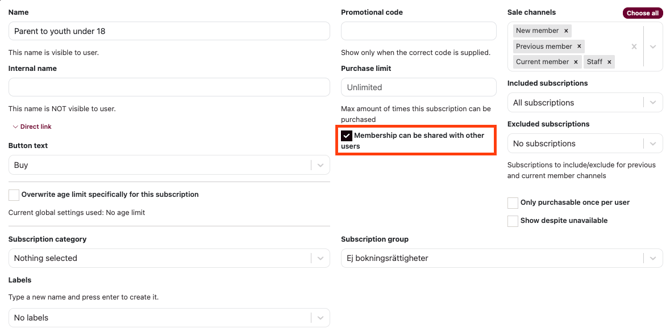
- Check the box Subscription can be shared with other users.
- Under Sales channels, make sure the subscription is visible to parents on your website and in the app.
- Under Customizations, enter information for the parent in the Other field. This text is shown on your website and in the app.
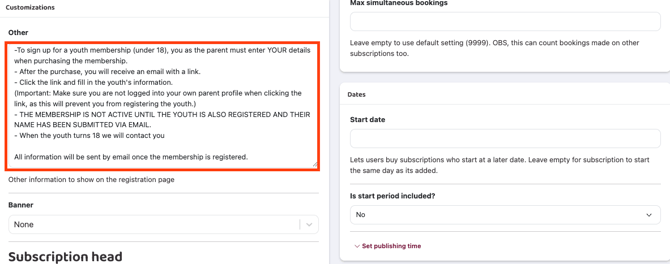
Example text for the Other field
- To sign up for a youth subscription (under 18), enter your own details as the parent when you buy the subscription.
- After the purchase, you get an email with a link.
- Click the link and fill in the youth's information.
- Make sure you are not logged in to your own profile when you click the link. If you are, you cannot register the youth.
- The subscription is not active until the youth is registered and you have sent us their name by email.
- We will contact you when the youth turns 18.
All information is sent by email once the subscription is registered.
Read the article: Create new subscription
Create the youth subscription
- Go to
Settings > Customers > Subscription Typesand click the plus icon. - Give the subscription a name, for example Youth membership.
- Under Pricing, leave all costs at 0. The parent already pays through the parent subscription.
- Give the subscription the booking rights the youth should have.
- Create a Promotional code. This hides the subscription, so only people with the code can get it.
- Save the subscription and copy the Direct link. You need the link and the code in the next step.
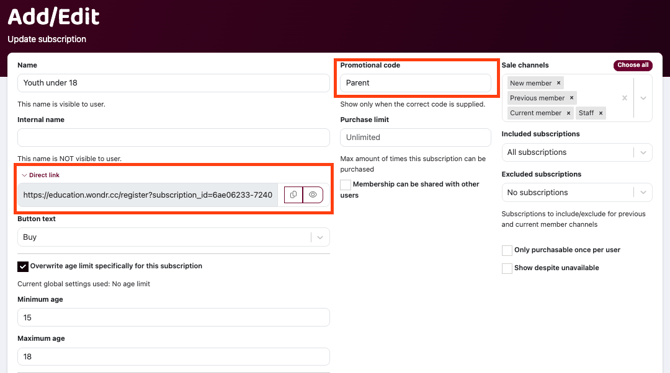
NOTE: The youth subscription is free. Without a promotional code, anyone could find it on your website and get booking rights without paying.
Send instructions to the parent
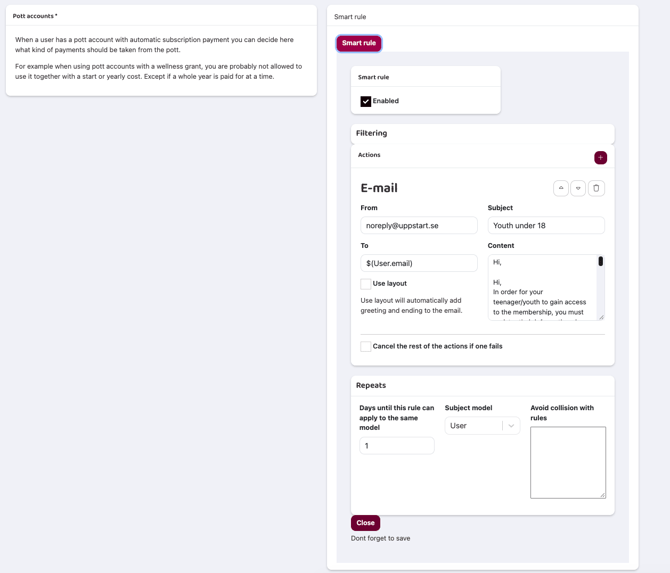
Create a smart rule that emails the parent when they have bought the parent subscription.
- Go to Smart rules and click the plus icon to create a new rule.
- Set the rule to apply to members who buy the parent subscription.
- Under Actions, add an email to the member.
- Enter the text below. Paste the direct link and the promotional code for the youth subscription where it says so.
- Check Enabled and save the rule.
Example email to the parent
Hi,
To give your youth access to the subscription, register their information through the link below and reply to this email with their full name. We need this to link your accounts together.
Important: You cannot be logged in to your profile in Wondr when you click the link. If you are, you will not be able to register the youth.
[Direct link to the youth subscription]
Code: [Promotional code]
Best regards,
[Your facility name]
Get notified when a youth signs up
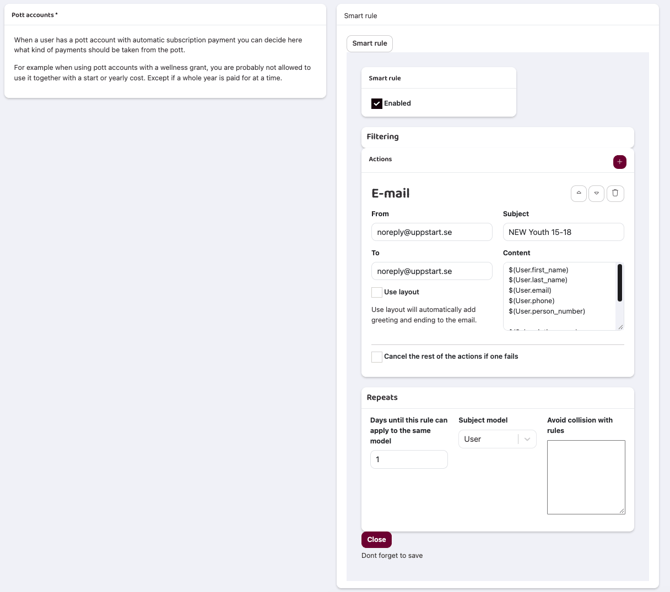
Create a smart rule that emails your facility when someone registers on the youth subscription.
- Create a new smart rule that applies to members who register on the youth subscription.
- Under Actions, add an email. In the To field, enter your facility's email address.
- Add the following codes to the content. They are replaced with the youth's details when the email is sent.
$(User.first_name) $(User.last_name)
$(User.email)
$(User.phone)
$(User.person_number)
$(Subscription.name)
Starts: $(SubscriptionsUser.activated)
Link the youth to the parent
When the parent replies with the youth's name, add the youth to the parent's subscription. This shows you which parent and youth belong together.
- Open the parent's profile and find the parent subscription.
- Click Edit and select Share subscription.
- Click Add next to the youth.
- Click Select at the top of the view to save.
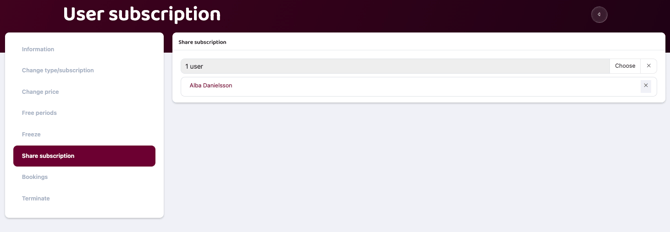
NOTE: Your selection is saved only when you click Select. If you close the box before that, you need to add the youth again.
TIP! If a youth has signed up but you have not received an email from the parent, you can end the youth subscription. This way, nobody gets booking rights without a paying parent linked to them.
Read the article: Shared punch card/subscription
Get notified when a youth turns 18
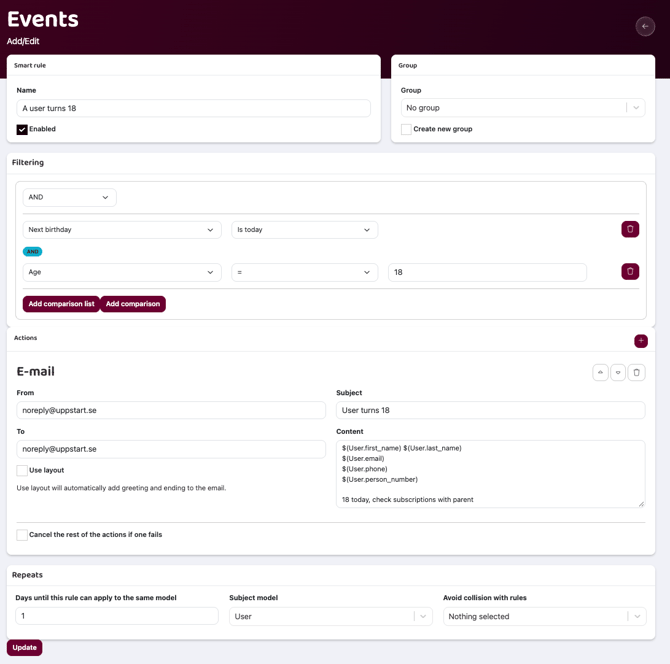
Create a smart rule that emails your facility on a member's 18th birthday, so you can contact the parent about the subscription.
- Go to Smart rules and click the plus icon.
- Fill in the rule as in the table below.
- Check Enabled and save the rule.
| Field | Value |
|---|---|
| Name | A user turns 18 |
| Filtering | AND: Next birthday is todayAge = 18 |
| Action | |
| To | Your facility's email address |
| Subject | User turns 18 |
| Days until this rule can apply to the same model | 1 |
| Subject model | User |
Use this text and these codes in the email content:
$(User.first_name) $(User.last_name)
$(User.email)
$(User.phone)
$(User.person_number)
18 today, check subscriptions with parent
Validation
- Buy the parent subscription with a test profile.
- Check that the test profile receives the email with the direct link.
- Check that the youth subscription is not visible on your website until you enter the promotional code.
- Log out, open the link and register a test youth.
- Check that your facility receives the sign-up email with the youth's details.
- Add the test youth to the parent subscription and check that they appear under Share subscription.
Troubleshooting
A youth has signed up, but the parent has not emailed you
Contact the parent, or end the youth subscription if you cannot link it to a parent subscription.
The parent cannot register the youth
The parent is most likely logged in to their own profile in the browser. Ask them to log out, or to open the link in a private browser window.
Your facility does not receive the sign-up email
Check that the To field in the smart rule has your facility's email address, and that the rule is enabled.
You get emails about members who do not have a youth subscription
The 18-year rule applies to every member who turns 18. Check the member's subscriptions before you contact anyone.
TIP! To limit the 18-year rule to youths only, add a comparison under Filtering for the youth subscription.
Related articles
- Create new subscription
- Shared punch card/subscription
- Other payer
- How to set up automatic messages for new leads using Smart rules
Last updated: 27/10-2026