
Intro
Multiple people can share the same punch card or other subscription. For a punch cards each connected person then has free access to all punches available on the punch card.
Very convenient if, for example, a company wants to buy 100 punches that employees can share. To create a punch card that can be shared, some settings need to be made, and who should have access to the punch card must also be specified manually by someone in the staff.
Do this
-
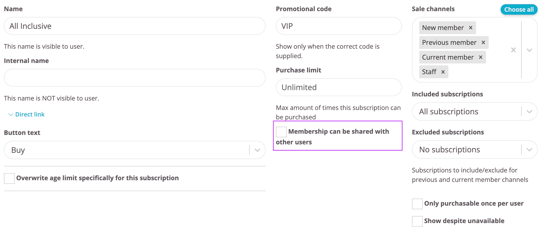
In the basic subscription settings, the box "Subscription can be shared with other users" needs to be checked, then the usual settings for punch cards are made.
-
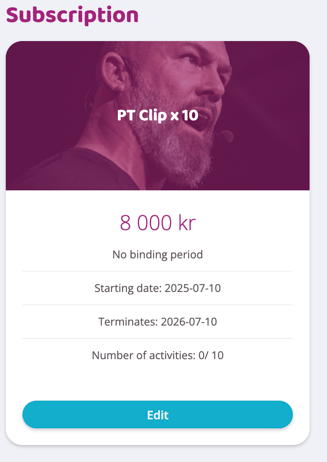
After the punch card has been created, go to the user profile that will pay and add the punch card to the profile.
-
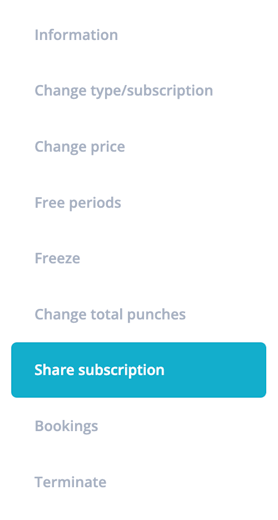
To share the punch card with others click on "Edit" on the subscription and select the "Share subscription" option
-
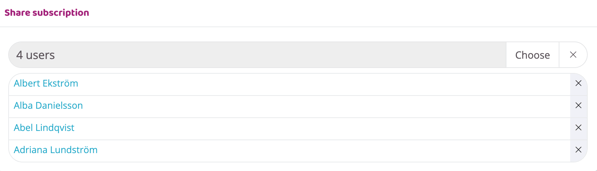
Then choose which people will be allowed to share the punches by clicking "Add" on all people.
When all people have been clicked, don't forget to click "Select" at the top of the view, only then will the selections be saved. If you close the box without clicking "Select", the selections will not be saved and must be made again.
Once the people have been selected, they will appear in the list on the page and can also be removed from the list by clicking on the cross on the far right of the person's row.
-
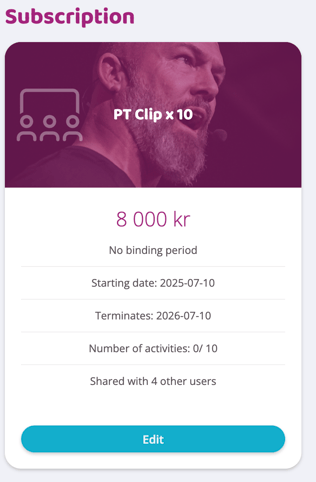
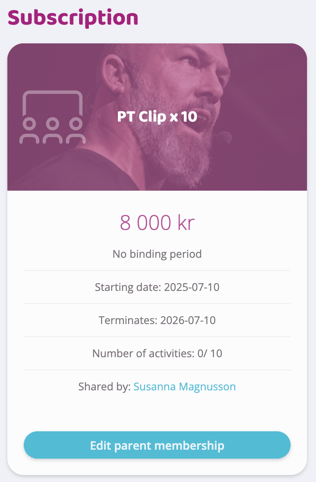
When a subscription is shared, it will have a special icon and look like this. It will also say at the bottom of the summary how many people it is shared with.
-
To see how many bookings each individual person has made, click on "Edit" on the subscription and then "Bookings". There you will find a list showing all bookings and which person made them.
Last edited: 10/7-2025