Skip to content
English
  • There are no suggestions because the search field is empty.

Other payer

A guide to how another payer can be added to a membership.

Table of contents:

1. Intro
2. Add another payer when signing up for subscription
3. Add another payer to an existing subscription

Intro

This feature allows another person to pay for the subscription of one or more of your customers. This is useful, for example, when a minor is to have a subscription with you, then the child can have their own profile page with an active subscription but the parent pays.

You can either add another payer when the subscription is added or afterwards. We will show both scenarios in this article.

Add another payer when signing up for subscription

Add subscription to the customer's profile page and choose to customize it. On the right you have the option 'Other payer'. Press the 'Select payer' button and choose from other subscriptions at your facility.

NOTE: This assumes that the person who will pay for the subscription has a profile page with you and a payment method entered. The subscription will be charged to the payer's default payment method.

When another payer has been selected and all other settings are correct, press 'Finish'.

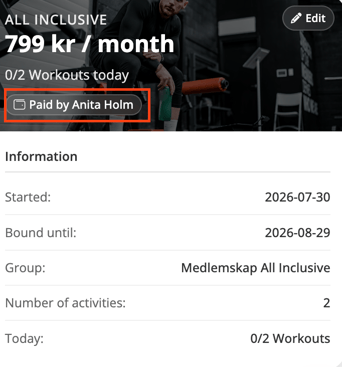
The subscription now states who is the holder of the subscription and who is the payer.
A digital subscription card titled "Subscription" for an "All Inclusive" plan. The card features a purple-tinted background image of a person in a gym. Key details include a price of "990 kr / mo." with a starting cost of "150 kr". A purple box highlights the names "Holder: Susanna Magnusson" and "Payer: Ellie Hellström". Below this, a list specifies a "1 month binding period," "2 activities/day included," and a "Starting date: 2025-07-08". A large teal button at the bottom is labeled "Edit".

You can click on the payer's name to go directly to that person's profile page. It is on the payer's profile page that all orders for the subscription are created.

On the payer's profile page, it will look like the image below. On the left you will see the payer's own subscription and on the right are the subscriptions they pay for in addition to their own. The subscription that is only paid for is lighter in tone so it is easy for you to distinguish them.
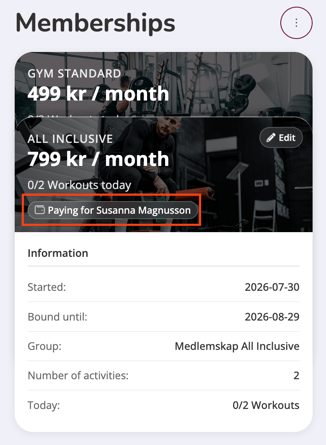
A screenshot of a "Subscription" dashboard displaying two membership cards side-by-side. Both cards feature a purple-tinted background image of a person training in a gym and a teal "Edit" button at the bottom. The left card for "Gym Standard" lists a price of 499 kr/mo, a 12-month binding period, and a starting date of 2021-01-05. The right card for "All Inclusive" lists a price of 990 kr/mo, with a purple box highlighting Susanna Magnusson as the "Holder" and Ellie Hellström as the "Payer." This plan includes a 1-month binding period and a starting date of 2025-07-08.

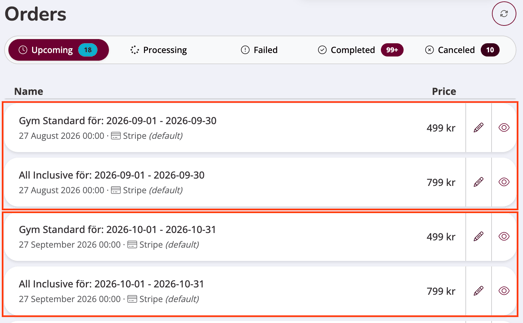
Under upcoming orders you will now see that there are two payments per month (one for each subscription) that will be charged from the payer's default payment method.

NOTE: If a payer is added later, only future orders will be affected. Any failed orders or those that have already been activated and are under the 'Processing' tab will not change payer.

 A dashboard view of an "Orders" table with the "Upcoming (18)" tab selected. The table lists future orders with columns for description, price, date, payment method, and status. Two purple rectangles highlight specific rows: the top box outlines two orders for the period 2025-09-01 to 2025-09-30 for "Gym Standard" (499 kr) and "All Inclusive" (990 kr). The bottom box outlines two identical orders for the following month, 2025-10-01 to 2025-10-31. All highlighted orders show a payment method of "Worldline *" and a teal status label marked "Future." Each row ends with icons for editing and viewing details.


If you go in and review the order for a coming month, it will look like the image below.

The order and subsequent receipt have two lines. One for each subscription and it states who the additional membership is being paid for.
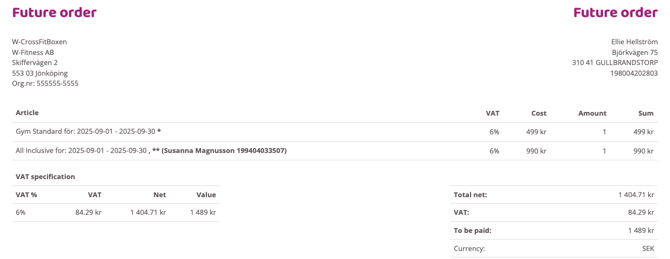
 A digital invoice labeled "Future order" issued to Ellie Hellström in Gullbrandstorp from the seller W-Fitness AB in Jönköping. The document lists two articles for the period 2025-09-01 to 2025-09-30: "Gym Standard" for 499 kr and "All Inclusive" for 990 kr (with Susanna Magnusson specified as the user). Both items include a 6% VAT rate. The financial summary shows a total net amount of 1,404.71 kr, a VAT amount of 84.29 kr, and a final total to be paid of 1,489 kr. The currency is noted as SEK.


Add another payer to an existing subscription

To add another payer to an existing subscription, go to the current subscription on the customer's profile and click 'Edit'.

Go to the ' Change payer ' option. You'll find it a bit further down the first page (under the 'Information' tab).

Select user and save.

NOTE! This again assumes that the person who is going to pay for the membership has a profile page and a payment method entered. The membership will be charged to the payer's default payment method. One person can be the payer for several different people's memberships.
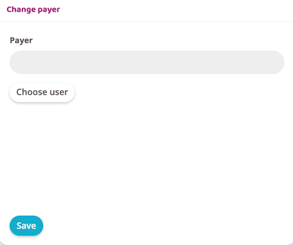
A screenshot of a "Change payer" interface. It features a section labeled "Payer" with an empty grey input field. Below the field is a white rounded button labeled "Choose user." At the bottom left of the screen, there is a teal rounded button labeled "Save."


Senast uppdaterad: 5/6-2025