
Activate Wei
At the bottom of the Wondr main menu is icon with a W. Click on it to activate and then to deactivate Wei. You can also simply click W on your keyboard to activate the function.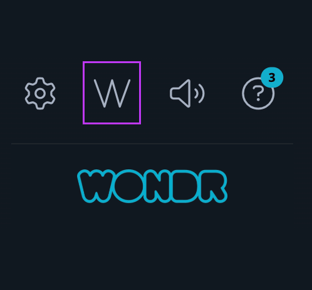
Then click on the W to bring up Wei. When Wei is activated, a check box appears next to each selectable object that Wei can manage. See the example below where Wei has been activated in the Users view.
Each name has a checkbox that can be selected. Either select separate boxes for the objects to be managed or go to the Wei box and click on the lasso ("+ current search"), which will automatically select all objects in the current search.
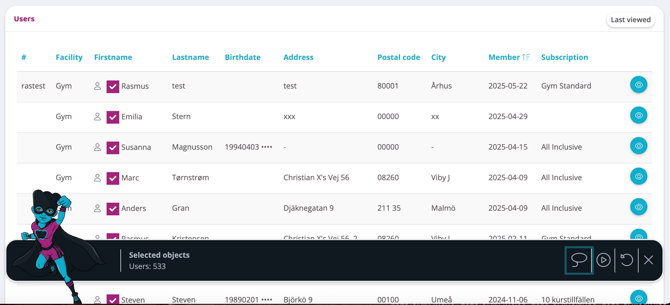
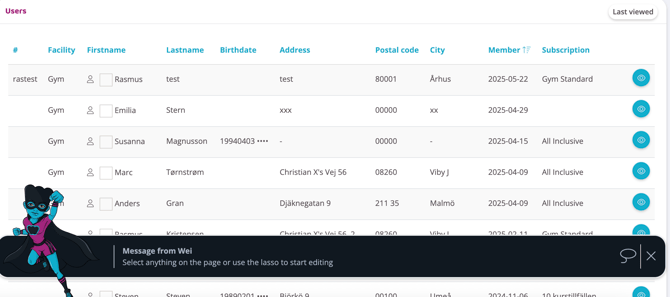
Then click the play button to proceed and select an action for the selected objects.
TIP! It is possible to retrieve objects from different locations.
For example, you can check off certain people in a report and then go to users and add more people. The selections are saved until you click Clear in the Wei box.
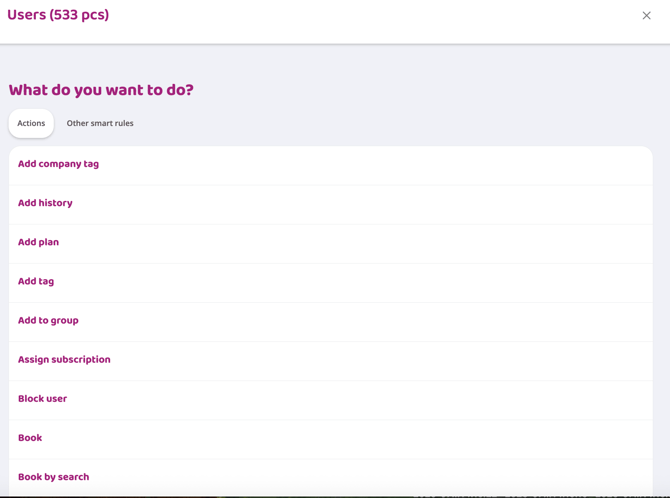
Scroll through the entire list to see all the options. If you have special smart rules that, for example, issue warnings or send out fines, you can also run them manually this way. Then change the tab at the top to Other smart rules.
Here you can, for example, mass book all selected profiles, send an email, add a tag to CRM, block all or create orders.
There are many different options that often lead to further choices. In the next part we will give some examples of how this function can be used.
Cancelling a mass job
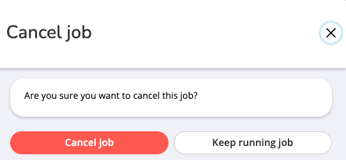
You can cancel a mass job at any time after it has been initiated. To do so, click the Cancel icon (located to the right of the progress bar).
Note:
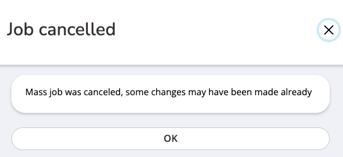
Partial Completion: Cancelling a job stops any further processing. However, any changes already executed by the system will not be reverted.
System Status: Upon cancellation, the system will display a summary confirming whether any records were modified before the process was terminated.

Example
Book multiple people into an activity
1. Activate Wei.
2. Go to users or if they are to be booked in from e.g. a form to the participant list or a report. In all places where user profiles are listed, you can make selections.
3. Filter out the people you want to book and check their boxes or click "+ Current search" to select all
4. Select the Book action.
5. Click Select to filter and select the activities that the people should be booked into.
6. Then click in one or more of the boxes below
-
-
-
Make booking even if the user does not have rights to book an activity - Check this box if Wondr should ignore booking rights and book all activities regardless of membership, available clips, etc.
-
Send booking confirmation - Check this box if Wondr should send a booking confirmation for each activity the person is booked into.
-
Pay if booking requires payment - Check this box if they will pay for the activities (in case payment is required), leave it unchecked and they will be booked in without payment.
-
-
7. Click Run.
8. Let Wei finish working until the entire bar turns green. But you don't have to stay on the page. When Wei is finished, click Clear and then click the mask to close the function.
Send email to only one person
1. Activate Wei.
2. Filter for the customer in question and check the person's box or click "+ Current search" if that profile is the only one in the filter.
3. Select the Email action.
4. From and To do not need to be changed.
5. Enter the subject line (Subject).
6. In the Content box, write the email itself (the box on the left Use Layout causes Wondr to automatically include "Hello XXX" and "Best regards XXX", if this box is not checked, these phrases need to be entered manually).
7. Click Run to send the email.
Assign subscription to multiple customers at once
1. Activate Wei.
2. Go to users or if they are to be booked in from e.g. a form for the participant list or a report. In all places where customer profiles are listed, you can make selections.
3. Filter out the people you want to book and check their boxes or click "+ Current search" to select all.
4. Select the Assign Subscription action.
5. Select subscription, specify which subscription to assign.
6. Start date, enter the date the subscription should start. Can be today or at a future date depending on your choice.
Postponement - Whether the start date should be postponed by a certain number of days.
7. Pay from, enter the date the subscription should start being paid.
8. Turn off, enter the date for ending the subscription.
9. Review costs on the right.
10. Click Run.
This was an introduction to the Wei feature. As mentioned, there are many other uses that are not covered in this article. For more information and guidance, please contact Wondr support.
Last edited: 22/4-2026