
Intro
Through the document bank, it is possible to show training videos via Vimeo. The video must be published in Vimeo and then linked in Wondr. This article describes how to upload the video to Vimeo and then link it into Wondr.
NOTE: This requires an account with Vimeo and there is a monthly fee from them.
Do this:
1. Follow Vimeo's instructions to upload the video in the video's General settings mode.
2. In the General settings for Privacy, set the following:
Who can watch?
Select People with the private link.
Where can this be embedded?
Select Specific domains.
Enter your own wondr domain(facilityname.wondr.se) and click the plus sign to add.
It should look like the picture below.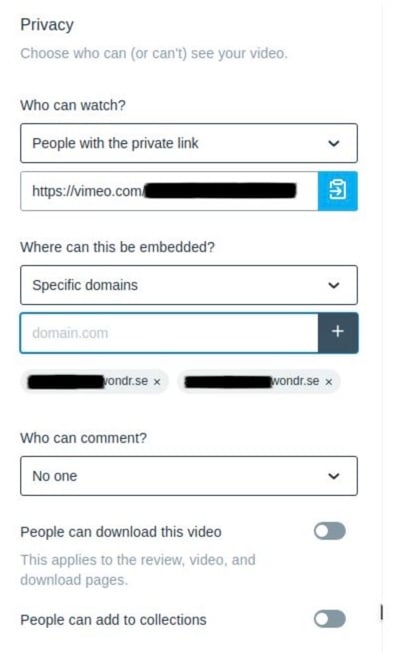
3. The next step is to set the Embed settings.
Check the options shown in the image below:
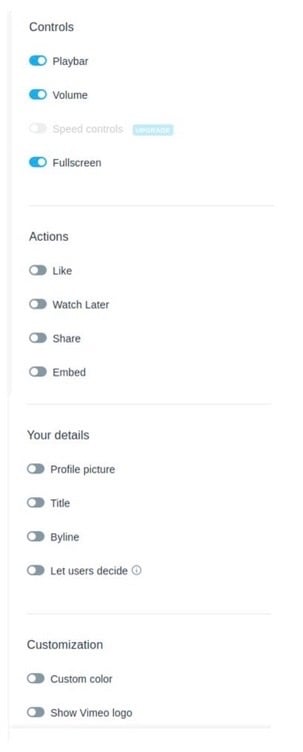
Tip! Once the correct settings have been ticked as in the image above, you can click Create preset to save the settings for the next upload. This way you only need to do this once as it will be saved for future video uploads.
4. Now copy the link from the box under Private link and insert it into Wondr via the media bank.
5. Follow the guide for Vimeo in the document bank article to upload the video to Wondr.
Related article
Last edited: 4/5-2025