
- Intro
- Link subscription with subscription group
- What are the benefits of the subscription groups feature?
- Related article
If there is a PT Small Group at the facility and the activity should only be bookable by users with a certain subscription, it might be a good idea to have a subscription group called Small Group. Users could then have a subscription that allows them to book group training and another subscription for PT Small Group that gives them access to those activities.
NOTE: You cannot create subscription groups on your own, you need to contact support and we will help you set up a subscription group. After that, you can work with them freely.
Link subscription with subscription group
Once a subscription group is in place, the next step is to link a subscription to the subscription group. You can link one or more subscriptions to the subscription group.
(To see how a subscription is set up in its entirety, read: Create a New Subscription. This guide only goes through details related to subscription groups.)
Under Settings > Customers > Subscription Types there is a list of all subscription types.
-
Go to the subscription that will be linked to the Small Group subscription group by pressing Edit (the pencil).
* In this example, there is already a subscription called Small Group Training 12 months that will be linked to the Small Group Training subscription group.
-
Go to Subscription Group in the subscription edit mode and select Small Group Training from the drop-down list.
The following steps should be performed on each subscription type that will be included in the subscription group.
The last thing that needs to be done is to control which session(s) can be booked by the Small Group Training subscription group.
-
Go to Settings > Booking > Types and find the booking type that the subscription group should be able to book.
-
Go to the booking type by clicking Edit . In this example, we already have a booking type called Small Group Training.
-
In the booking type edit mode, go to the Subscription Access area. Select Small Group Training from the "Specific subscription Groups Only" drop-down list.
Then it will look like the picture below.
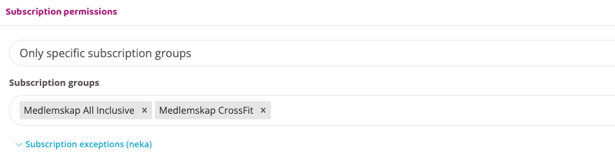
Now only users who have the Small Group Training subscription can book on the Small Group Training session/booking type and they cannot book on any other sessions.
If other subscriptions that do not belong to the Small Group Training group should be able to book into the session, select the option Specific subscription groups only + extra subscriptions instead.
All other subscriptions are listed in the "Subscription list". Select the subscriptions that should have access to book on the pass in addition to the subscription group.
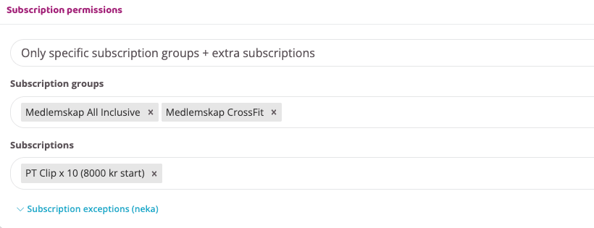
Note that if the default subscription access remains in the first field (Give access only to subscription group) and subscriptions in the list are selected, only the selected subscriptions will be granted access to book on the pass.
If there is instead a subscription group in the first field (as in the example above), everyone in the subscription group and selected subscriptions will have access to book the pass.
What are the benefits of the subscription groups feature?
The advantages are that it is possible to control which users have access to book on a specific booking type. The function can be regulated and used in many different ways, which makes it difficult to explain in a single example.
Please contact support to discuss different ways this feature can be used and how access can be managed depending on the needs of a specific facility.