
Intro
NOTE! Pott accounts are used as a payment method for wellness checks. Note that Pott accounts are something that needs to be added to your Wondr and also taken into account when accounting.
If you do not have a Pott account, contact support and we will guide you. Wondr has no connection to any wellness company, but you must arrange the agreement yourself with those you want to collaborate with.
Wondr also has no connection to how the money is paid out, but it is managed between you and the chosen wellness company/companies.
Another important detail about pott accounts is that the customer can’t purchase subscriptions on their own using a pott. If the pott is going to be used, the subscription must be added manually by staff. It’s not possible to top up using an excluded payment method.
Content
1. Video showing how to create and top up a pott account
2. Text guide for how to create a pott account
3. Text guide for how to top up a pott account
4. Extra info not included in the video
Step-by-step video
Create Pott account
This only needs to be done once per customer. After that, it is enough to top up the existing pott account. If the customer already has a pott account, continue down to the next part of this article Top up pott account.
-
Go to customer profile and press the pott accounts button.
-
Tap
+ Account. -
Select the type of pott account
Wellness grant. -
Enter the Name of the pott account. NOTE! Enter the name depending on which wellness portal the payment will be made via. For example: Benify, Wellnet etc.
-
ALWAYS check the box
Use automatically on subscriptions. -
Click
Create Account. -
Now the pott account has been created, this is confirmed at the top of the page. Topping up pott accounts, this must be done via the checkout.
Link payment method
Before the pott account can be used, the correct payment method must be connected.
Click on the shopping cart icon in the pott account view and select the payment method to be used.
*First, the correct payment method, e.g. "ActiWay", must be created as a Payment Method and linked to the accounting. If you have already done so, you can skip this step.
-
Go to
Settings > Payments & Cart > Payment Methods. -
All Manual Payment Methods are entered here, to add more press the
+sign in the right corner -
Enter a name for the payment method, this will then be visible under
Pay now/Manual payment methodsin the checkout.
** Manual Check is not used.
NOTE! Link the manual payment method to the correct accounting account. If you are unsure about this step, contact support.
Top up your Pott account
-
Click on the shopping cart icon on the pot account line (see image 1).
-
Enter the amount that the pott account should be loaded with in the
Price incl. VATbox (see image 2). -
Scroll down and click
Update Total(see image 3). -
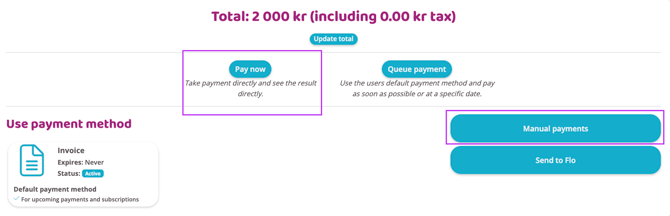
Click
Pay now. -
Click
Manual payment methods. -
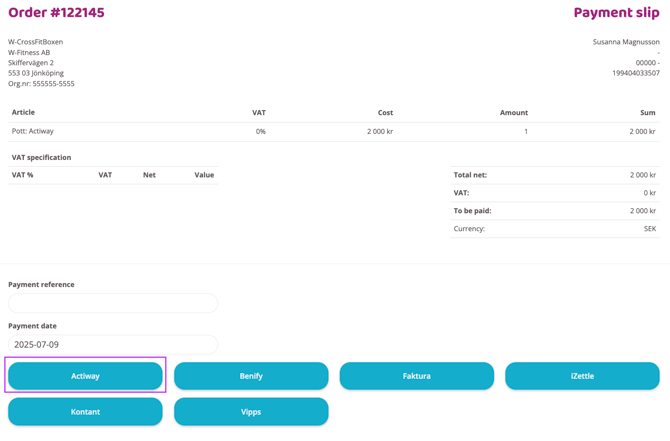
If a Payment Reference is to be entered, this is done here (see image 4).
-
Select the payment method that the payment should be posted to. (Under Manual payment methods, the payment methods you have added to your facility are visible) (see image 5).
-
Once the correct payment method has been selected, you will be redirected back to the profile and the following message will be visible: "The order has been paid for"


Good to know
NOTE! Provided that the "Use automatically on subscriptions" box is checked, subsequent draws will be deducted directly from the pott account instead of from the deposited payment method. This will happen until the pott account balance is 0 SEK. Should part of the total amount be in the pott account before a draw, that amount will be deducted and then the remaining amount will be deducted from the deposited payment method.
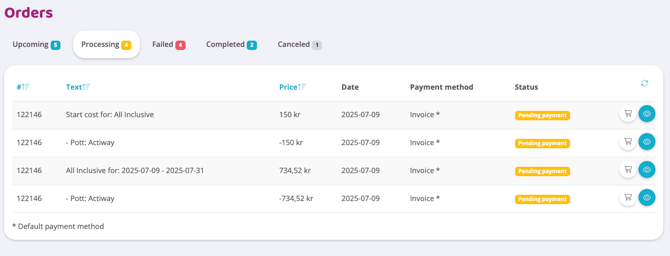
It will not be visible that the withdrawal will be made from the pott account until the order is activated and ends up on the Processing order tab.
The pott account is not visible when the order is in the status Upcoming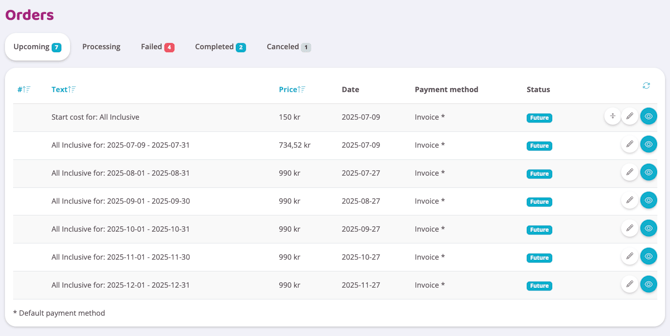
Only when the order has been activated (either manually by you or automatically on the draw date) will the pott deduction become visible.
NOTE: Customers cannot purchase subscriptions on their own via a pott. In order for the pott account to be used, the subscription must be added manually by staff.
Last edited: 10/12-2025