
Intro
In this article, we show you step-by-step how to create a rule that gives customers who have booked a session but have not checked in a warning (in the article "Block members after X number of missed activity" we show you how to set it so that a certain number of warnings leads to blocking).
If you want the customer to be charged for a missed pass, go to the article "Automatic penalty for missed passes".
Related article
Do this:
Go to Settings > Smart Rules.
Click the plus icon in the top right to add a new smart rule.
Select trigger
The first step is to choose what type of event in the system will trigger the rule. Select the option "All bookings, within 48 hours before or after the activity".
Now it's time to set up the smart rule.
Start by filling in "Name", in this example we have chosen to name the rule "Missed activity". Below there is a checkbox to activate the rule, check it and the rule will take effect when you have finished creating it.
The next step is to choose how close to the activity the rule should be triggered. In this case we choose 2 hours after as this will mean that this rule will be activated 2 hours after the member has finished the session that they missed.
*You can also choose a different X number of minutes after/before the session if you think it works better.
Under filtering, first press the "Add comparison" button.
Set as below:
In the first drop-down list, select "Booking - Status"
In the second drop-down list, select "="
In the third drop-down list, select "Booked (not checked in)"
(In the top drop-down list where you choose between "and" or "or", leave "and" as is)
Then press the "Add comparison" button again.
In the first drop-down list, select "User - Is non-member".
In the second drop-down list, select "No".
Then press the "Add comparison list" button.
NOTE! No comparison this time!
In the top drop-down list inside the comparison list where it now says "And", select " Or " instead (see the next image for a clear example).
In the first drop-down list, select "User - Warning Count - Missed Activity".
In the second drop-down list, select "=".
In the third drop-down list, type "0".
Then, press the " Add comparison " button inside the comparison list you just created.
In the first drop-down list, select " User - Warning Count - Missed Activity ".
In the second drop-down list, select " = ".
In the third drop-down list, type " 1 ".
The complete rule should look like the image below: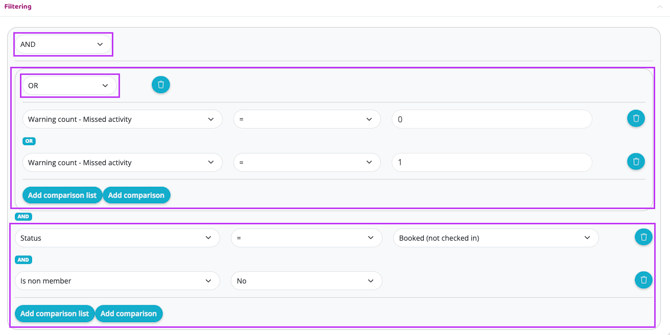
Add action
Add a first action via the plus sign.
Select "Warnings & blockings - Give a warning". For this action there are a few more options, set as below:
Type of warning
"Missed activity"
Comment
Leave the text as it is. When you then go into the customer's profile you will be able to see how many warnings a customer has and this text will tell you which activities each warning applies to.
* If you also want the customer to be notified that they missed an activity, you can add another Action such as email or notice.
NOTE: Always create a new note that can be used for each specific rule, read the article Create a new note for guidance on how to proceed.
Then add a second action via the plus sign.
Select "Bookings - Set booking status". Only one choice is available for this action. Select new booking status
New booking status
Missed
Then set "Repeats"
Number of days until this rule can run again: 1
Subject: Booking
Press "Create"
IMPORTANT
If you have chosen to check the "Enabled" box, the rule is now live. Keep in mind that it may be a good idea to notify your customers before such a rule is put into use.
Also keep in mind that if you have a pass for, for example, childcare, that pass will also be affected by the rule and you will need to adjust the rule further to avoid this. If you have any questions, please contact our support.
Related article
Senast uppdaterad: 7/9-2025