
Intro
In this article, we describe step-by-step how to create a smart rule that automatically charges a penalty fee to booked customers who have not checked in on their booked activity.
Do this:
Go to "Settings > Smart Rules".
Click the plus icon in the top right to add a new smart rule.
Select trigger
The first step is to choose what type of event in the system will trigger the rule. Select the option "All bookings, within 1 hour before or after the activity".
After you have selected "Trigger", it is time to set up the smart rule.
Start by filling in "Name", in this example we have chosen to name the rule "Missed Activity". Below there is a checkbox "Enable" to activate the rule, check it and the rule will take effect when the rule is saved.
The next step is to choose how close to the activity the rule should be triggered. In this case we choose 5 minutes before as this will mean that those who have booked a session but do not check in at least 5 minutes before the session will receive a penalty.
*You can also choose a different X number of minutes after/before the workout if you think it works better for you.
During filtering, first press the "Add comparison" button.
Set as below:
In the first drop-down list, select "Booking - Status".
In the second drop-down list, select "=".
In the third drop-down list, select "Booked (not checked in)".
(The top drop-down list where you choose between "and" or "or" leaves "and" as is)
*This means that when the status in the system is that a customer has not checked in for a booked session, the rule will be triggered.
Then click the "Add comparison" button again.
In the first drop-down list: "User - Is non-member"
In the second scroll bar: "No"
*This means that the rule does not apply to non-members who are only trying out for one session.
Then you can click the "Add comparison" button again and add a specific activity that the rule should not apply to. If there are multiple sessions, all activities need to be added to a comparison list (contact support for help). If the rule should apply to all activities, this step can be skipped.
In the first drop-down list: "Type"
In the second drop-down list: "!="
In the third window, select the activity to be excluded from the rule.
It should now look like the image below: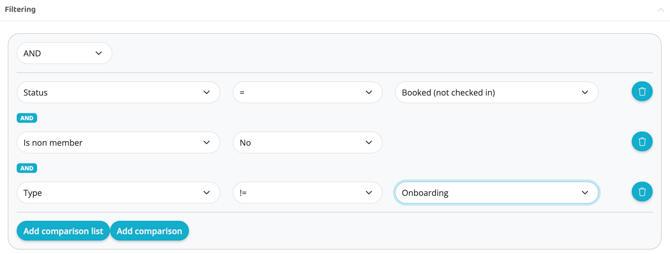
Add action
Now we come to "Actions" (what will happen).
Add a first action via the plus sign.
Select "Booking - Set booking status".
Select: "New booking status - Missed "
Then click the plus sign again to add another action.
Select "Orders and payments - Create orders".
For this action there are a few more options, set as below:
Payment method
"Use default payment method for future payments and subscriptions"
Text
"Missed activity"
Pay now
"No, queue the payment"
Number
1
Price
Penalty amount
VAT
6%
Product
"No product"
*You can also choose to add a product called, for example, "Penalty for missed activity" among products and select it as "product". If you choose to do this, you do not need to fill in "Price" and "VAT", it is instead controlled by the product you have created. Read the article "Create a product for sale in the checkout or webshop" for guidance on how to create a product.
Then click the plus sign again to add another action.
Select "Communicate - Notice".
For this action there are a few more options, set as below:
Type
Which notice from your notices should be sent to members who will have a penalty fee?
NOTE: Always create a new notification that can be used for each specific rule, read the article "Create a new notification" for guidance on how to proceed.
Text
"Use text from settings"
Then set "Repeats".
Number of days until this rule can be run again
1
Subject
Reservation
Click "Create".
Important
If you have chosen to check the "Enabled" box, the rule is now live. Keep in mind that it may be a good idea to notify customers before a rule like this is put into use.
Also keep in mind that if you have a pass for, for example, childcare, that activity will also be affected by the rule and you will need to adjust the rule further to avoid this. If you have any questions, please contact our support .
Last edited: 8/9-2025