
Install Plug-In
Here's how to get Wondr's content onto your WordPress website.
1. Upload the plugin attached under Add-ons in Wordpress and activate it.
(Download the plugin by clicking the "Wondr Plugin WP" button below)).
2. Click on Wondr v3 in the menu.
3. Fill in the domain "facilitydomain.wondr.se" (don't forget to replace "facilitydomain" with your own).
4. Check the SSL box.
Ladda ner Word Press Plug in
Embed schedule
To display the schedule on a page, type the following in a text box:
[wondr url="/schema/"]
See example below: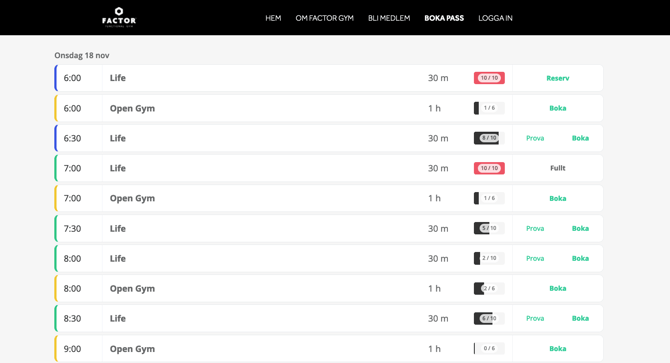
Embed membership
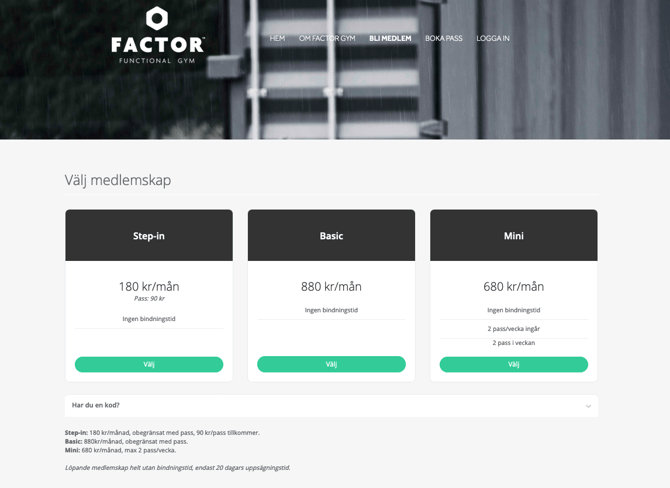
To display "Become a member" on a page, type the following:
[wondr url="/register/"]
See example below:
Customer login
Then, of course, it's good to have a "Log in" link in the menu that links directly to:https://facilitydomain.wondr.se/
NOTE: Replace "facilitydomain" with your own, if you are unsure which one it is, contact support.
Embedding function
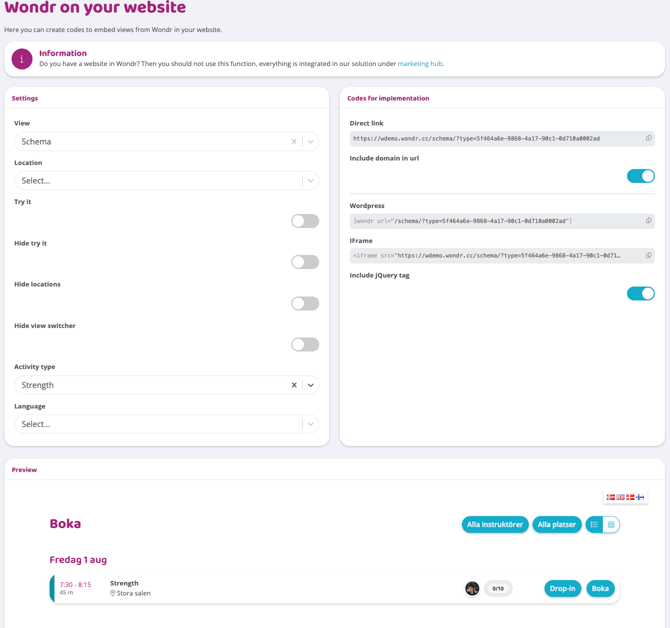
In Wondr, navigate to Settings > Website > Embedding. Here, you can retrieve codes for all embedding on external WordPress websites and preview how your content will appear once published on your site.
Select the type of content you want to embed in the "View" field:
-
Registration - Memberships
-
Schedule - Activity Booking
-
Schedule Today - Today's Activities Only
-
Booking Flow - Specific flows for e.g., PT and massage
-
Register - My Memberships - Only for existing members, links to login and their personal page
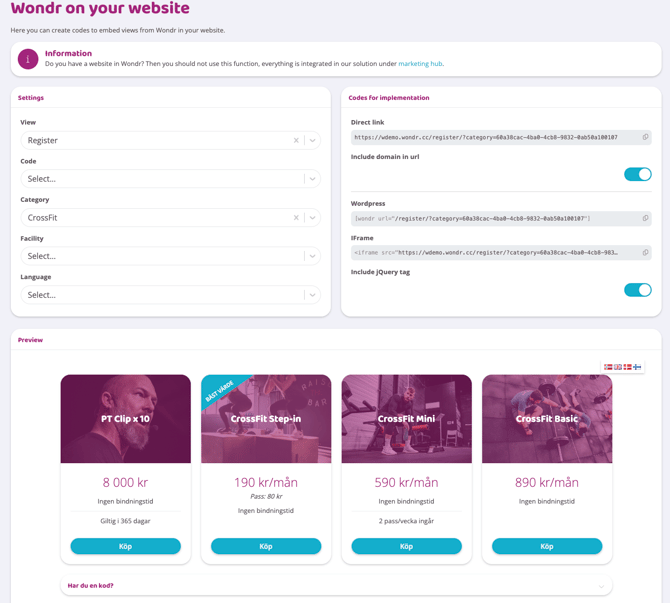
Each "View" selection offers additional options, allowing you to control how the content displays on your website. For example, if you choose "Registration," you can opt to show only a specific membership category or memberships linked to a particular facility.
If you select "Schedule," you can control which booking type is displayed, such as only "Trial" sessions, or hide the view switcher.
Always customize your content first. A preview at the bottom of the page constantly updates to show how your selections impact the display.
Once satisfied with your content, you'll find all the necessary codes on the right side.
Direct Link: This is a complete link, ideal if you prefer not to embed the content directly but instead link to it via a button or social media. Simply copy this link and paste it wherever needed.
WordPress: This embedding link is for websites built with WordPress that have our plugin installed. If you haven't installed our plugin yet, you must do so first. Follow the instructions in the "Install Plugin" chapter above. Once installed, simply copy this link and paste it into a text field on your website.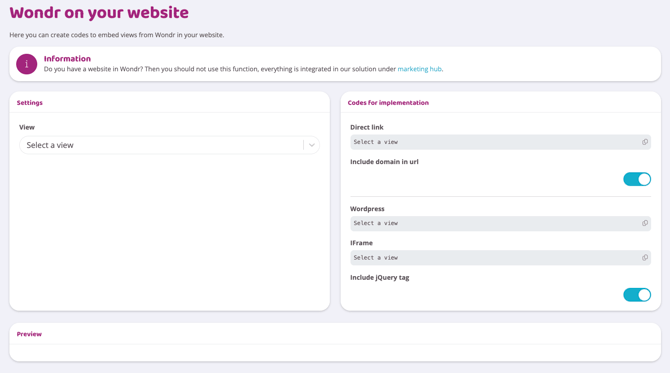
Last edited: 2/4-2025