
Watch or read
- The video and this article show exactly the same things, in the same order.
- The video is in English. This article is also available in other languages. To read it in your language, choose it in the language menu at the top of the help center.
- Each part below shows where it starts in the video, so you can follow along in both.
You don't need any earlier knowledge of Wondr to follow this guide. A punch card is a type of subscription, so you create it in the same place as your other subscriptions.
In this article
- What is a punch card?
- Find Subscription types
- Name and sale channels
- Set the price
- Set the number of punches
- Choose how punches are counted
- Let members refill the card
- Set how long the card is valid
- Create the punch card
1. What is a punch card?
Video 0:00
A punch card gives a member a set number of visits, for example 10. Each time the member uses the card, one punch is used. When all punches are used, the card is empty.
The video starts on the Dashboard, the first page you see when you log in.
2. Find Subscription types
Video 0:15
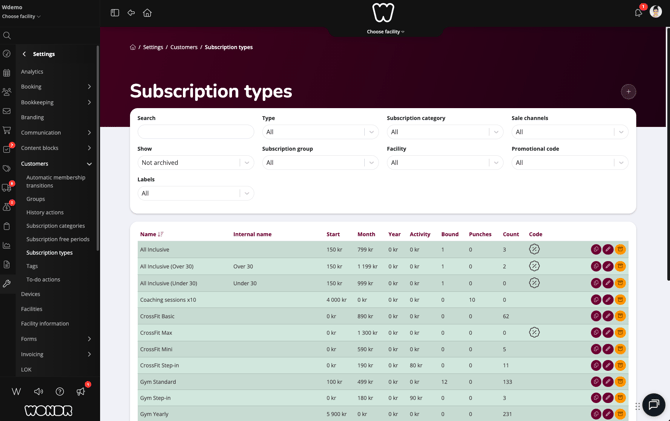
Go to Settings > Customers > Subscription types. This page lists all the subscriptions your facility sells, such as memberships and punch cards.
Click + (Add subscription) at the top of the list to create a new one.
3. Name and sale channels
Video 0:25
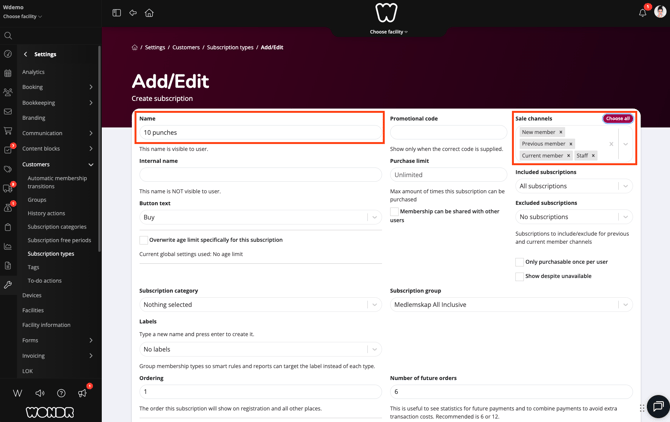
The page Add/Edit opens. Here you fill in everything about the punch card.
- Name: the name your members see. In the video, the name is "10 punches".
- Sale channels: who can buy the punch card. In the video, these are selected: New member, Previous member, Current member and Staff.
TIP! Use a name that tells the member what they get, for example the number of punches.
4. Set the price
Video 0:30
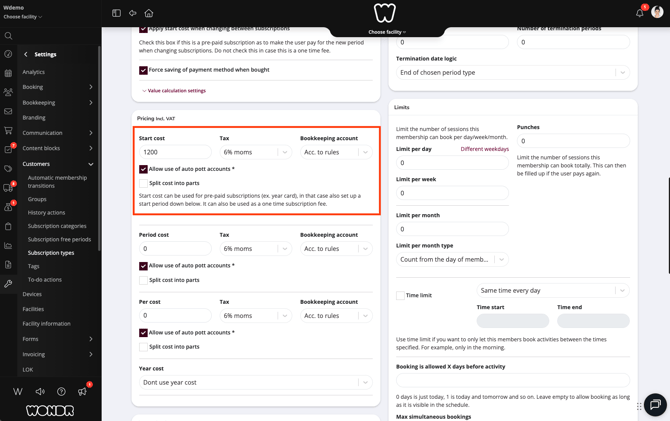
Scroll down to Pricing incl. VAT. Enter the price of the punch card in Start cost. In the video, the price is 1200.
The start cost is a one-time price that the member pays when they buy the card.
5. Set the number of punches
Video 0:40
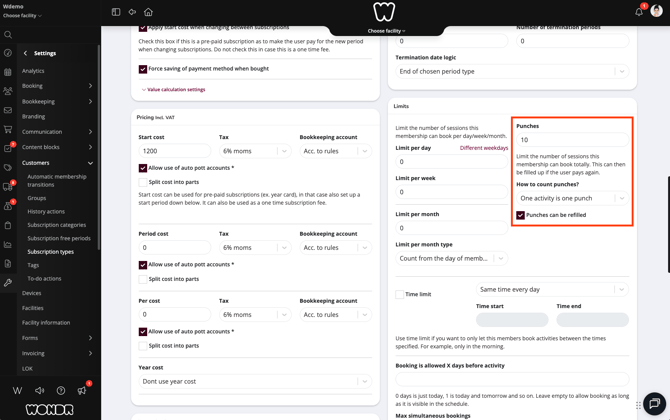
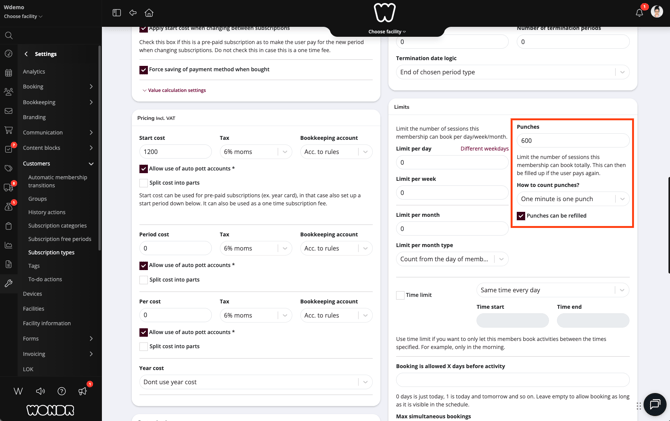
Next to the pricing, under Limits, find the field Punches. Enter how many punches the card has. In the video, the card has 10 punches.
6. Choose how punches are counted
Video 0:45
In How to count punches?, you choose what one punch means. The video shows three options:
- One activity is one punch: each booked activity uses one punch.
- One day is one punch: one punch covers one day.
- One minute is one punch: one punch covers one minute. In the video, the punches are set to 600 for this option.
NOTE: If you count in minutes, remember to set the number of punches in minutes too.
7. Let members refill the card
Video 1:25
In the video, the count is set back to One activity is one punch and 10 punches. Then Punches can be refilled is checked.
This means the member can fill up the card again by paying again, instead of buying a new card. The member can only refill the same number of punches the card had from the start and cannot choose a different number. If the card has a validity period, it is extended by the same number of days as set on the card.
8. Set how long the card is valid
Video 1:40
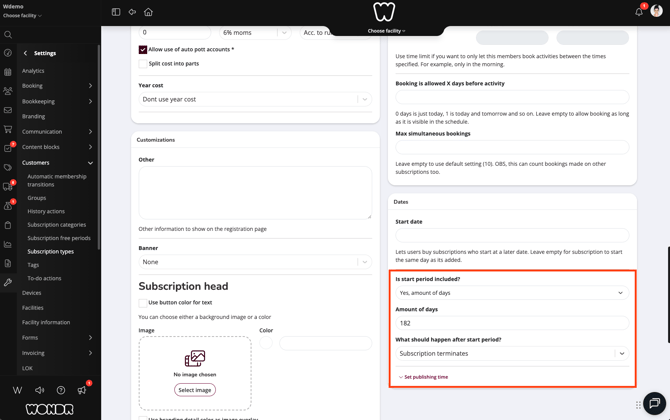
Scroll down to Dates. Here you set how long the punch card can be used.
- Is start period included?: choose Yes, amount of days.
- Amount of days: how many days the card is valid. In the video, it is 182 days (about six months).
- What should happen after start period?: choose Subscription terminates. The card then ends when the days have passed.
9. Create the punch card
Video 2:05
Scroll to the bottom of the page and click Create subscription. The punch card is now saved and shows in the list under Subscription types.
NOTE: You only see the pages your role has access to. If you can't find Settings or Subscription types, ask an administrator at your facility.
Words you will see
Subscription type
Something your facility sells, for example a membership or a punch card.
Punch
One use of a punch card. One activity, one day or one minute, depending on your setting.
Sale channel
A group of people who are allowed to buy the subscription, for example new members or staff.
Start cost
A one-time price the member pays when they buy the subscription.
Start period
The number of days the subscription is valid from the day it starts.
What’s next?
-
Create your first annual membership
The next video in the education series. Learn how to create an annual membership. -
Create new subscription
A full help article with every setting explained.