
Intro
In this article, we describe step-by-step how to create a smart rule that blocks customers after X number of missed activities.
*To be able to use this rule, you must first create a rule that issues warnings for missed activities, see the article "Give warning after missed activities" to read how to do it.
Do this:
Go to Settings > Smart Rules.
Click the plus icon in the top right to add a new smart rule.
Select Trigger
The first step is to choose what type of event in the system will trigger the rule. Select the option "All bookings, within 24 hours before or after the activity" .
Trigger
Choose when the rule should be triggered in connection with a missed activity, e.g. 2 hours after the session ended. This way there is time to change if the member has an explanation for why the session was missed and a warning needs to be removed.
During filtering, first press the "Add comparison" button.
Set as below:
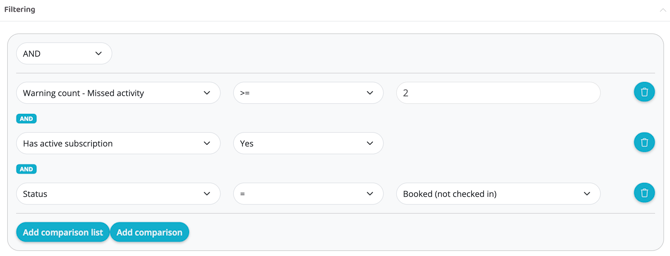
In the first drop-down list, select "Users - Warning Count - Missed Activity".
In the second drop-down list, select ">=".
In the third drop-down list, type "2" (members who have missed 3 activities will now be blocked, if you want it to be a different number of missed activities, type a different number. There should always be one number less in this box than the actual number of sessions that can be missed. In this example, we type 2 as this rule is activated after 3 missed sessions. If it should be activated after 2 warnings, type 1.)
(The top drop-down list where you choose between "and" or "or" leave "and" as they are)
Then press the "Add comparison" button again.
In the first drop-down list, select "User - Has active subscription".
In the second drop-down list, select "Yes".
Then press the "Add comparison" button again.
In the first drop-down list, select "Booking - Status"
In the second drop-down list, select "="
In the third drop-down list, select "Booked (not checked in)".
It should now look like the image below:
Add action
Add a first action via the plus sign.
Select "Warnings & blocking - Block User"
Reason for blocking - "Missed activity"
Add a second action via the plus sign.
Select "Booking - Set booking status"
New booking status - "Missed"
Add a third action via the plus sign.
Select "Warnings & blocking - Clear warnings"
Alert type - "Missed activity"
This action clears previous warnings so that the customer starts over with 0 warnings after being unblocked.
Add a fourth action with the plus sign
Select "Communicate - Email". For this action there are a few more options, set as below:
From
The facility's email address.
To
$(User.email)
Use Layout
DO NOT check this box.
Subject
Optional! This will be the subject line of the email (You have been blocked).
Content
Here you fill in what you want to be in the email that goes out to members.
Example:
"Hello $(User.first_name),
Because you missed checking in for 3 booked activities, you have now been blocked from booking more activities with us. To unlock your subscription, please contact our reception where you will have to pay 150 SEK, then you will be able to book again.
Have a good day!
Kind regards, XXX"
Then set "Repeats".
Number of days until this rule can run again: 1
Subject: Booking
Press "Create".
IMPORTANT
If you have chosen to check the box "Enabled", the rule is now live, keep in mind that it may be a good idea to notify your customers before such a rule is put into use. If you have any questions, contact our support.
Last edited: 1/7-2025