
Intro
In this article, we show you step-by-step how to build a smart rule that automatically sends a message to customers who haven't exercised in 14 days.
Do this:
Go to Settings > Smart Rules.
Click the plus icon in the top right corner to add a new smart rule.
Select trigger
The first step is to choose what type of event in the system will trigger the rule. Select the option "All users, once per day".
Now it's time to set up the smart rule.
Start by filling in "Name", in this example we have chosen to name the rule "Inactivity 14 days". Below there is a checkbox "Enable" to activate the rule, check it and the rule will take effect when you have finished creating it.
During filtering, first click the "Add comparison" button.
Set as below:
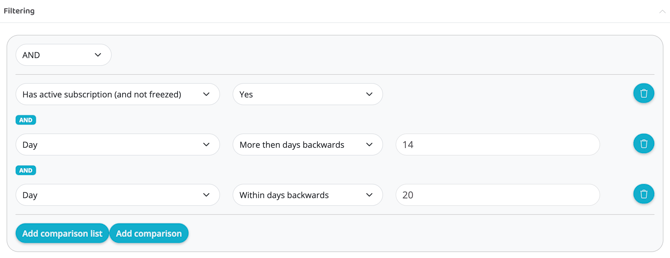
In the first drop-down list, select " User - Has active subscription (and not freezed) ".
In the second drop-down list, select "Yes".
(The top drop-down list where you choose between "and" or "or" leaves " and " as is)
Then click the "Add comparison" button again.
In the first drop-down list, select "Most recent activity - Day"
In the second drop-down list, select "More than X days backwards"
On the third line, type "14" (or 7 if you want the rule to apply for 1 week or another number of days)
Then click the "Add to comparison" button again.
In the first drop-down list, select "Most recent activity - Day".
In the second drop-down list, select "Within X days backwards"
On the third line, type "20".
It should now look like the image below:
Add action
Now we come to "Actions" (what will happen).
Add a first action via the plus sign.
Select "Communication - Email ". For this action there are a few more options, set as below:
From
Facility email address
To
$(User.email)
Use Layout
DO NOT check this box.
Subject
Optional! This will be the subject line of the email (For example: We miss you at XXX)
Content
Here you fill in what you want to be in the email that goes out to members.
------------------------
Example:
"Hello $(User.first_name),
We hope everything is well with you! We saw that you haven't been training for the last 2 weeks and just wanted to hear that everything is okay?
Sometimes life gets in the way and other things take priority. We just want you to know that we hope you'll come back and train with us again soon.
Take care and we hope to see you again soon!
Kind regards, XXX"
-------------------------
Then set "Repeats".
Number of days until this rule can be run again
14
Subject
User
Click " Create ".
If you have chosen to check the "Enable" box, the rule is now live.
Last edited: 7/9-2025