
- Settings
- Create a transition
- Example 1
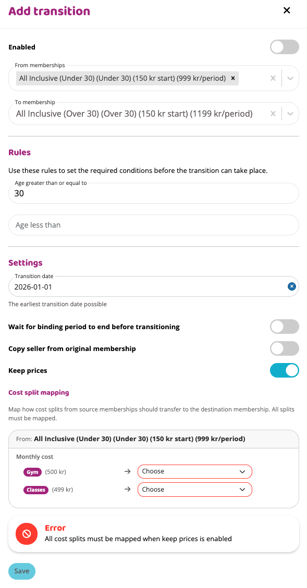
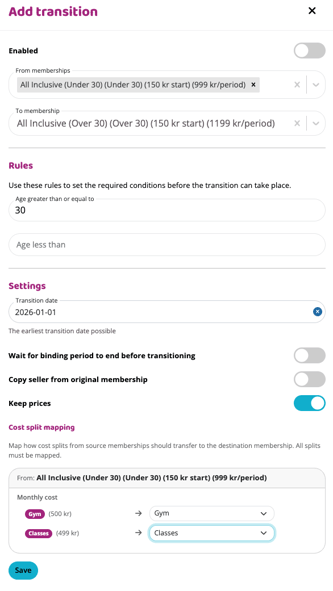
- Example 2
- Keep price and split costs
- Tracking automatic transitions with the new report
Settings
To find this feature, go to Settings → Customers → Automatic membership transitions.
Warning! This function can only be used for memberships that are transitioning to another one due to age. For example, when a person is to be moved from a youth membership to a regular one when they turn 18.
This function cannot be used for other types of transitions or price changes.
Available settings
Number of days in the future to plan transitions
This setting controls how far in advance a membership transition is visible on a user’s profile.
-
It does not affect when the transition actually happens
-
It only determines how early staff and admins can see the upcoming membership and order
-
Default value is 30 days, but it can be adjusted as needed
Advanced: Allow overwrite of existing transitions
⚠️ This advanced setting should never be activated without first consulting support.
When enabled, it allows the system to overwrite transitions that have already been created. This can be useful if a rule was built incorrectly (for example, with missing or wrong settings).
Important to know:
-
Changes to a rule normally apply only to future transitions
-
Enabling this setting will make the updated rule apply retroactively to existing transitions
Use with care. This setting can significantly affect active memberships.
Create a transition
Setup
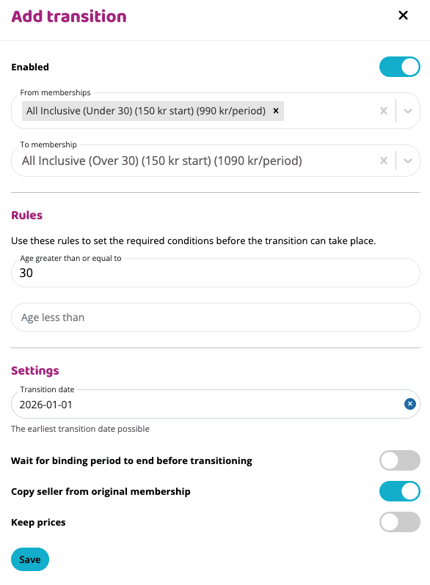
Enabled
Turns the transition rule on or off.
From memberships
Select which memberships should be eligible for transition based on this rule.
-
This is a multi-select field
-
You can include several memberships in the same rule
To membership
Select the membership that the selected memberships should transition to when all rules are met.
Rules
Use these rules to define the conditions that must be met before a transition can occur.
Age greater than or equal to
Use this when a transition should happen once a member reaches a certain age.
Typical use case:
Moving a member to a more expensive or adult membership when they turn 30.
Example:
Enter 30 to trigger the transition when the member turns 30.
Age less than
Use this when a transition should apply to members below a certain age.
Typical use case:
Assigning all members under 18 to a youth membership, which then transitions to another membership when they turn 19.
Example:
Enter 18 to apply the rule to members under 18.
NOTE
When a transition rule is activated, it applies to all existing members who match the rule — not just future ones.
This means that members who already meet the criteria (for example, someone who is 32 when the rule is activated) will also be transitioned.
Settings
Transition date
Sets the earliest possible date a transition can occur.
Example: Enter 1/1-2026.
You can create and enable the rule immediately, but no transitions will activate before this date.
Wait for binding period to end before transitioning
Enable this option if the transition should wait until the current binding period ends.
-
If enabled: the transition is postponed until the binding period is over
-
If disabled: the transition ignores any binding period and happens immediately
Copy seller from original membership
When a transition occurs, a new membership is added to the user’s profile (this does not affect sales statistics).
Enable this option if the original staff seller should also be transferred to the new membership.
Keep prices
Enable this option if the new membership should keep the same price as the original membership.
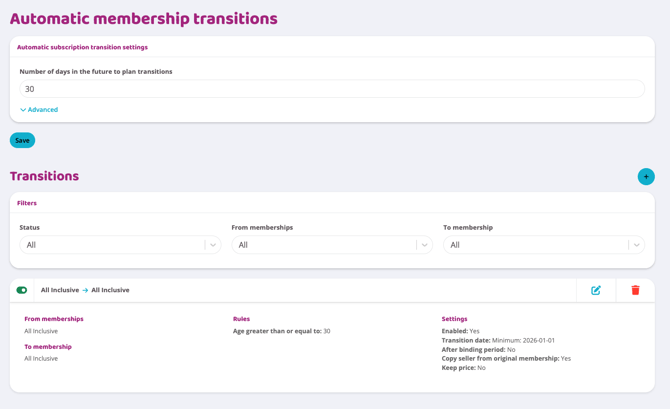
Example 1
A membership is set to transition when a member turns 30, with January 1st as the earliest possible transition date.
Example 2
A membership is set to transition when a member turns 30, with January 1st as the earliest possible transition date.
Tracking automatic transitions with the new report
To help you monitor and verify automatic membership transitions, Wondr includes a new report.
Go to:
Reports → Subscribers → Automatic transitions history
This report shows:
-
All planned transitions
-
All completed transitions
For each transition, you can see:
-
Which member is affected
-
Which membership they transition from and to
-
When the transition is scheduled or completed
Use this report to:
-
Verify that rules work as expected
-
Follow individual members through the flow
-
Get a full overview without checking each profile manually
Last updated: 14/1-2026