
Watch or read
- The video and this article show exactly the same things, in the same order.
- The video is in English. This article is also available in other languages. To read it in your language, choose it in the language menu at the top of the help center.
- Each part below shows where it starts in the video, so you can follow along in both.
You don't need to know anything about the system before you start. In this tour you will only look around. You won't change anything.
In this article
- The screen at a glance
- Your start page
- Today
- User Activity
- Leads & Prospects
- Members
- Economics
- The schedule
- Users
- Where to get help
1. The screen at a glance
Video 0:00
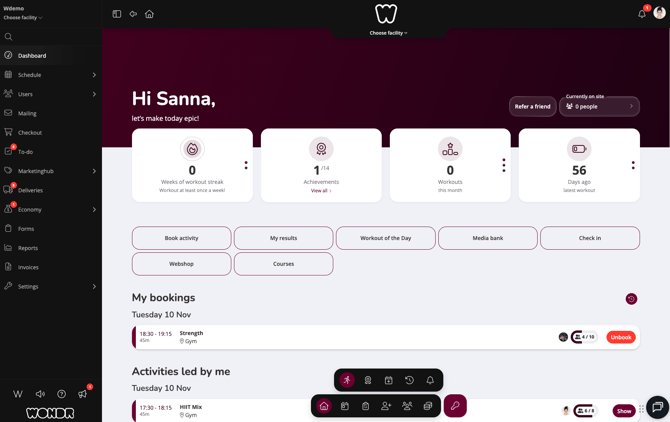
The screen has four parts:
- The main menu on the left. This is where you find every part of the system, for example
Schedule,UsersandSettings. A red dot means something needs your attention. - The top bar. Here you see which facility you are working in. Click Choose facility to switch to another one.
- The page itself in the middle.
- The quick menu at the bottom of the screen. Use it to jump between the different dashboard pages described below.
2. Your start page
Video 0:00
When you log in, you land on the Dashboard. This page shows Wondr the way your members see it: workouts, achievements, bookings and buttons such as Book activity and Check in.
TIP! Click the house icon in the quick menu at any time to come back here.
3. Today
Video 1:06
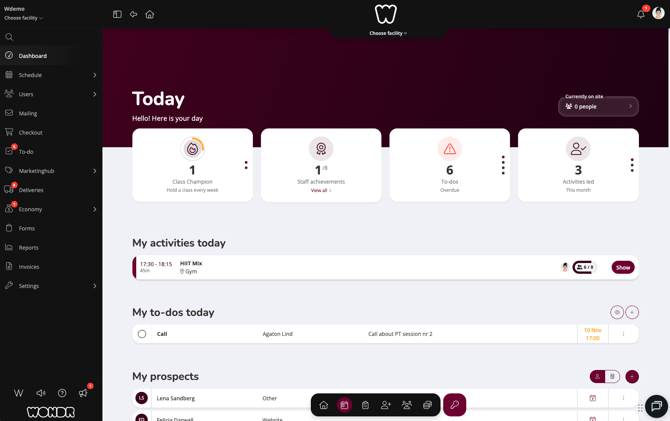
This page is your plan for the day. It shows:
- the classes you lead today
- your to-dos (tasks you or a colleague have created)
- people who are interested in joining (leads and prospects)
- new members and members who have left
Click + next to My to-dos today to add a new task.
4. User Activity
Video 1:30
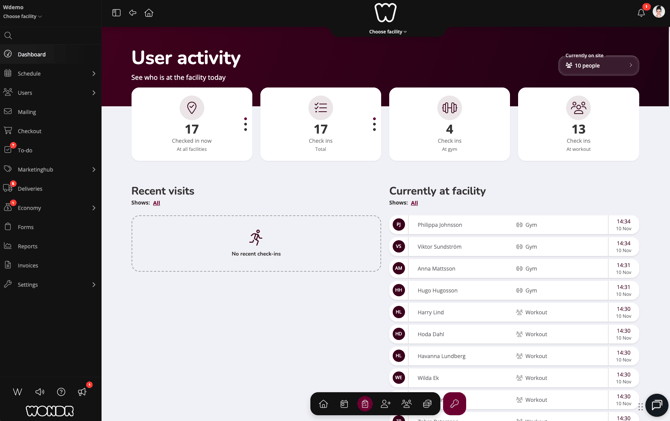
This page shows who has checked in at the facility, and who is there right now. Click a name to see more about the visit.
5. Leads & Prospects
Video 1:48
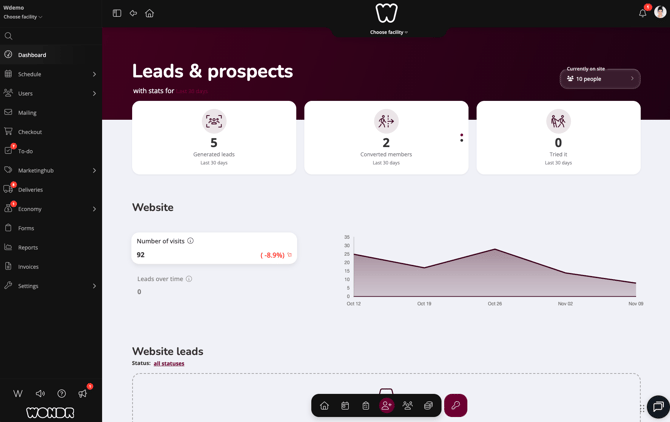
This page shows how many new people have shown interest, for example through your website, and how many of them became members.
Click the period under the page title to see figures for this week, this month, this year and more.
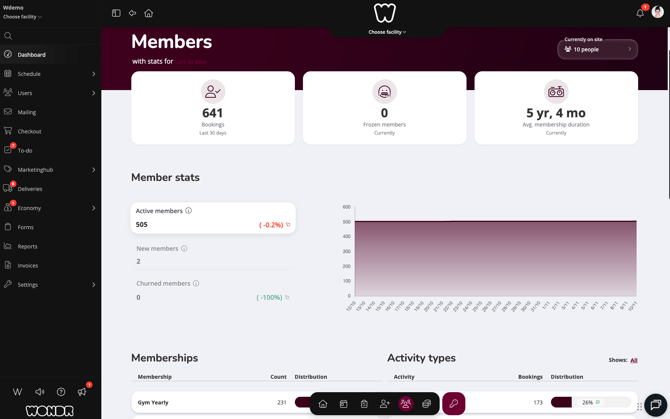
6. Members
Video 2:06
This page gives you an overview of your members: how many you have, which memberships and activities are most popular, and who has joined or left.
7. Economics
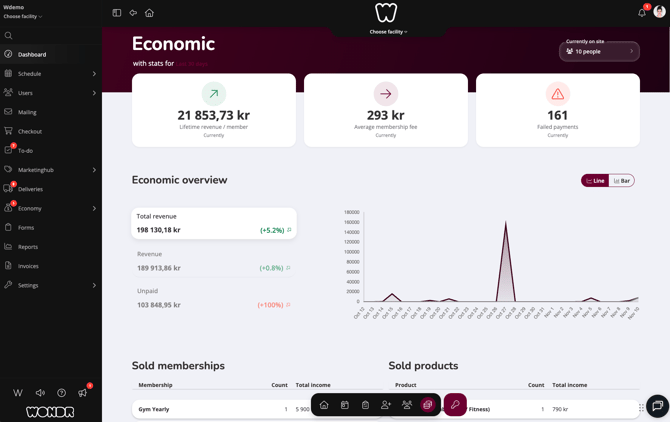
Video 2:24
This page shows your revenue, what you have sold, and payments that have failed.
NOTE: You only see the pages your role has access to. If a page in this article is missing for you, that is normal. Ask your manager if you need access.
8. The schedule
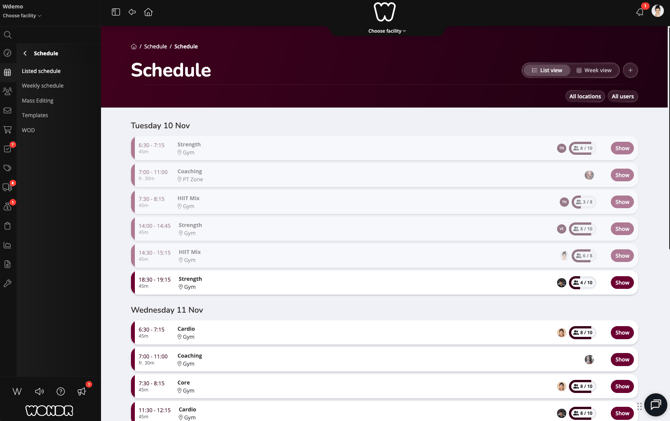
Video 2:42
Go to Schedule in the main menu to see all classes and activities, day by day. Click Show on an activity to see who has booked it.
9. Users
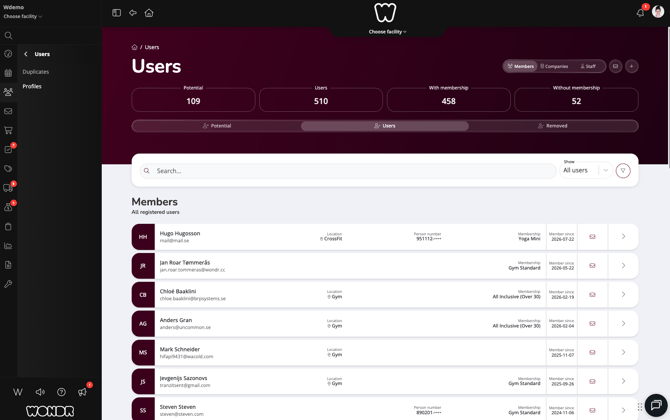
Video 2:48
Go to Users in the main menu to find a member, a company or a colleague. Search for a name and click it to open the person's profile. The profile shows everything about that person, for example their membership, orders and payments.
10. Where to get help
Video 3:00
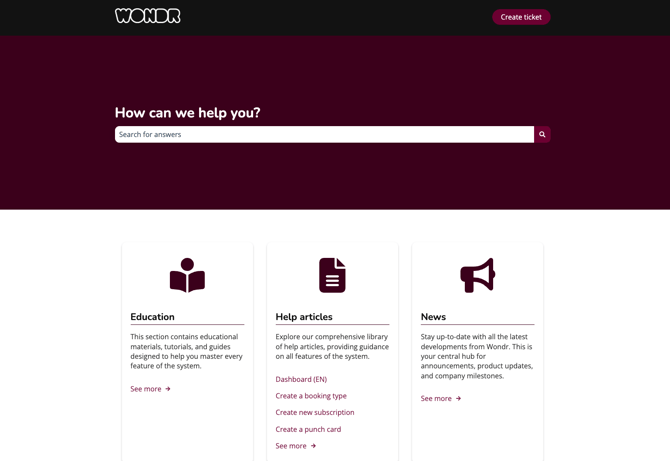
The help center
Click the question mark at the bottom of the main menu. Here you can search for guides on every part of the system.
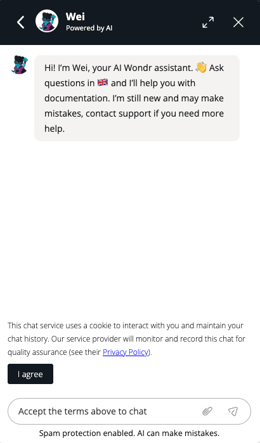
Wei, the AI assistant
Click the chat icon at the bottom right of the screen. Click I agree, then type your question in your own words.
NOTE: Wei can sometimes make mistakes. If you don't get the help you need, contact Wondr support.
Words you will see
Facility
Your gym or training center.
Lead
A person who has shown interest, for example by filling in a form on your website.
Prospect
A lead that someone in your team is following up.
Check-in
When a member arrives at the facility and registers their visit.
To-do
A task, for example "Call Peter", that you or a colleague have created.
What’s next?
- Create your first membership
The next video in the education series. Learn how to create a membership.