
Intro
In this article, we describe step-by-step how to create a smart rule that unblocks customers after they have paid.
NOTE: This rule is only needed if you have an active rule that blocks customers when they have a missed payment. See the article: Block customer on missed payment to read more about how it works.
Do this:
Go to Settings > Smart Rules.
Click the plus icon in the right corner to add a new smart rule.
Select trigger
The first step is to choose what type of event in the system will trigger the rule. Select the option "All users, once per day".
Now it's time to set up the smart rule.
Start by filling in "Name ", in this example we have chosen to name the rule "Unblock customer who paid". Below there is a checkbox to activate the rule, check it and the rule will take effect when the rule is saved.
Under filtering, first press the "Add comparison" button.
In the first drop-down list, select: "User - Blocked".
In the second drop-down list, select "Yes".
(The top drop-down list where you choose between "And" or "Or" leaves "And" as is).
Then press the " Add comparison " button again.
In the first drop-down list, select "User - Total unpaid sum".
In the second drop-down list, select "=".
In the third drop-down list, select "0".
Then press the "Add comparison" button again.
In the first drop-down list, select "User - Reason for Blocking".
In the second drop-down list, select "=".
In the third drop-down list, enter the reason in free text ( NOTE! Must be EXACTLY the same text as you entered in the Reason for blocking box in the rule that blocks the user).
It should now look like the image below: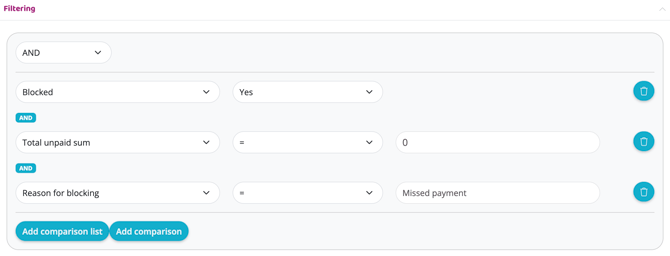
Add action
Add a first action via the plus sign.
Select "Unblock User".
Then set "Repeats".
Number of days until this rule can run again: 1
Subject
User
Press "Create".
IMPORTANT!
If you have chosen to check the box "Enabled", the rule is now live. Keep in mind that it may be a good idea to notify your customers before such a rule is put into use. If you have any questions, contact our support.
Last edited: 8/9-2025