
Table of contents:
- Sending SMS to users through Reports
- Mailing
- Directly to User through user profile with Wei
Before you start
Make sure that the SMS function is enabled in your Wondr, this can be enabled by going to Settings > SMS.
Good to know
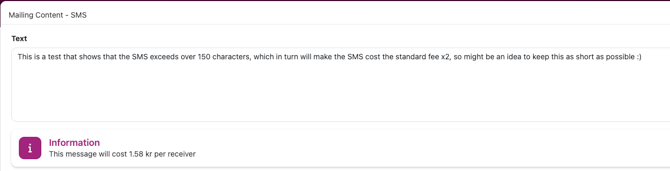
If the contents of the SMS exceeds 150 characters (includes spaces), the cost will increase by 0,79kr each time that limit is exceeded. Added emojis cuts the character limit in half.
Sending SMS to users through Reports
You can send SMS to many users at once by going to a report, in this use case we will use the All Users report under Users.
To begin, go to Reports > Users > All Users
You can adjust the filters to better fit who will receive the SMS you plan on sending. Once you have adjusted the filters to your liking, hit the "Mail" icon top right.
For this example, the filter Only users with subscription will be used, this means that every user that has a subscription will receive this mailing.

On the next page you can select to either use an existing mailing or create a new one, if you want to make a new mailing, check the next part of this help article: Mailing
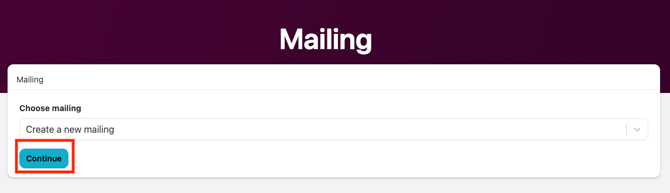
- Choose Mailing
- Click Continue
NOTE! If you choose an existing mailing, the recipients that you added when making that specific mailing will be added to the recipient list. Best practice is to Create a new mailing.
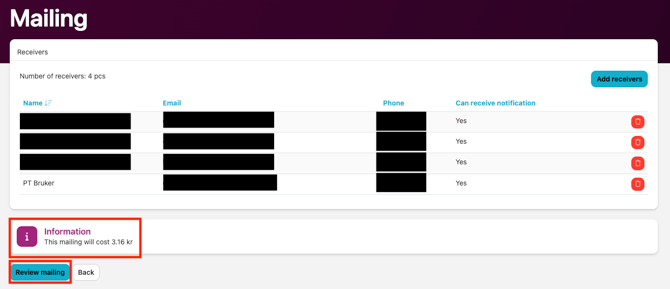
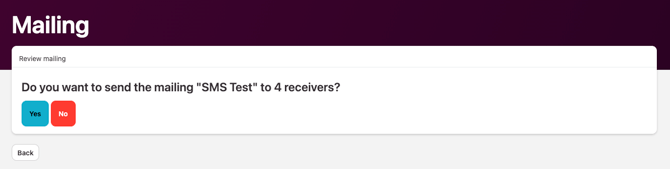
If everything looks right, click Review mailing and Yes
Mailing
Sending from the Mailing tab lets you send to multiple users at once, to get started, go to Mailing and click the "+" icon in the top right corner.
Follow these steps to create an SMS mailing you can use as a copy for future mailings.
- Give the mailing a fitting name, might be a good idea to identify it by adding SMS in the name.
- Tick the "Send SMS" box and
- Once done, click "Save and continue".
On the next page you can type in the contents of the SMS. Once done, click "Save and preview".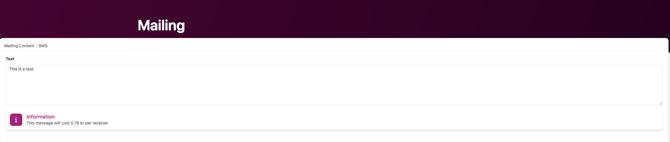
The next page is just a preview, click "Continue and choose receivers".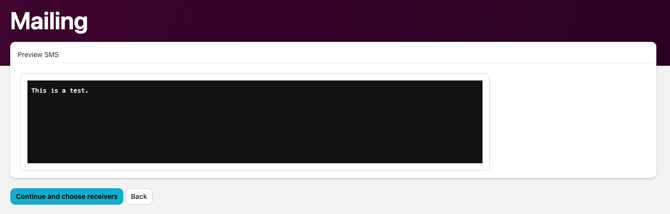
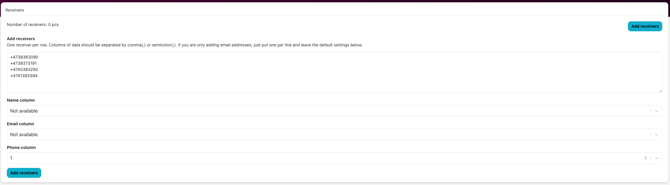
The following page you add the contacts you want to send an SMS to.
In order to get this to function as intended, make sure that the Email & Name columns are set to "Not available", to do this, hit the "x" icon in the very right of each column and set it as shown in the picture below:
-
Type in the phone numbers you want to send the SMS to and separate each number with Enter.
-
After you've added all the relevant phone numbers, click the bottom left button Add receivers.
- Click Review mailing
If you are happy with what you've done so far. Click Yes and all the recipients will receive the SMS.
Directly to User through user profile with Wei
You can go to a users profile and send the user an SMS directly by going to Users > (Profile) and click the Wei icon top right of the users name: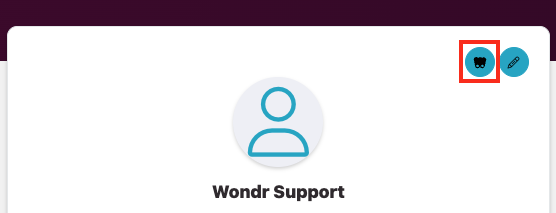
Select the SMS action, this takes you to a text field where you can type what you want to send to the user. When you are done, click Run.
Smart Rule
Setting up this smart rule will make it so a button appears on user profiles when you view them in Users, it functions as a "one click send" with pre set text that you specify in the smart rule.
To set this smart rule up, start by following these steps:
-
Go to Settings > Smart Rules
-
Create a new smart rule by clicking the "+" icon top right.
- Select the User profile shortcut trigger.
NOTE: Newly made smart rules are enabled by default, don't forget to untick the Enabled checkbox if you do not want the smart rule to be enabled after creating it.
- Give the smart rule a name.
- In the text field under Text on the button, give the button proper name regarding what it does, something short.
If the box Enable confirmation popup is not ticked, the moment you click the button it will send an SMS.
-
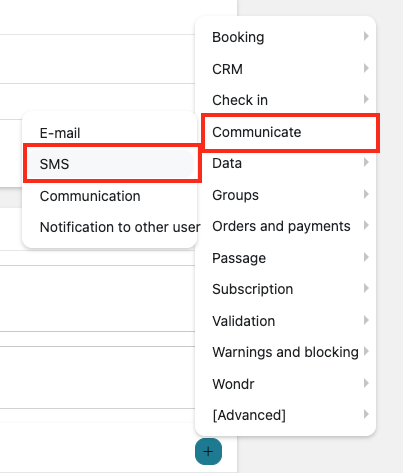
Under Actions, add a new Action (the "+" icon)
Select Communicate > SMS
-
Fill in the contents of the SMS in the text field that popped up.
-
Tick the box next to Cancel the rest of the actions if one fails
- Under Repeats, set Days until this rule can apply to the same model to 0
- Click Create
That is the complete setup, the finished smart rule should look something like this:
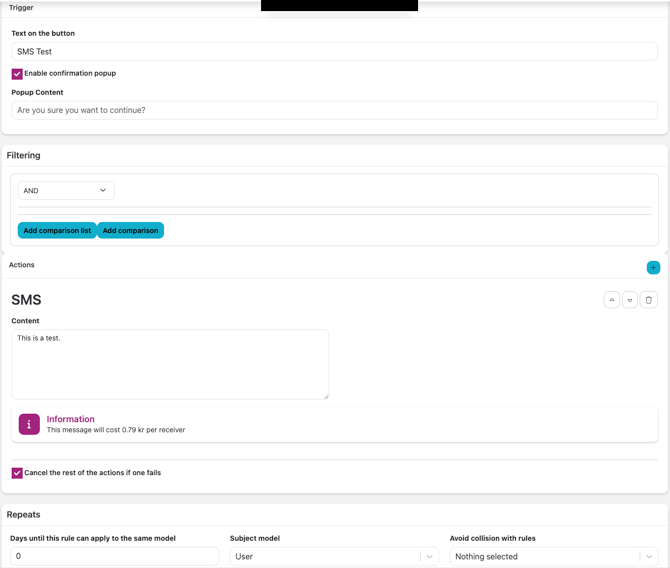
To check if the button was properly setup, go to Users and inspect a user profile, it will show up as shown in the image below:
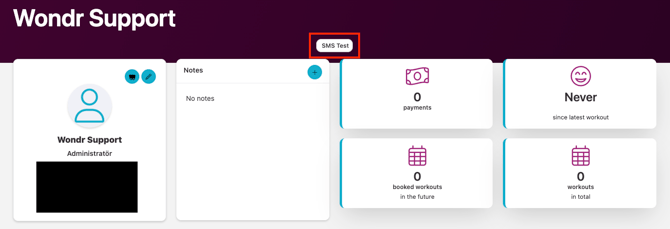
Clicking the button will send an SMS directly to the user you are currently viewing, it does not send to multiple users.
Related articles
Last edited 3/6-2026