
Table of contents:
Basic information
Resources is a feature with two uses.
-
Customers who book a class should also be able to book a specific seat, e.g. Spinning bike no. 3 or yoga mat no. 5.
-
There is a room at your facility, e.g. a treatment room that two massage therapists share. If the room is booked with one therapist, the room should not be double-booked for the same time with the other therapist. This may also apply if there is a PT area that can be divided between booked PT times and at the same time be used for self-training, subject to space availability.
NOTE: Resources are only used for space/equipment and have nothing to do with staff or instructors. They are added via their profile and then assigned via the schedule or booking type if you are using booking flows. However, you never need to add staff as a resource.
Resources
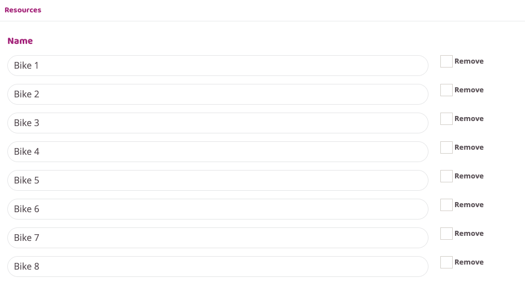
Enter the name and number of resources that should be available for booking. Are there 10 spinning bikes that should be bookable? Then enter Bike 1-10 (one on each line).
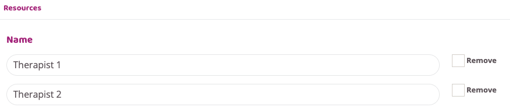
If it is a room that is to be shared between, for example, two masseurs, then fill in two rows, for example, Masseur 1 and Masseur 2.
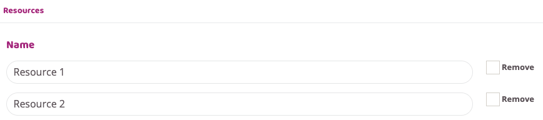
If it is a PT space, it can work in different ways. The space may be shared by three people who have booked personal training, but if someone has booked an individual PT hour, no one else should be able to stay there for personal training. Then the space should be fully booked. Then create three resources by naming three of the rows.
You will later be able to set that a PT hour takes all three resources, which means that it will be full immediately, while a personal training session only takes one resource so that two more can book personal training.
Resource type
Name
Enter the name of the resource type, e.g. Spinning, Massage or PT.
Auto assign
Check this box if the resources should be assigned automatically (recommended if part of the room is to be booked, not recommended if a spinning bike is to be selected).
Activity types
Add types
Click on which booking types will take a resource. In the spinning example, you select all spinning sessions, if it is PT then select e.g. PT 60 min and Self-training as the area should be usable by both. If the resource is massage, select all the different treatments that can be booked/performed in the room.
NOTE: The following three settings only appear after the resource has been created. So select the types above and then create the resource. Edit the resource again and now the choices will be available for each booking type that will be included in the resource.
Type
The name of the booking type (no selections can be made here).
Per booking
This setting is entirely dependent on how many resources you have. If you use resources for, for example, PT, you need to add two resources if you offer PT duo. Then you add that regular PT takes 2 resources/booking while PT duo (which is to be booked by two people) takes 1 resource/booking.
Only
If a booking type that will pick specific resources, you set which one here. If it doesn't matter, click on all resources (NB they must be clicked on, you can't leave it at "All", we're working on fixing that).
Remove
Check the box and update the resource if the type should be removed and no longer counted in the resource type.
Locations
Should the resource only apply when a booking type is posted at a specific location? Then select that location here. This is usually not needed unless the same booking type is posted at different locations but the resource should only apply when posted at a specific location.
If the affected booking types are only posted at a specific location, you do not need to set anything here.
Check if the resource should be visible to the customer, e.g. if they have booked a specific bike.
Show resource in booking confirmation
Check whether the booking confirmation should indicate which resource has been booked.
Last updated: 9/7-2025