Ievads (Intro)
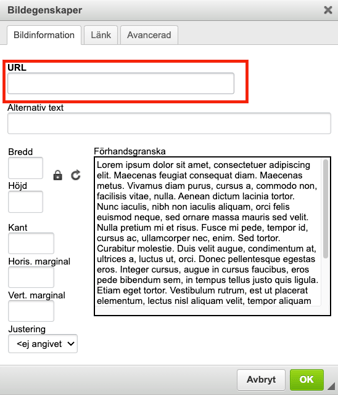
Attēlu nevar vienkārši ievietot e-pastā, tam ir jābūt piesaistītam, izmantojot URL adresi.
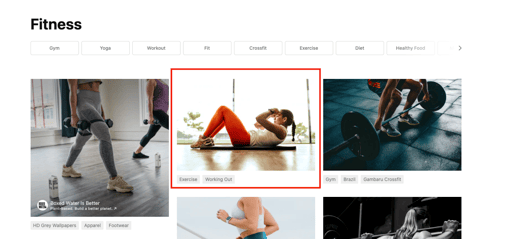
PIEZĪME! Attēlam jābūt augšupielādētam tiešsaistē vietā, no kuras to var lejupielādēt. Ieteicams izmantot attēlu no jūsu tīmekļa vietnes bibliotēkas vai sociālajiem tīkliem, taču ir iespējams lejupielādēt attēlus arī no citām vietām, piemēram, Unsplash vai Shutterstock.
Izpildiet tālāk sniegto pamācību, lai piesaistītu attēlu sūtījumam.
Ievietot attēlu (Insert image)
1. E-pasta satura lodziņā noklikšķiniet uz ikonas, kas izskatās pēc maza attēla.
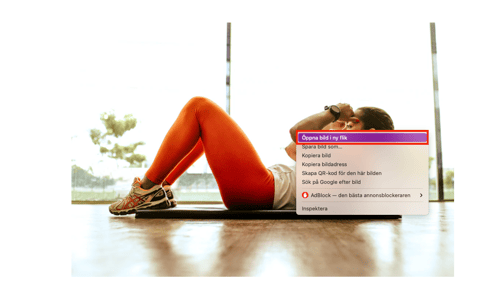
2. elīmējiet attēla saiti lodziņā URL. Lai iegūtu papildinformāciju par to, kā iegūt attēla saiti, skatiet nākamo nodaļu.
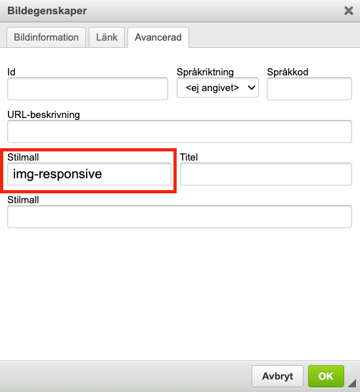
3. Pēc tam dodieties uz cilni Advanced (Papildatvieglojumi) un stila lapas lodziņā ierakstiet "img-responsive". Tas ir nepieciešams, lai attēls būtu adaptīvs un to varētu pielāgot visiem dažādajiem ekrāna izmēriem.
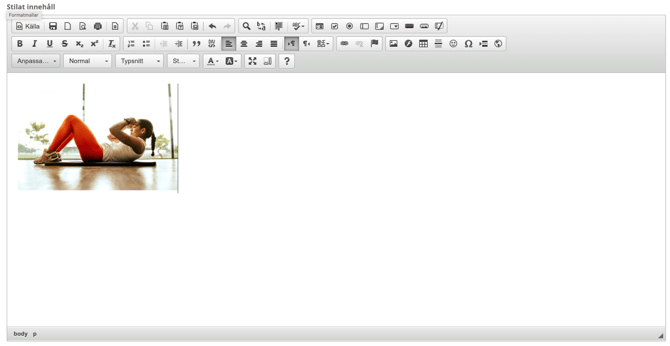
4. Pēc tam noklikšķiniet uz OK, un attēls tiks ievietots e-pastā.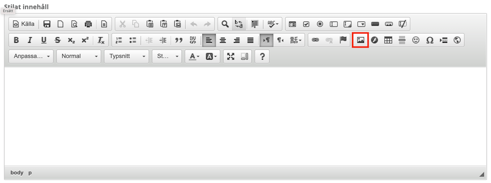
Iegūt saiti uz attēlu (Get link to image)
Ja attēls ir pārāk liels un tas ir jāpielāgo, rīkojieties šādi:
-
Vispirms noklikšķiniet un atlasiet attēlu, un pēc tam vēlreiz noklikšķiniet uz ikonas ar attēlu.
-
Dodieties uz cilni "Advanced" (Papildatvieglojumi).
-
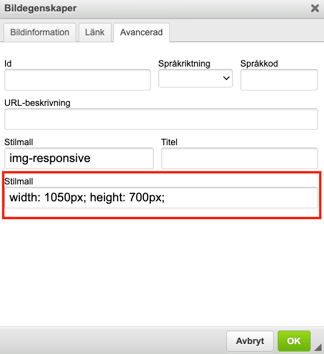
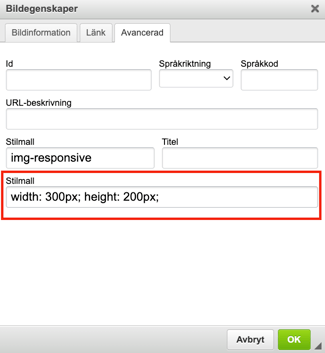
Apakšējā lodziņā ar nosaukumu Style Template (Stila veidne) ir norādīti attēla izmēri. Tos var mainīt manuāli.
-
Mainiet platuma (width) un augstuma (height) skaitļus.
-
Noklikšķiniet uz "OK", un attēla izmēri mainīsies.
Mainīt attēla izmēru (Change the image size)
-
Vispirms noklikšķiniet un atlasiet attēlu, un pēc tam vēlreiz noklikšķiniet uz ikonas ar attēlu.
-
Dodieties uz cilni "Advanced" (Papildatvieglojumi).
-
Apakšējā lodziņā ar nosaukumu Style Template (Stila veidne) ir norādīti attēla izmēri. Tos var mainīt manuāli.
-
Mainiet platuma (width) un augstuma (height) skaitļus.
-
Noklikšķiniet uz "OK", un attēla izmēri mainīsies.