
Intro
An image cannot simply be inserted into a mail but must be linked via a URL.
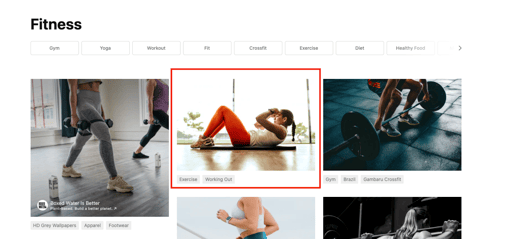
NOTE! The image must be uploaded online somewhere where you can download it. It is recommended that you take an image from your own website library or social media, but it is also possible to download images from other places such as Unsplash or Shutterstock.
Follow the guide below to link an image in a mailing.
Insert image
-
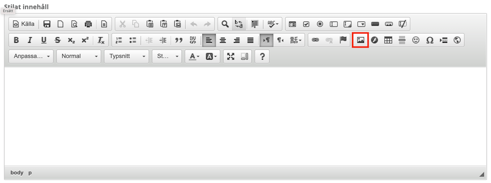
In the email content box, click the icon that looks like a small picture.
-
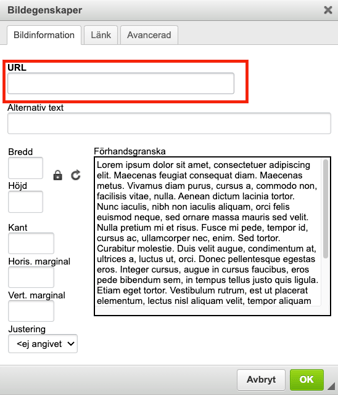
Paste the image link into the URL box. For more information on how to retrieve an image link, see next chapter.
-
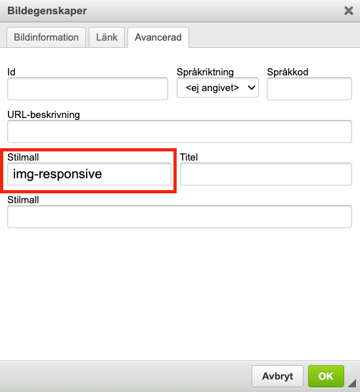
Then go to the Advanced tab and type "img-responsive" in the stylesheet box. This is so that the image will be responsive and can be adjusted to all different screen sizes.
-
Then click OK and the image will be inserted into the email.
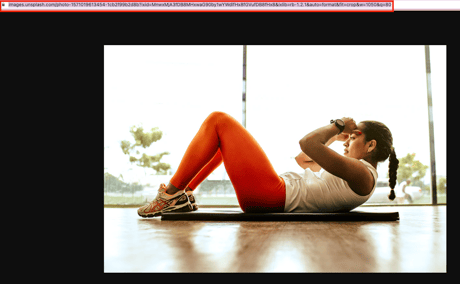
Get link to image
If the image is too large and needs to be adjusted, do this:
-
First click and select the image and then click again on the icon with an image.
-
Go to the "Advanced" tab.
-
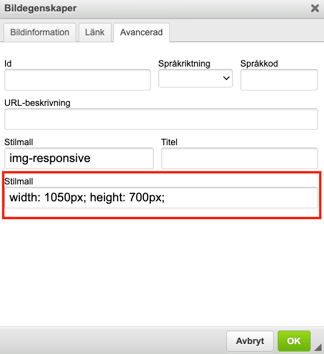
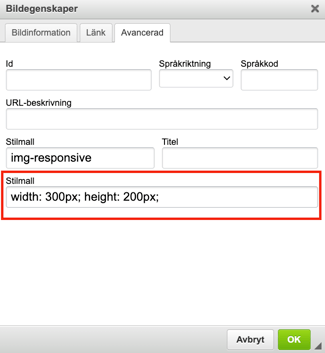
The bottom box, labeled Style Template, contains the image's dimensions. These can be changed manually.
-
Change the numbers for width and height.
-
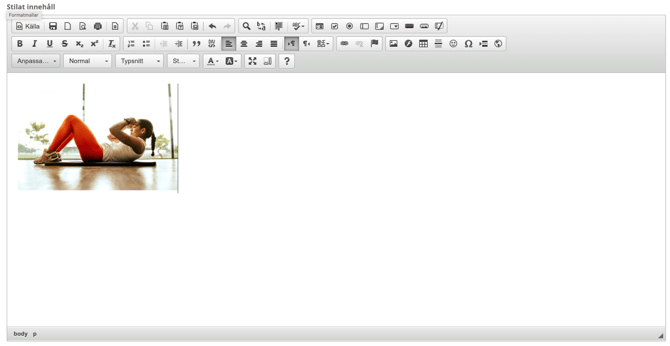
Click "OK" and the image dimensions will change.

Change the image size
If the image is too large and needs to be adjusted, do this:
-
First click and select the image and then click again on the icon with an image.
-
Go to the "Advanced" tab.
-
The bottom box, labeled Style Template, contains the image's dimensions. These can be changed manually.
-
Change the numbers for width and height.
-
Click "OK" and the image dimensions will change.
Last updated: 9/7-2025