
Intro
This article describes how to publish Wondr on a website that is not built using WordPress or through the Marketinghub. Is your website built using WordPress? Then read the article WordPress.
In order to integrate Wondr into your website, the HTML code below needs to be pasted into an iFrame. Below is a description of how to do this.
Tip! In Wondr, you can go to Settings - Website - Embedding. Read more about this convenient tool in the chapter "Embedding Function." If you want the codes directly from this article, continue to the chapter "Code."
For Wordpress, you can use our Wordpress-plugin, which you can read more about here.
Embedding function
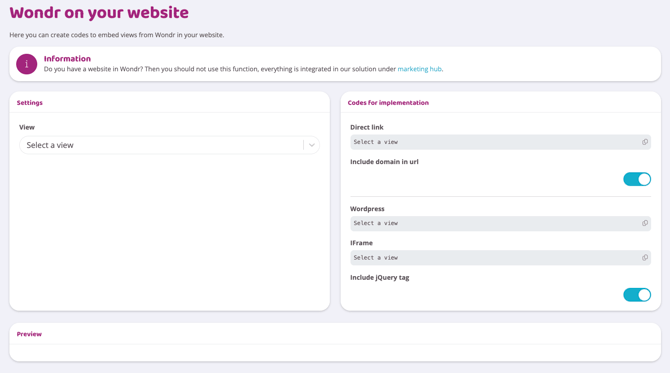
In Wondr, you can go to Settings - Website - Embedding. Here you can retrieve codes for all embedding on external websites and preview how it will look once you have published the content on your website.
You choose the type of content you want to embed in the "View" field.
-
Registration - Memberships
-
Schedule - Activity Booking
-
Schedule Today - Today's Activities Only
-
Booking Flow - Specific flows for e.g. PT and massage
-
Register - My Memberships - Only for existing members, link to login and they will go to their page
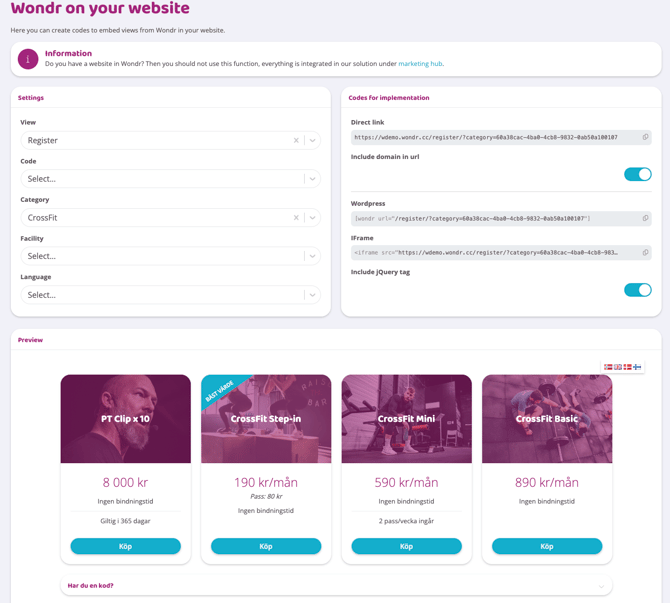
For each selection of "View," you get different additional options. You use these to control how the content will be displayed on your website. For example, if you choose "Registration," you can choose to only show a certain category of memberships or memberships linked to a specific facility.
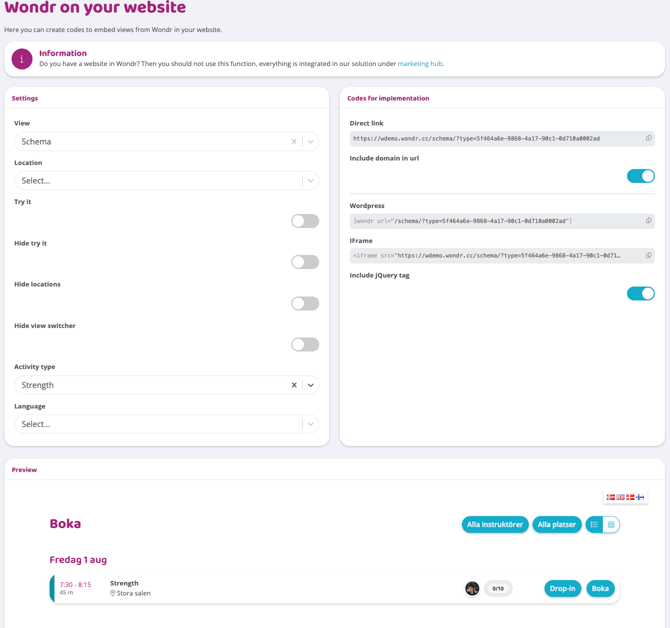
If you choose "Schedule" instead, you can, for example, control which booking type should be displayed, only "Trial," or hide the view switcher.
So, customize the content first; you will always see a preview further down the page that shows how it will look and how your choices affect it.
When you are satisfied with the content, all the codes are on the right side.
Direct Link: This is a complete link, used if you do not want to embed the content on the page but rather link via, for example, a regular button or social media. You just take the link from here and paste it wherever you want.
IFrame: For embedding content on all external websites except those built in WordPress. Copy the link and paste it into a code block on your website. A toggle for jQuery is directly below where you can easily activate and deactivate that function. More information about what jQuery means can be found further down in this article in the "What is jQuery?" chapter.
Code
Copy and paste the code below into an iFrame on your website to make the "Subscription Page" public. Remember to replace "facilitydomain" with your own facility domain on each line.
If the "box" does not adjust its height automatically (usually you get a scroll in the box) then your website/sitebuilder is most likely missing jQuery.
Then replace the code with "If jQuery is missing" and the problem should be fixed.
jQuery is available:
<iframe id="wondr-2" class="wondr-iframe" src="https://facilitydomain.wondr.se/register/" width="100%" height="150" frameborder="0"></iframe>
<script src="https://facilitydomain.wondr.se/js/iframe/ie8.polyfils.min.js" type="text/javascript"></script>
<script src="https://facilitydomain.wondr.se/js/iframe/iframeResizer.min.js" type="text/javascript"></script>
<script src="https://facilitydomain.wondr.se/js/iframe/wondrv3_iframe.js?1" type="text/javascript"></script>
If jQuery is missing:
<iframe id="wondr-2" class="wondr-iframe" src="https://anläggningsdomän.wondr.se/register/" width="100%" height="150" frameborder="0"></iframe>
<script src="https://code.jquery.com/jquery-2.2.4.min.js" integrity="sha256-BbhdlvQf/xTY9gja0Dq3HiwQF8LaCRTXxZKRutelT44=" crossorigin="anonymous"></script>
<script src="https://facilitydomain.wondr.se/js/iframe/ie8.polyfils.min.js" type="text/javascript"></script>
<script src="https://facilitydomain.wondr.se/js/iframe/iframeResizer.min.js" type="text/javascript"></script>
<script src="https://facilitydomain.wondr.se/js/iframe/wondrv3_iframe.js?1" type="text/javascript"></script>
What is jQuery? (unnecessary but fun to know)
jQuery is used on most modern websites and handles everything from on-page searches, graphical interfaces and image changers. There are also a large number of ready-made plugins for jQuery that extend functionality further. Some are advanced and are regularly developed, such as jQuery UI, while others do not change much over time.
Other information
To make the schedule public on the website, replace "register/" in https://facilitydomain.wondr.se/register/ with "schema".
To post a Form , replace "register/" (note that the slash should be removed) and insert the link from the form that you get by reviewing the form (clicking on the eye) in Wondr.
Example: "https://facilitydomain.wondr.se/w_application/applicants/form_view/5f46741c-452c-492f-8751-0e1b0a0002b2"
Last edited: 4/3-2025