
-
Requirements
-
Usage Instructions
-
Where Can Customers Use AvtaleGiro
- How to set up AvtaleGiro for a Customer
- What Happens After a Customer Has Entered into an AvtaleGiro Agreement
- How to Follow Up with Customers Who Have Failed Payments in the Failed Payments Report
- Credit order
- Unmatched transactions
-
Validation / Testing
-
Troubleshooting & Known Issues
Requirements
To be able to use AvtaleGiro, the following must be in place: Click the link here
🛠️ Usage Instructions
Where Can Customers Use AvtaleGiro
Once the AvtaleGiro is correctly set up, you and your customers can use it as a payment method when purchasing memberships, personal training sessions, or other services.
When the customer makes a payment via AvtaleGiro, the money is transferred directly to the bank account held by the facility.
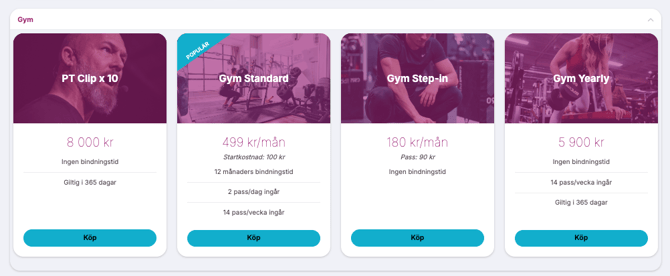
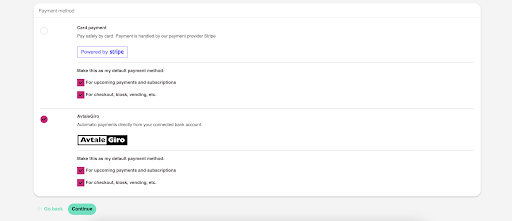
💡 If you want your customers to be able to choose AvtaleGiro as a payment method at checkout, contact Wondr Support to have this activated.
How to set up AvtaleGiro for a Customer
You can also add customers manually when working with AvtaleGiro. For example, if someone comes to the facility and needs help setting up AvtaleGiro, you can do this by following these steps:
Go to users-choose the user you want to help- push the plus icon on the right side.
Here you can choose: Avtalegiro.
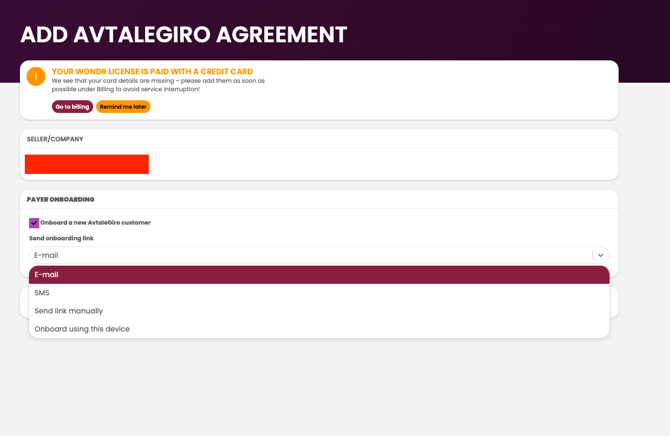
What you can do now is either send the AvtaleGiro registration link via email or SMS or send the link manually, or complete the onboarding using this device. Once the customer has activated it, the payment he or she will be withdrawn from their account.
What Happens After a Customer Has Entered into an AvtaleGiro Agreement
After the customer has signed up for AvtaleGiro, the system automatically starts charging them. If a customer does not have sufficient funds in their account, the system will attempt to charge them up to six times before manual follow-up is required. All customers with failed payments are listed in a separate report called Failed Payments. It is important that someone at the facility regularly monitors this report to ensure that outstanding payments are collected.
Here you can see a member-level overview showing how it looks for an individual member. From this view, you can see upcoming scheduled payments.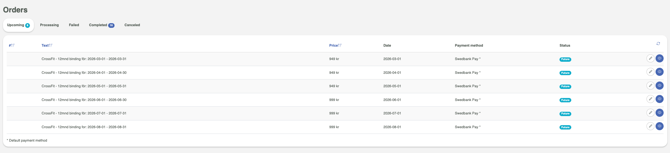
When setting up this service, the facility can choose the billing date. Customers can either be charged on the same date as their enrollment and on the corresponding date each following month, or the facility can choose a fixed billing date for all members. The advantage of using the same billing date as the customer’s enrollment date is improved cash flow for the facility. If you would like to change the billing date, simply contact support.
How to Follow Up with Customers Who Have Failed Payments in the Failed Payments Report
If you go to Reports > Failed orders, you will find a report of the members who have not paid for the services you provide. It is important that someone at the facility monitors this report and ensures that the payments are collected. You have several options for collecting outstanding payments. Here is an overview of what you can do.
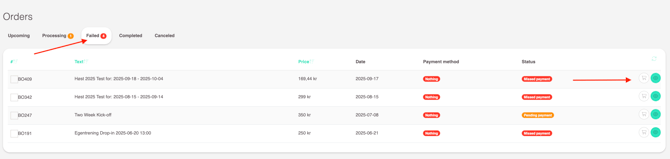
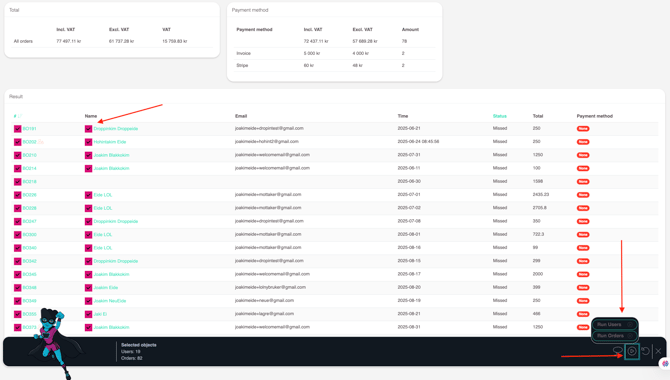
2. Another option is to go to Reports → Failed Orders. Press W to open the WEI help function, click the lasso tool, and select the customers you want to take action on. Then press the play button and choose Users.
Here you have several options, but the most commonly used are:
-
Block users who have not paid their latest invoice
-
Notify customers who have not added a payment method
-
Send an email to customers who are ending their membership
-
Send an email to customers who have not paid
-
Send an invoice to customers with outstanding payments
-
Send an email reminder to customers who have not paid
- Call customers who have not paid
Credit order
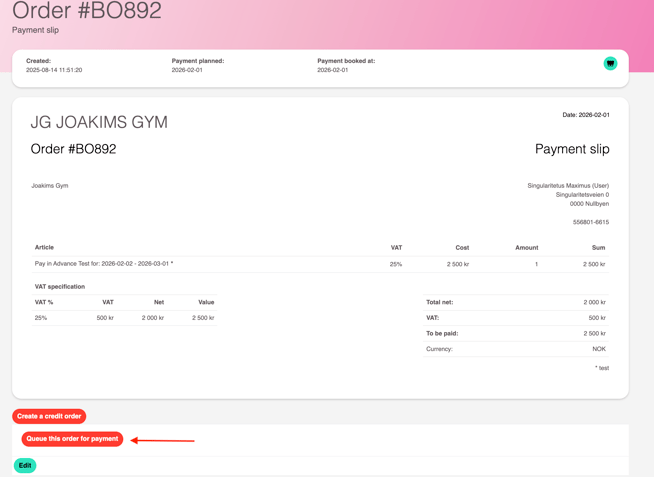
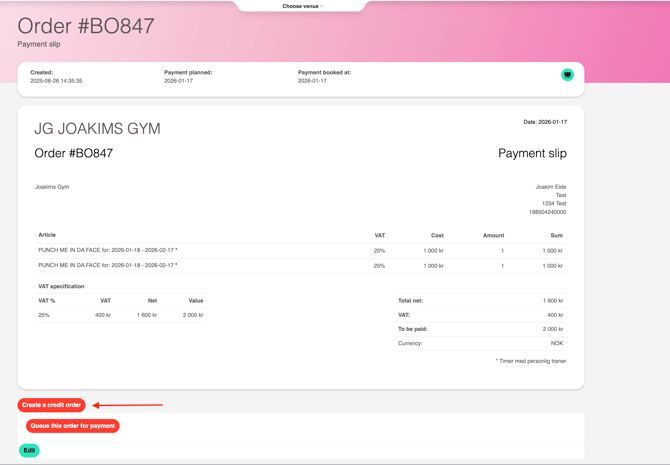
If you want to credit an order, you can go to the different stages (Processing, Failed, or Completed), select the eye icon, and then credit the order.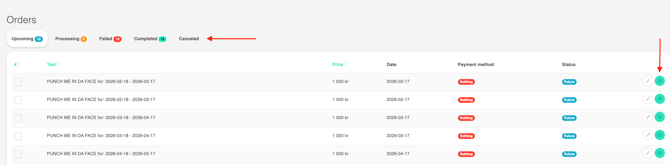
Unmatched transactions
Unmatched Transactions refers to payments or transactions that the system has received but cannot automatically match to a specific customer, invoice, or order.
In the context of AvtaleGiro or payment systems like Wondr, this usually happens when:
-
The customer has paid a late fee in addition to the original AvtaleGiro payment.
-
The customer has manually paid an AvtaleGiro invoice.If this occurs, the transaction type on the bank statement will be recorded as “BTG Payment.”
A BTG Payment (often seen on bank statements as the transaction type) refers to a manual payment made by the customer for an AvtaleGiro invoice. In other words, if a customer chooses to pay their AvtaleGiro bill directly—usually via online banking or another manual method—instead of letting the automatic withdrawal go through, the system records it as a BTG Payment
-
A customer pays multiple times for the same transaction.This is perhaps the most common reason for unmatched transactions.
-
The customer makes a manual payment or has paid their order by card.This often happens when the customer has had one or more failed payments and chooses to pay by card to avoid being blocked from the facility.
-
Amount discrepancies: Paid too little or too much.
These transactions typically require manual review and matching so the payment can be correctly applied to the customer’s account. Go to Finance → AvtaleGiro → Unmatched Transactions. Remember to only use Matched KID 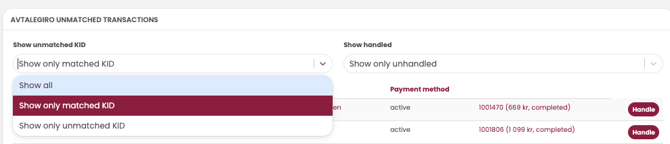
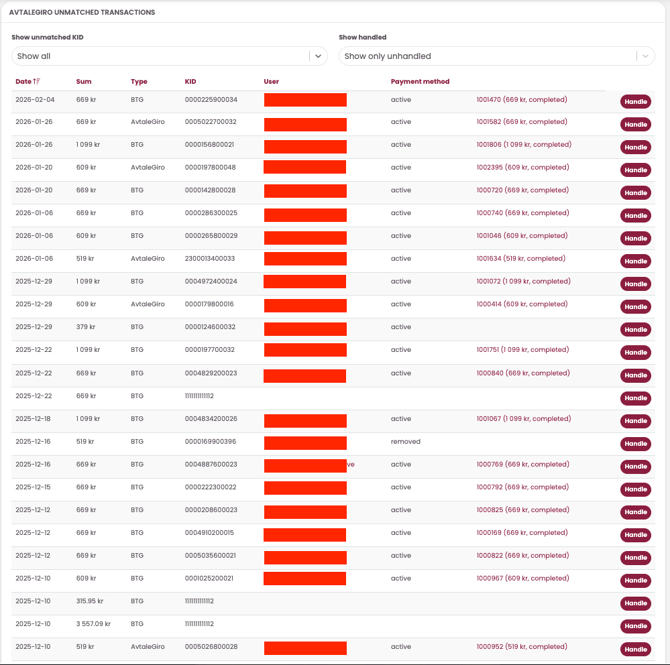
Once the list is displayed, go to Handle. Here you will see three options, and you can choose how the transaction should be handled: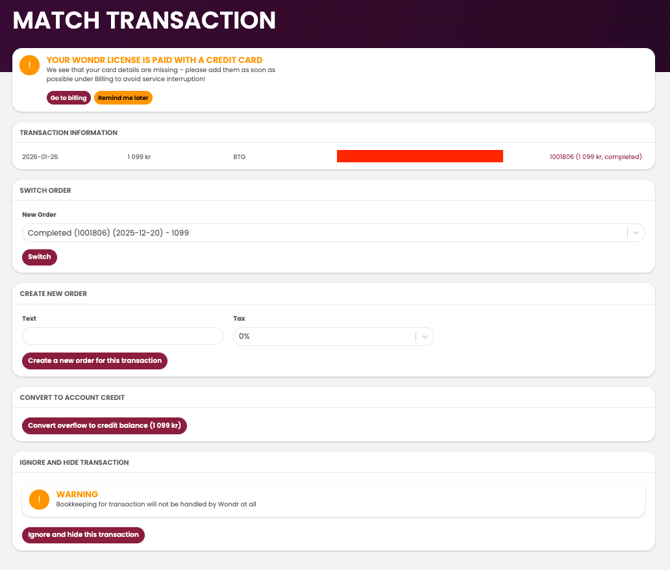
Switch order:
If the order has already been paid, you can move it to a new payment date. The customer will not be charged on that date, since the payment has already been registered.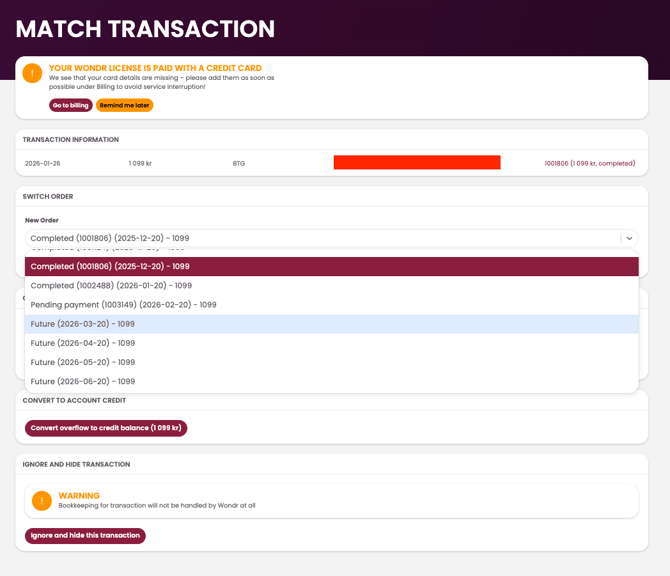
Create new order:
If the customer has no upcoming payments, you can create a new order that records the payment the customer has already made.
It will then appear like this in the customer’s payment history.
🧯 Troubleshooting & Known Issues
Failed Payments
-
Symptom: The customer does not have enough funds in their account, and the payment fails.
-
Solution: The system will automatically attempt to charge up to 6 times. If it still fails, the facility must follow up manually via Reports → Failed Payments.
Unmatched Transactions
-
Symptom: Payments appear in the system but cannot be matched to a customer.
-
Common Causes:
-
The customer has paid manually (BTG Payment)
-
Multiple payments for the same invoice
-
Missing or incorrect KID
-
-
Solution: Go to Finance → AvtaleGiro → Unmatched Transactions and handle the payments using Switch order, Create new order, or Convert to account credit.
AvtaleGiro Not Available Online
-
Symptom: Customers cannot pay with AvtaleGiro on the website.
-
Cause: Electronic Agreement Signing has not been activated with the bank.
-
Solution: Contact the bank to activate the service.
PDF Notifications from the Bank with Errors
-
Symptom: You receive PDFs from the bank with messages such as “FBO does not exist.”
-
Cause: The AvtaleGiro agreement does not exist, has been deleted, or is not activated.
-
Solution: Verify that the agreement is correctly set up with the bank and that the Customer Unit ID is correct.
Amount Discrepancies
-
Symptom: The customer has paid too much or too little.
-
Solution: Adjust the payment using Create new order or Convert to account credit, depending on the situation.
Duplicate Payments / Multiple Payments for the Same Invoice
-
Symptom: The customer has paid the same invoice multiple times.
-
Solution: Handle via Switch order or add the amount as an account credit.