
*This article will only focus on floating booking times, to learn how to create an activity type in its entirety read the article: Create a booking type
To create a pass with floating booking time go to: Settings > Booking > Types > Add/Edit.
Create an activity with all the necessary information such as name, description, default values, rules, etc. Then go to floating booking time on the right side. If the session is to be added to the schedule with floating booking times, the following fields need to be filled in:
Flexible booking times
Select "Yes, this type allows members or non-members to book in at multiple times" in this field
Start times
Specify how often the session should be booked. This can be anything from every minute to every 60 minutes. In this case, we have chosen every 30 minutes.
Lengths in minutes
Specify different length options for the session. If multiple time intervals are specified, this means that the person booking can choose how long they want to book. To specify different time options, write like this: 30,60,90, etc.
Selectable subtypes
All other booking types are found here. Tick the ones that should be available as subtypes when booking the current activity with a floating booking time. This means that there will be a choice when booking which activity to book. An example is if the activity with a floating booking time is massage. Then each selectable subtype can be different types of massage. Then the person can also choose which type of massage they want to book.
NOTE: If you use subtypes, only one time will be selectable by customers per subtype (you make this setting in the subtype itself). If you want customers to be able to book different lengths of the same session, you must create a subtype for each length that should be selectable.
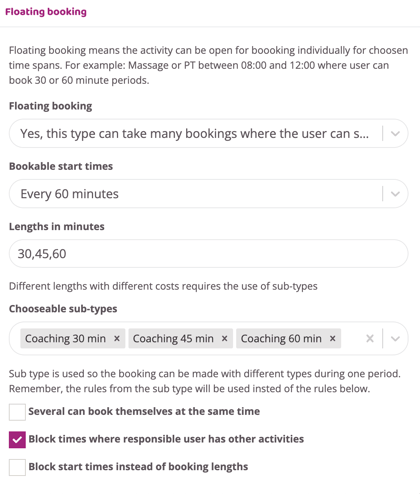
If more than 1 person is to be able to book at the same time, this box needs to be checked. You choose how many people should be able to book the same time as usual under Number of places.
Click the Create button
Go to Schedule > Weekly Schedule to post the session. Double-click on the day the session should be posted.
When the activity is created, the session with floating booking time is selected, in this case Personal Training together with the right instructor and location. Choose between which times the activity should be bookable for customers. In the example above, customers can book between 08.00 - 18.00 every day.
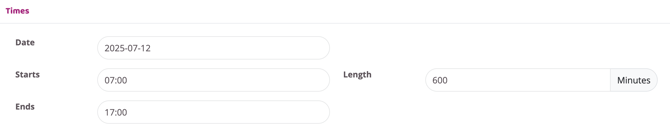
In the schedule, the activity with floating booking time is now bookable from 7:00 AM - 5:00 PM.
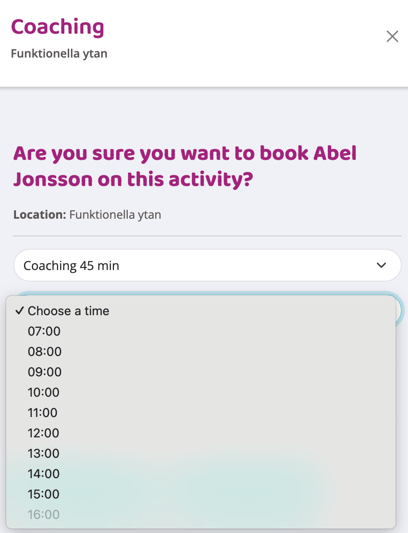
Customers can now book every hour between7:00 AM - 5:00 PM.
Then customers can choose how long they want to book, 30 min, 1 h or 1 h & 30 min.
NOTE: For non-members to be able to book this pass, the "Try it out" box needs to be checked.
Last edited: 8/7-2025