
Table of Contents
Requirements
- You need a special role permission to see and use the Duplicates page. This is on by default for facility admins and admins, and can be enabled per role for other staff if needed.
- Duplicates only suggests pairs based on a shared email, mobile number, or person number. A matching name alone is never enough to suggest a pair.
- Companies and persons are matched separately. A company profile will never be suggested as a duplicate of a person profile.
- Profiles that haven't been activated but do have a status, such as leads or prospects, are included in matching on purpose. Finding duplicates among these is one of the main reasons this feature exists.
- Duplicates does not support merging more than two profiles at once. Merge pairs one at a time.
Usage instructions
Open the Duplicates page
- Go to
Users > Duplicates - The Suggestions tab shows automatically detected pairs. The Ignored tab shows pairs you've previously marked as "Not a duplicate"
Read a match
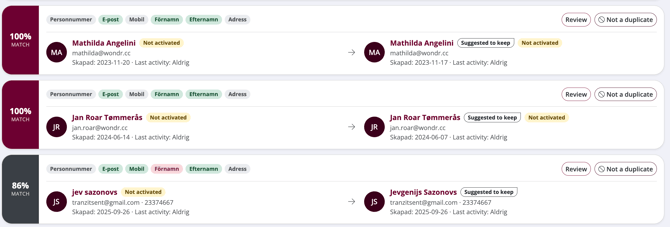
- Each pair shows a match percentage on the left edge of the card, the closer to 100%, the more confident the match
- Field badges above the pair show which fields were compared, color-coded by status:
- 🟢 Matches - both profiles have this field and the values are identical
- 🔴 Differs - both profiles have this field, but the values are different
- ⚪ Missing - the field is empty on one or both profiles, so it couldn't be compared
- A "Suggested to keep" badge marks the profile Wondr recommends keeping. It picks the activated profile, then the one with the most recent activity, then the most complete profile, in that order
- A "Not activated" badge appears if a profile has never logged in
TIP! Use the search box above the list to find a specific pair by name, email, mobile, person number, or member number.
How the match percentage is calculated
The score is the matched weight divided by the weight of the fields both profiles actually have, so only fields present on both profiles count toward the score. Each field carries a relative weight displayed in the table below:
| Field | Weight |
|---|---|
| Person number (real, unique) | 30 |
| 25 | |
| Mobile | 25 |
| First name / Last name | 10 + 10 |
| Address (street + zip + city, as one signal) | 10 |
| Birth date | 10 |
NOTE: Because only comparable fields count, a matching name + mobile + e-mail (with nothing else filled in) can already score 100%. Two profiles that share an e-mail but have different person numbers or birth dates will score lower. A strong signal it may not be the same person after all.
Merge a match
- Click Review on the pair to open the merge sheet
- At the top, the two profiles are shown side by side: the left profile is marked Removed after merge, the right one is marked Kept. Click Swap direction above the arrow if you want to flip which profile ends up removed and which is kept
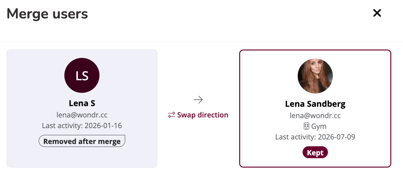
- Fields that are identical on both profiles are collapsed under a heading like "10 identical fields". Expand it if you want to double-check the values before merging. Fields that aren't filled in show as Empty
- Any field where the two profiles differ is listed under Profile fields, with a radio button for each side. Pick which value should carry over to the kept profile
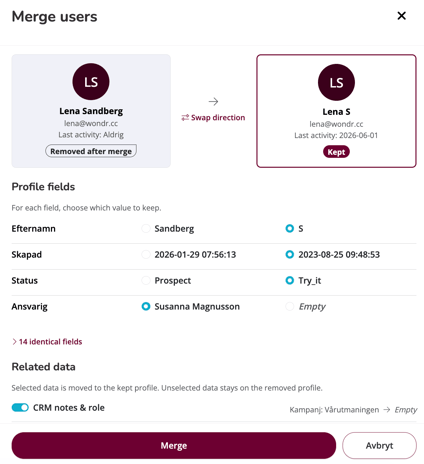
- Under Related data, toggle which related data categories (for example Bokningar/bookings) should move from the removed profile to the kept one. The count next to each toggle shows how many records exist on each profile. Removed profile first, kept profile second (for example "2 st → 31 st" means 2 on the removed profile and 31 already on the kept profile). Toggles are on by default whenever the removed profile has data in that category, selected data moves to the kept profile, unselected data stays behind on the removed profile
- Click Merge to confirm, or Cancel to back out. The confirmation box spells out exactly what will happen, for example: "Jessica Andersson" will be merged into "Jessica Andersson". 1 related data categories are moved. The profile "Jessica Andersson" is then removed. This cannot be undone.
NOTE: This action cannot be undone once confirmed. Review the identical fields, differing fields, and related data toggles carefully before clicking Merge.
NOTE: The profile that wasn't kept is moved to Removed, not deleted outright. You can still view it there for a while, but it will be permanently deleted after 30 days in line with GDPR requirements.
Mark a pair as "Not a duplicate"
- If a pair is clearly two different people, dismiss it from the Suggestions tab
- It moves to the Ignored tab and can be restored from there at any time
Manually merge two specific profiles
Use this if you want to merge two profiles that Duplicates hasn't suggested as a match.
- Click the round button in the top-right corner of the page, next to the search bar
- This opens the full profile list. Search for and select the two profiles you want to merge, regardless of whether they were suggested
- The same guided review sheet opens. Follow the steps above to complete the merge
Validation / testing
- After confirming a merge, the success message links straight to the kept profile. Open it and check that the fields, orders, and bookings you expected to move are there
- Roles and groups should show as a single, deduplicated set on the kept profile. Never doubled up
Troubleshooting & known issues
- A pair you're confident is a duplicate doesn't show up in Suggestions. This usually means the match score fell below the 40% threshold, or the two profiles don't share a normalized email, mobile, or person number. Use the manual merge button instead.
- You need to merge three or more profiles that belong to the same person. Merge them two at a time. Merging more than two profiles in one go isn't supported yet.
NOTE: A person-number match only counts when the facility uses real person numbers. Numbers ending in -0000 are treated as foreign birth dates entered in Swedish format and won't seed a match on their own.
Related articles:
Last updated: 23/07-2026