
- Book a member via the schedule
- "The user would get this error"
- The activity costs
- Book through user profile
- Book a non-member
Book a member via the schedule
Booking a member on an activity as a staff member is a breeze. It can either be done via the schedule or via the person's user profile. Below we will show both how to book in via the schedule and via the user profile.
To book a member via the schedule, go to Schedule in the main menu. Select either list or weekly schedule.
List schedule and weekly schedule
-
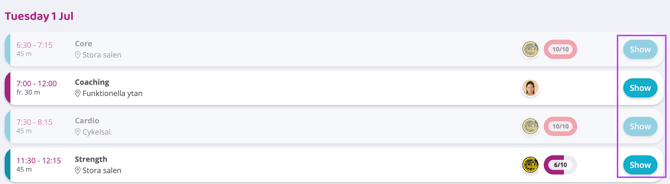
In the list schedule: Click "Show" on the activity you want to book.
-
In the weekly schedule: Click directly on the activity.
-
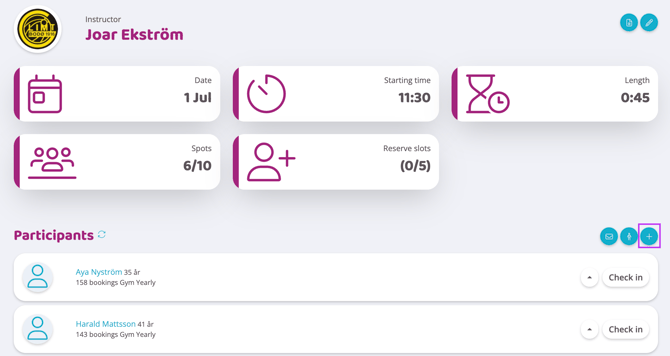
Click the plus sign next to the participant list to add a participant.
-
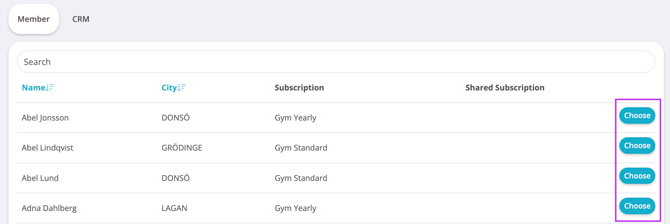
Search for the person and then click "Select" on the person's row.
-
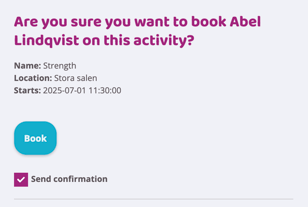
Confirm the booking by clicking "Book" in the box that appears. Leave the "Send confirmation notification" checkbox checked if you want to send a booking confirmation, uncheck it if you don't want it to be sent.
The participant is now booked!
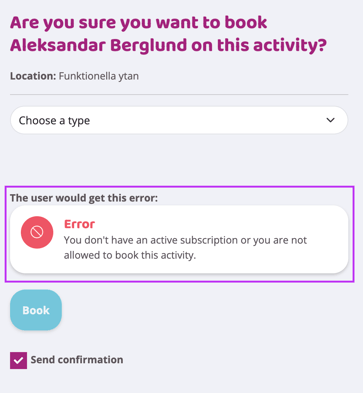
"The user would get this error"
This error message appears in the "Confirm booking" box if the person being booked does not have the rights to book the activity.
Perhaps they do not have an active subscription, time restrictions, have reached the maximum number of bookings allowed, or a subscription that does not have booking rights. If this message appears, you as a staff member can still book the person for the activity, but they would not have been able to do so on their own.
NOTE: If a person is booked in even though they do not have rights, the activity will not count as a punch or count towards any limits that person's membership has.
The activity costs
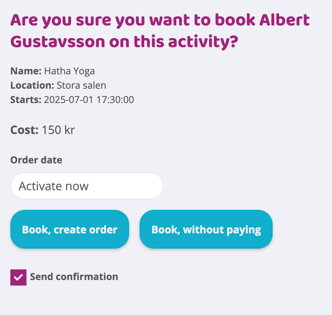
If there is a cost associated with the activity, the options will look like the image below. If the customer books themselves, they will always have to pay for the activity, but as a staff member, you can book in at no cost by selecting "Book, without paying".
If the customer should pay, click on "Book, create order" and an order will be created on the selected date on the customer's profile and will be deducted from the default payment method.
Book through user profile
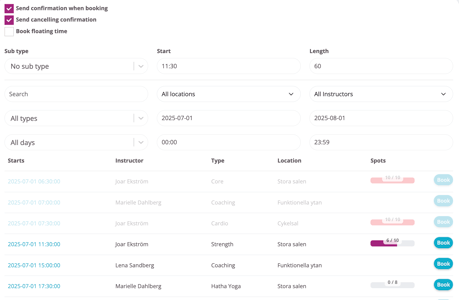
Booking directly via the user profile is convenient if a member, for example, needs to be booked for a series of activities. Here you can easily search for exact activities between two dates.
Note! You can also book a member directly in the schedule
- Go to the profile via "Users" in the main menu.
- Once in the profile, scroll down to "Bookings".
- Click on the plus sign on the right.
- In the search field you can search for an activity, room, time, date, instructor, etc.
- To book the member, click "Book" on the far right of the activity row.
Send confirmation notification upon booking
Leave the box checked if a booking confirmation should be sent to the customer (we recommend that you uncheck this box if you are booking in series, otherwise they will receive a lot of emails).
Send confirmation notification upon cancellation
Leave the box checked if a cancellation confirmation should be sent to the customer (we recommend that you uncheck this box if you are canceling a series of reservations, otherwise they will receive a lot of emails).
Book floating time
Check this box to bring up all your floating booking times to easily book into subtypes.
NOTE: Confirming a booking works the same way here as in the schedule, so for more info about that read the previous chapter in this article.
Book a non-member
To book a non-member, go to Schedule in the main menu. Select either list or weekly schedule.
List schedule and weekly schedule
-
In the list schedule: Click "Show" on the activity you want to book.
-
In the weekly schedule: Click directly on the activity.
-
Click the person icon next to the participant list to add a non-member.
-
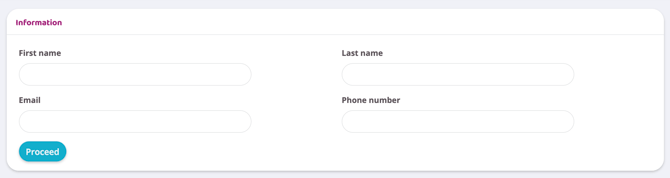
Fill in your name, surname, email and phone number. (The information will be saved in the "Try-it" report for follow-up).
-
Confirm the booking by clicking "Book" in the box that appears. Leave the "Send confirmation notification" checkbox checked if you want to send a booking confirmation, uncheck it if you don't want it to be sent.
The non-member is now booked in!
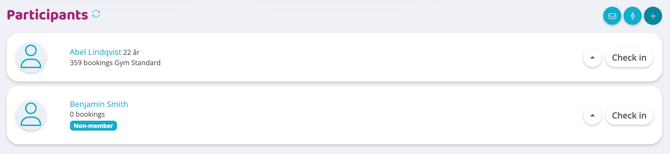
In the participant list, non-members are given a clear tag that distinguishes them from members. By clicking on the name in the list, you will be taken to a prepared profile that can be easily activated if the person wants to become a member after the session.
Last updated: 1/7-2025